

This extended integration requires a paid Zencoder account.
Overview
The PostgreSQL integration enables Zenflow agents to query, inspect, and update PostgreSQL databases. Build reports, debug database issues, manage migrations, and synchronize data from within your workflows.Connecting PostgreSQL
1
Open Settings & Integrations
Navigate to Settings → Integrations in the Zenflow sidebar.
2
Search for PostgreSQL
Locate PostgreSQL in the Integrations Catalog and click the Connect or [+] button.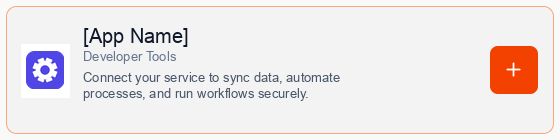
3
Consent to Connection
A secure popup window will open asking for permission to connect your account. Click Continue to proceed.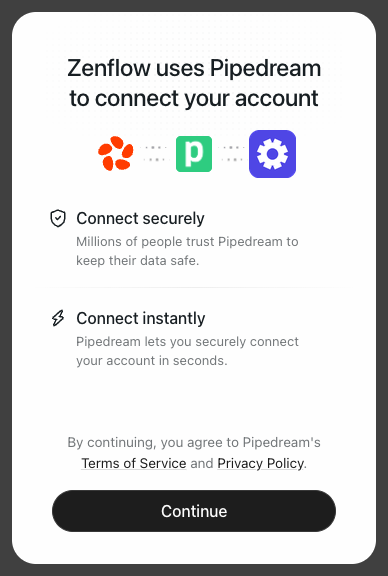
4
Authorize Connection
Provide your database connection string or connection parameters (Host, Port, DB Name, User, Password) in the connection popup.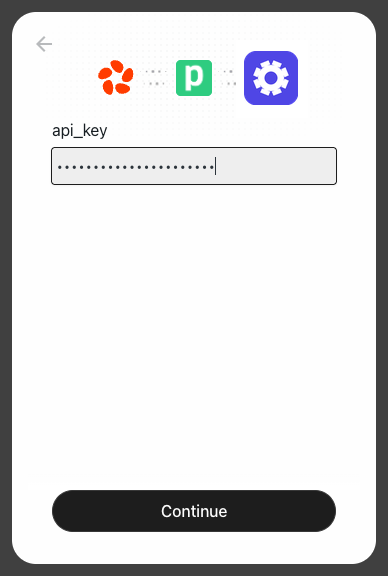
5
Complete Setup
A progress window will briefly indicate that the account connection is in progress, followed by a confirmation.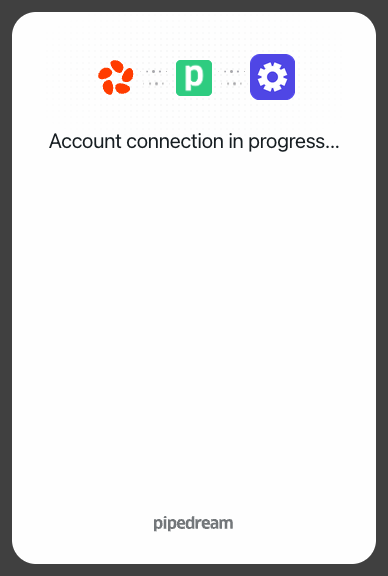
6
Verify Firewall Settings
Ensure that Zenflow’s IP addresses are whitelisted in your database’s security group.
What the Agent Can Do
- Query Database — Run SQL SELECT, INSERT, UPDATE, and DELETE statements
- Inspect Schema — List tables, columns, constraints, and indexes
- Optimize Queries — Analyze query plans (EXPLAIN) and index usage
- Data Export — Export query results in JSON or CSV format
Example Use Cases
- Inspect and repair corrupted data during debugging sessions
- Generate daily operational metrics directly from production tables
- Mirror table schemas and setup test databases automatically
- Fetch user records to answer specific support inquiries