

This native integration requires a Zencoder account.
Overview
The Amplitude integration gives the AI agent access to your product analytics. Query usage data, track user behavior, analyze funnels, and surface insights — all from within a Zenflow task.Amplitude integration is based on Amplitude MCP
Connecting Amplitude
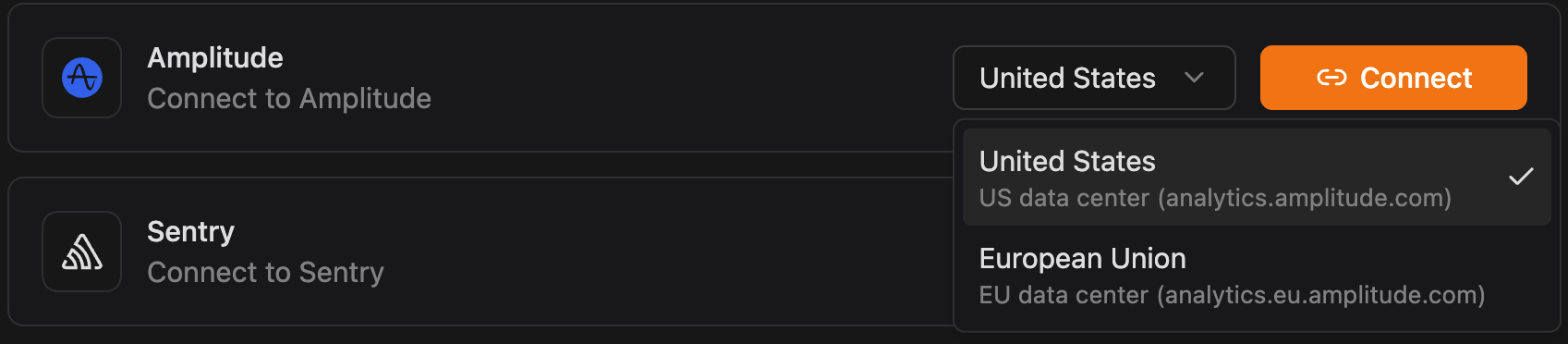
Authorize Connection
Authenticate and authorize Zenflow to access your Amplitude workspace via the secure OAuth popup window:
Click Authorize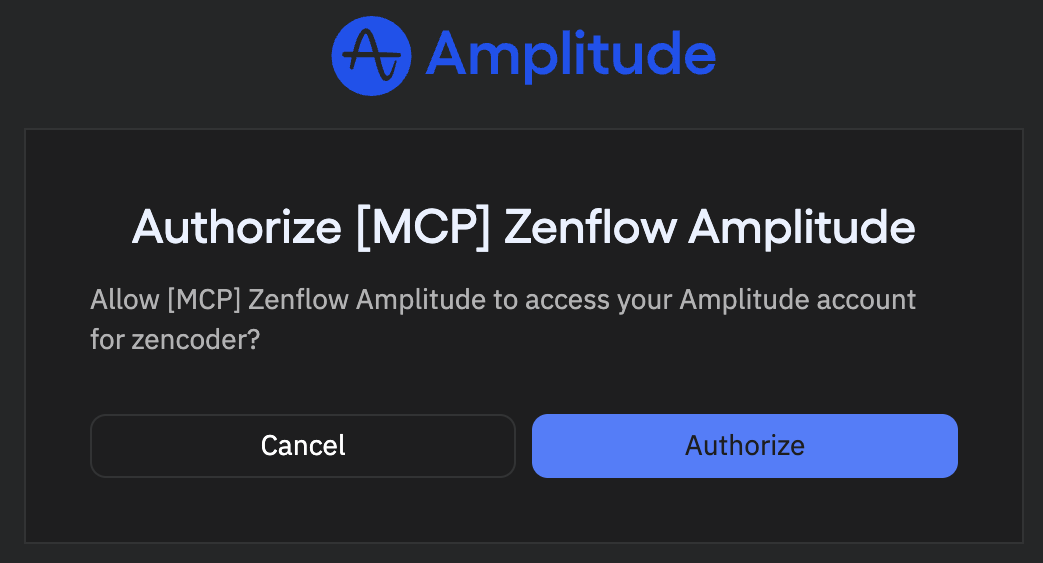
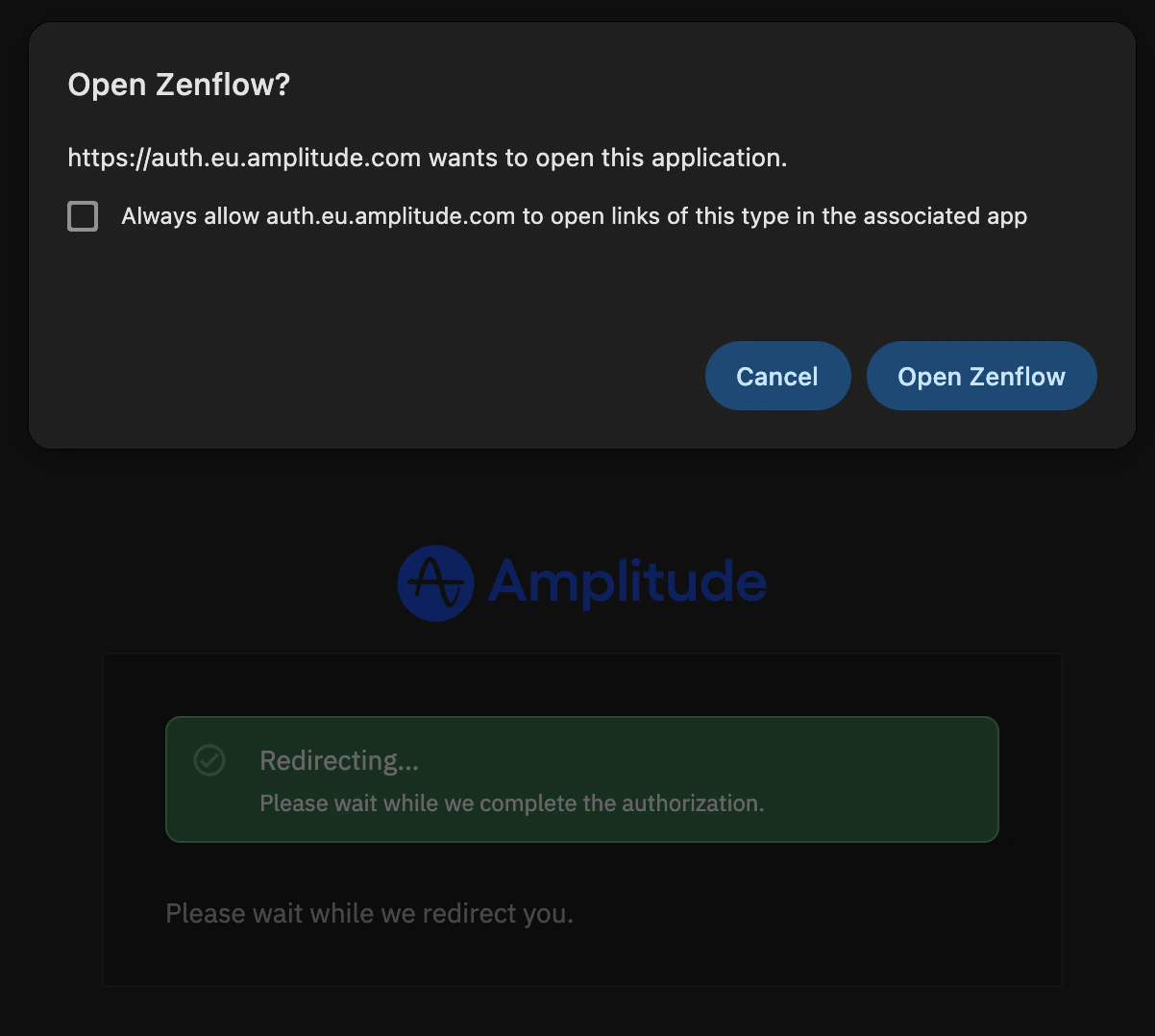

What the Agent Can Do
- Query analytics — Pull usage metrics, DAU/MAU, retention, and engagement data
- Analyze funnels — Review conversion funnels and identify drop-off points
- Track user behavior — Access event data and user journey insights
- Surface trends — Identify usage patterns and feature adoption rates
Example Use Cases
- Generate weekly product usage reports for stakeholders
- Identify features with declining engagement for prioritization
- Pull retention data for QBR prep documents
- Monitor adoption metrics after a new feature launch