

Overview
The Google suite integrations let the AI agent interact with your:- email directly. Search threads, read messages, draft replies, and send emails — all from within a Zenflow task.
- calendar. It can check schedules, find availability, create events, and set reminders — enabling automated meeting prep, scheduling workflows, and time-based task triggers.
- files and documents. Search across Drive, read and create Google Docs, Sheets, and Slides, organize folders, and generate reports, proposals, and summaries.
Permissions
Gmail supports two permission levels:
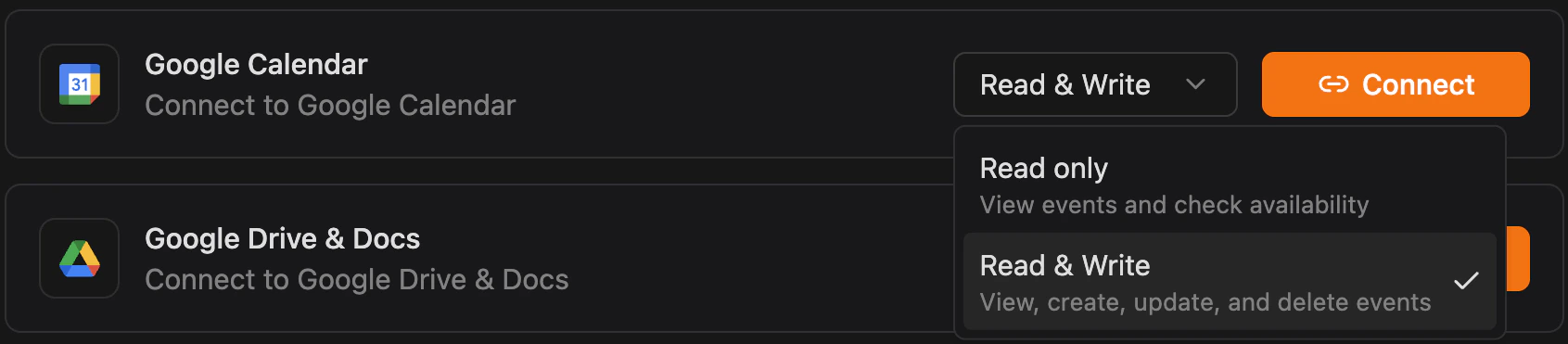
Google Calendar supports two permission levels:
Google Drive currently supports Read & Write only.
Connecting to Google Workspace
Step 1: Set Up Google Cloud OAuth (once for all integrations)
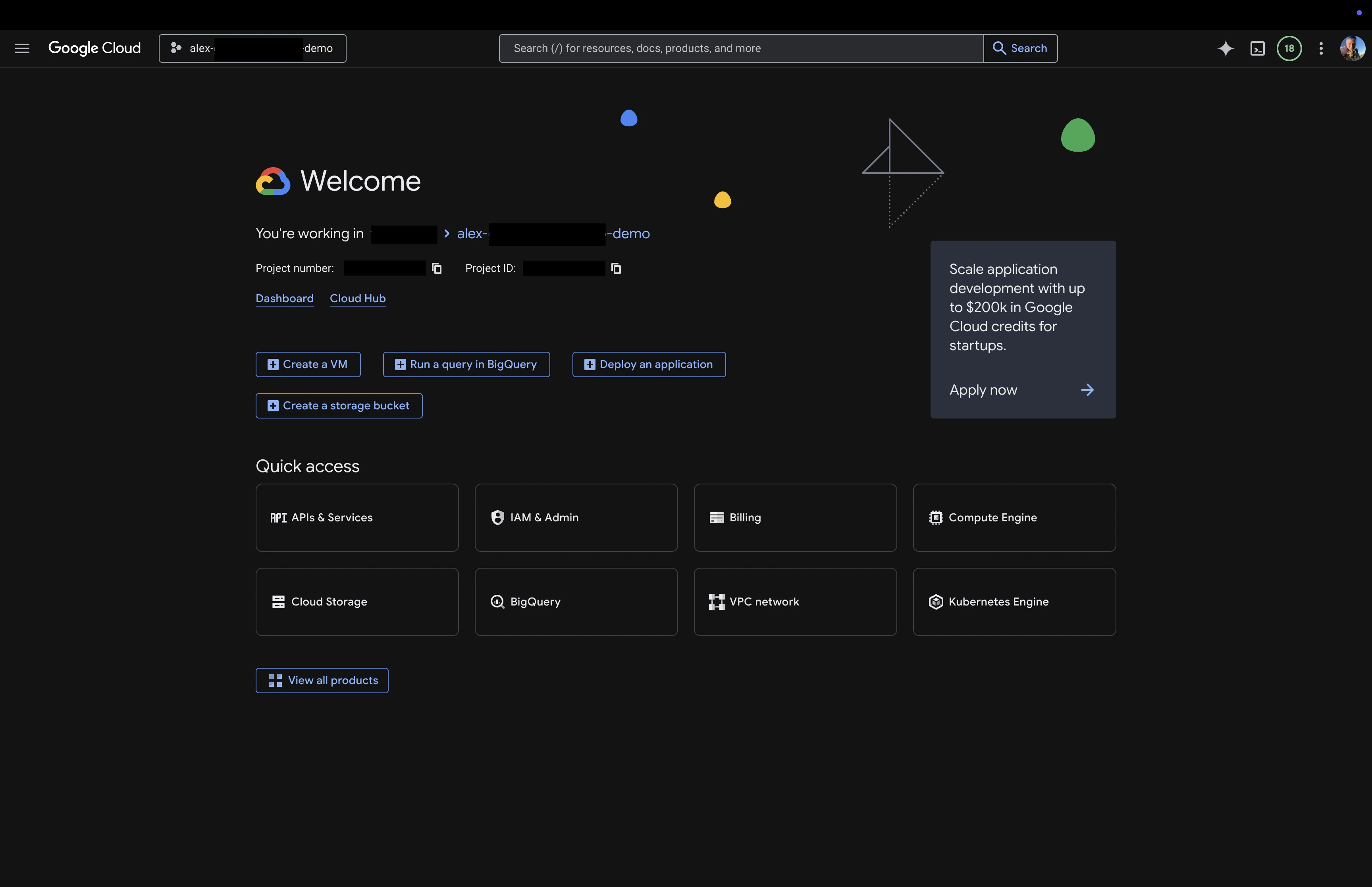
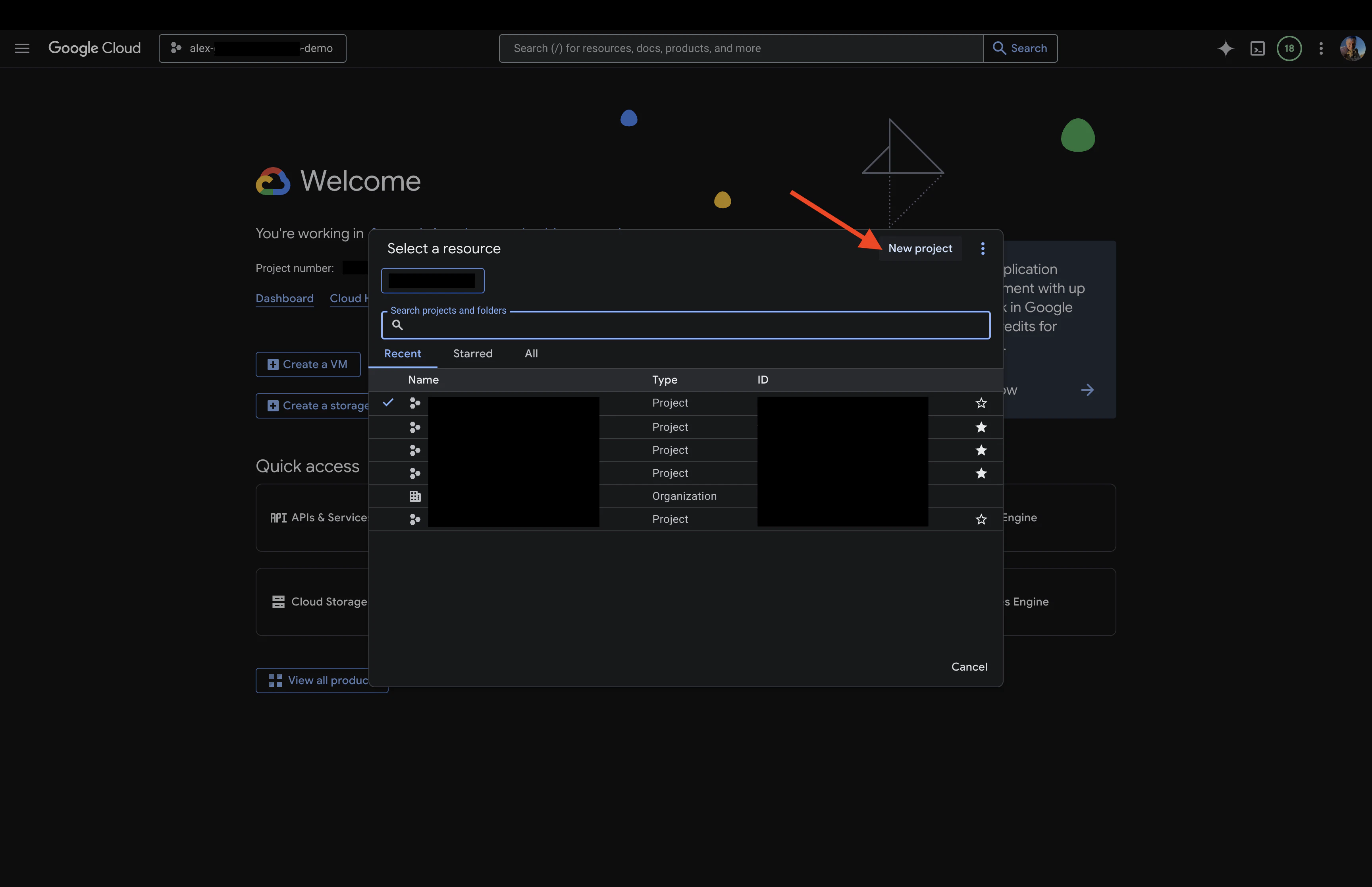
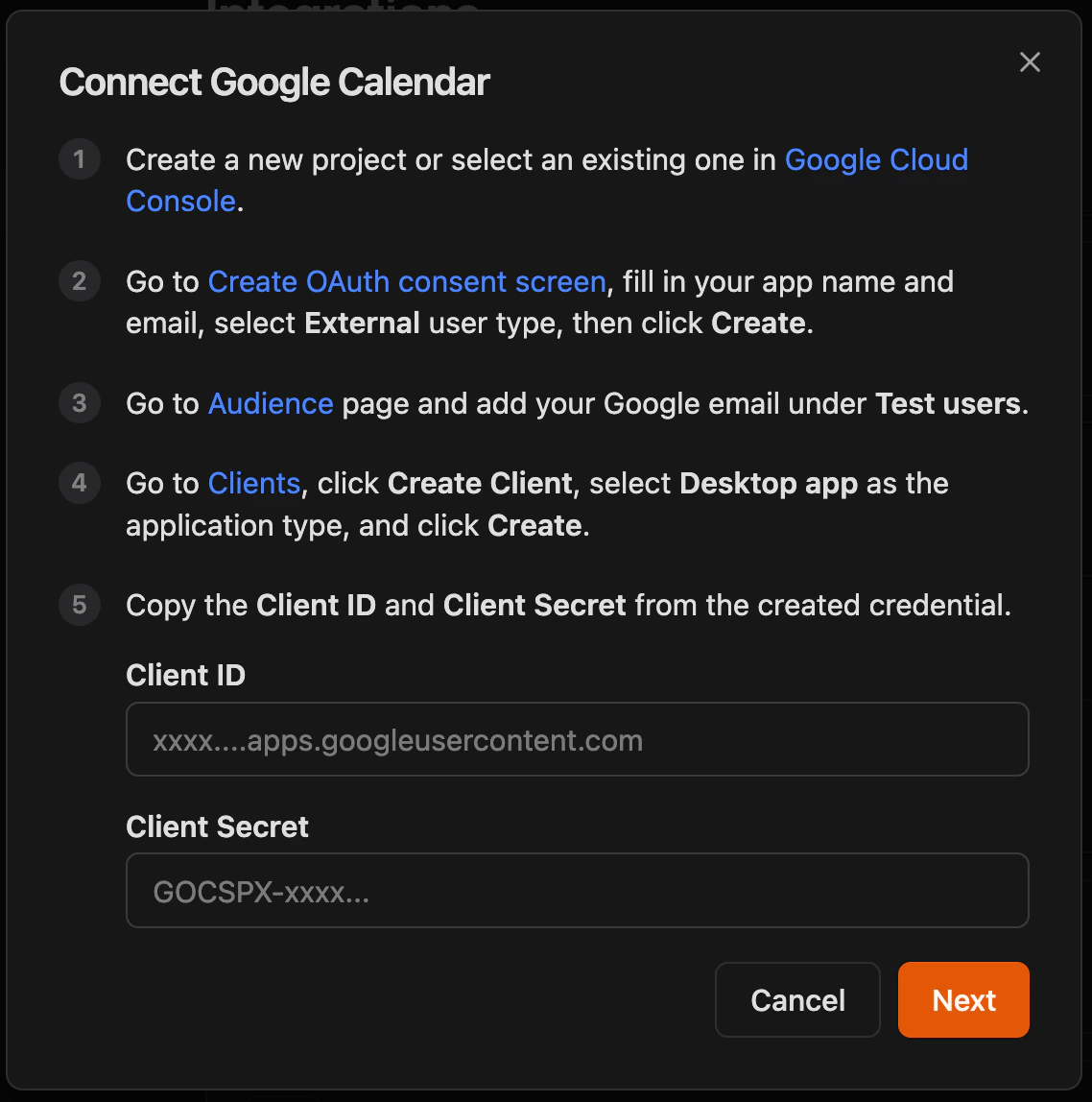
Google Workspace integrations require OAuth credentials from a Google Cloud project. Follow these steps to create them:1
Create or select a Google Cloud project
2
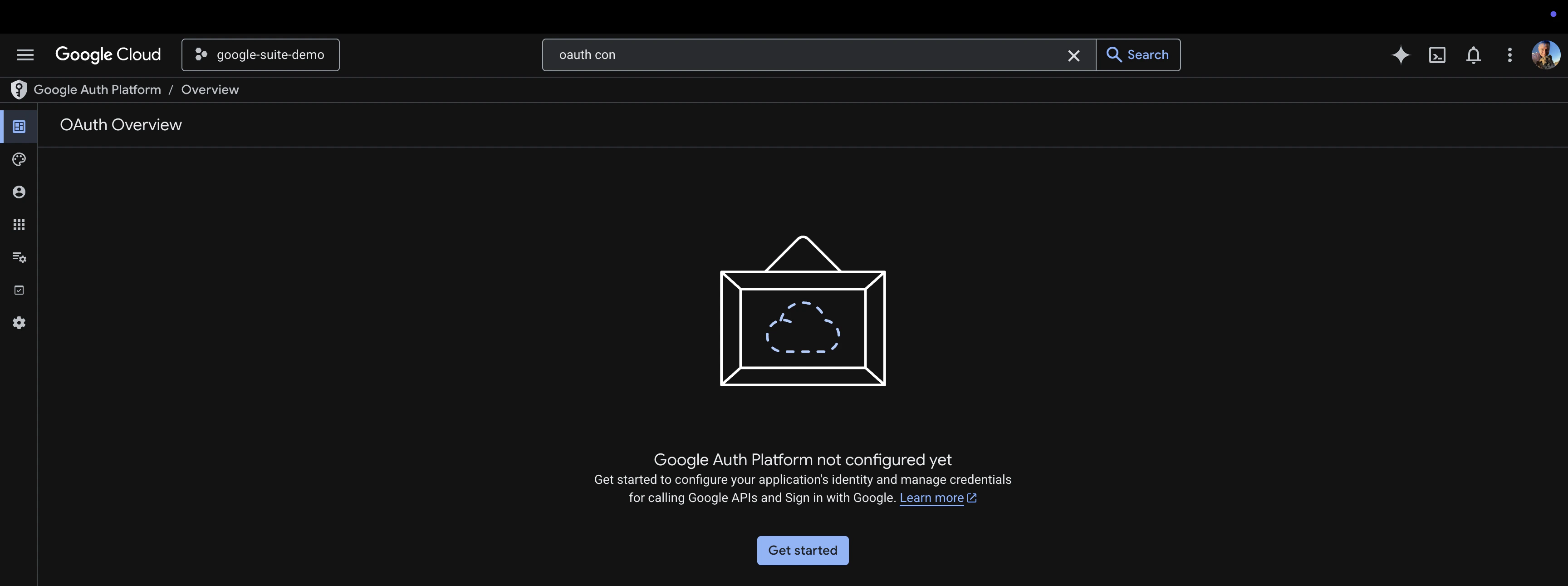
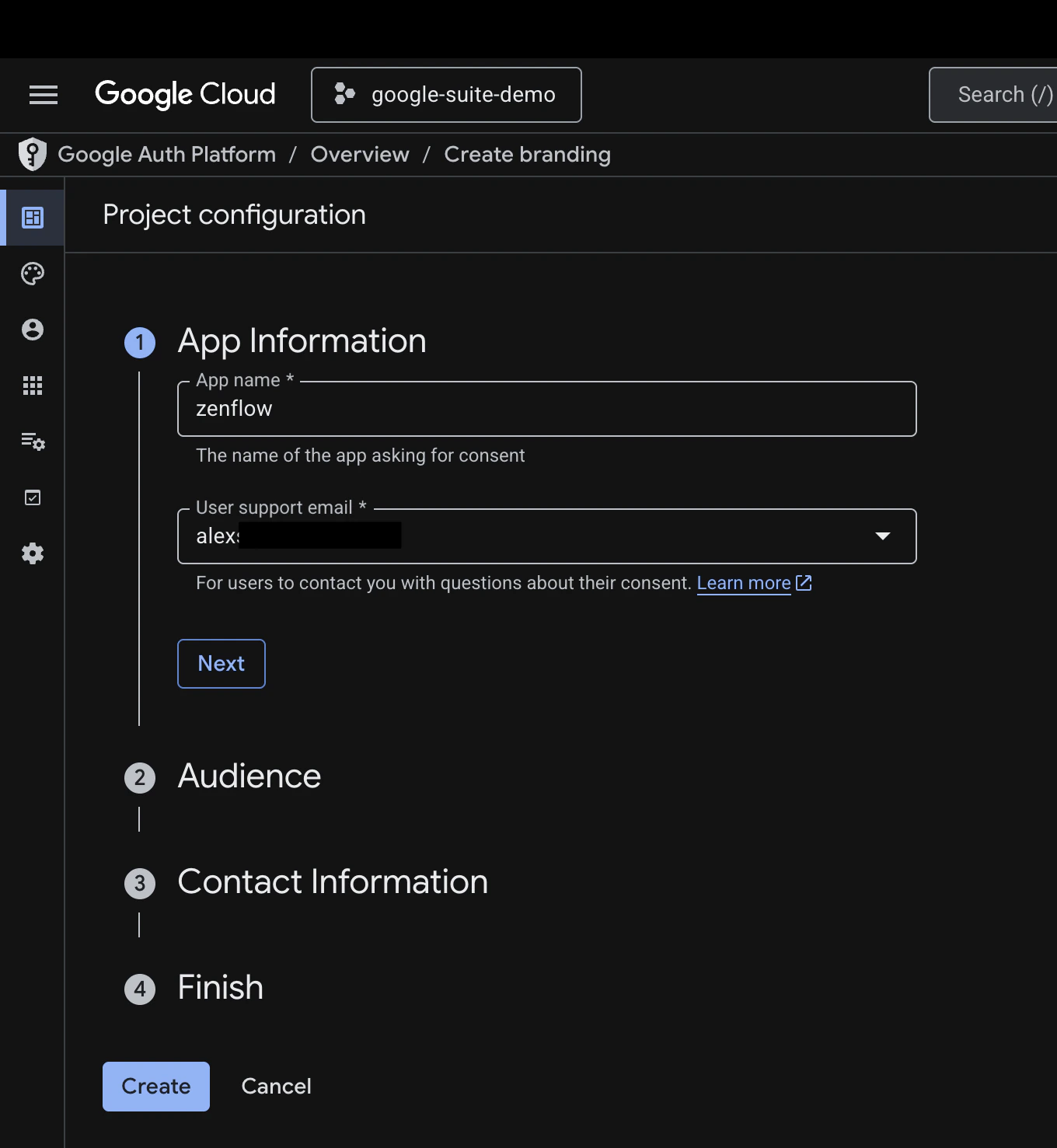
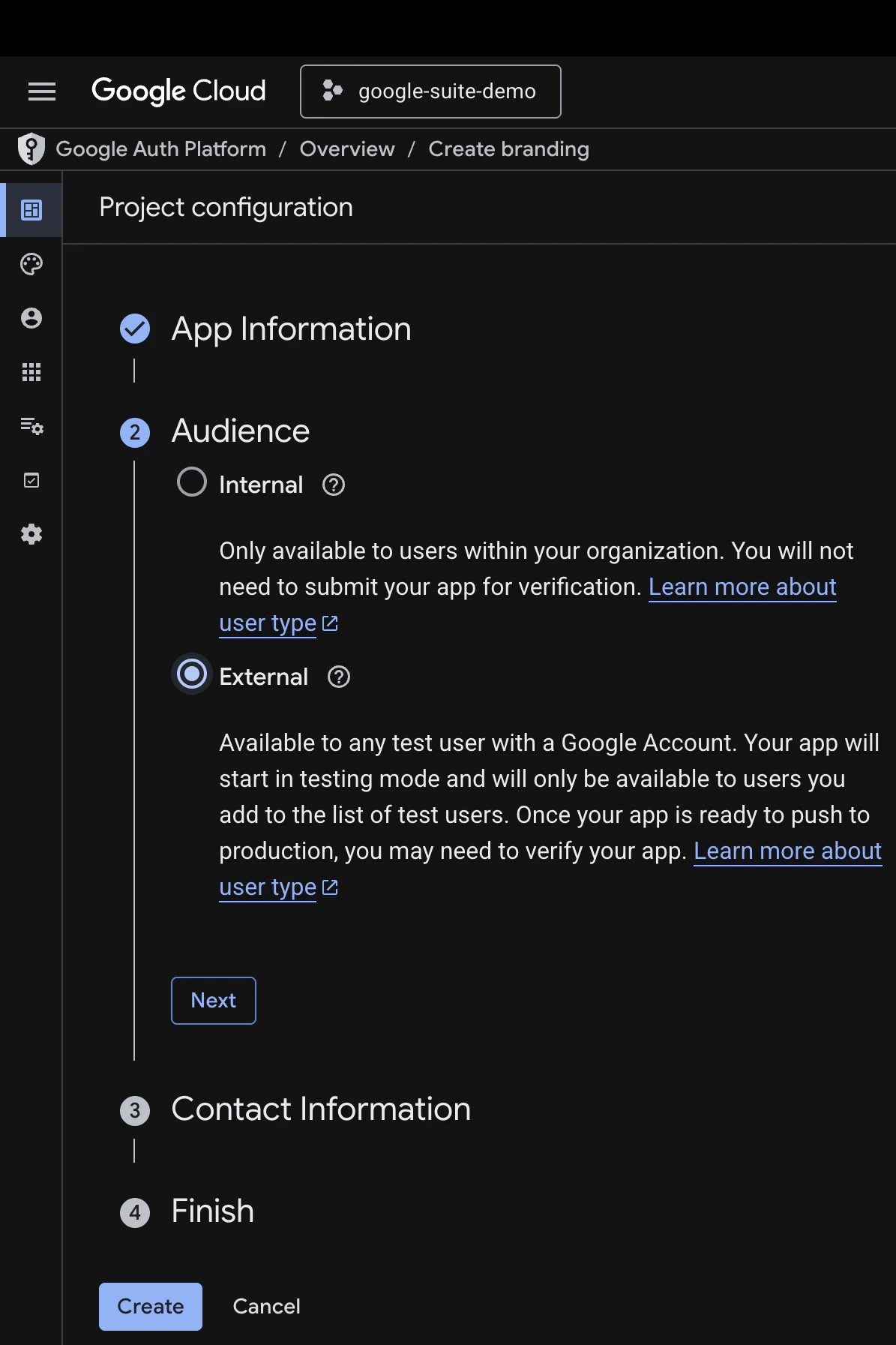
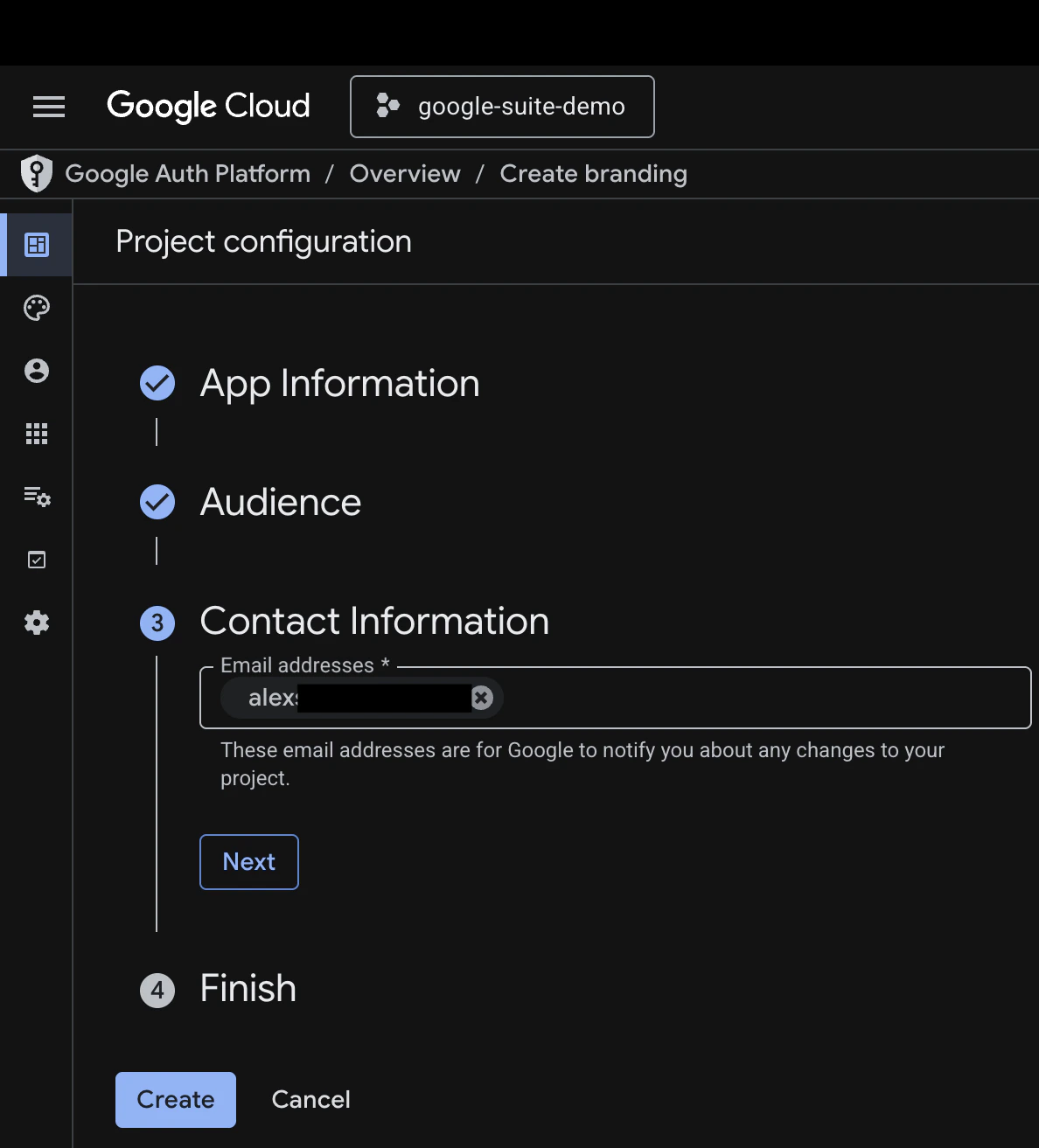
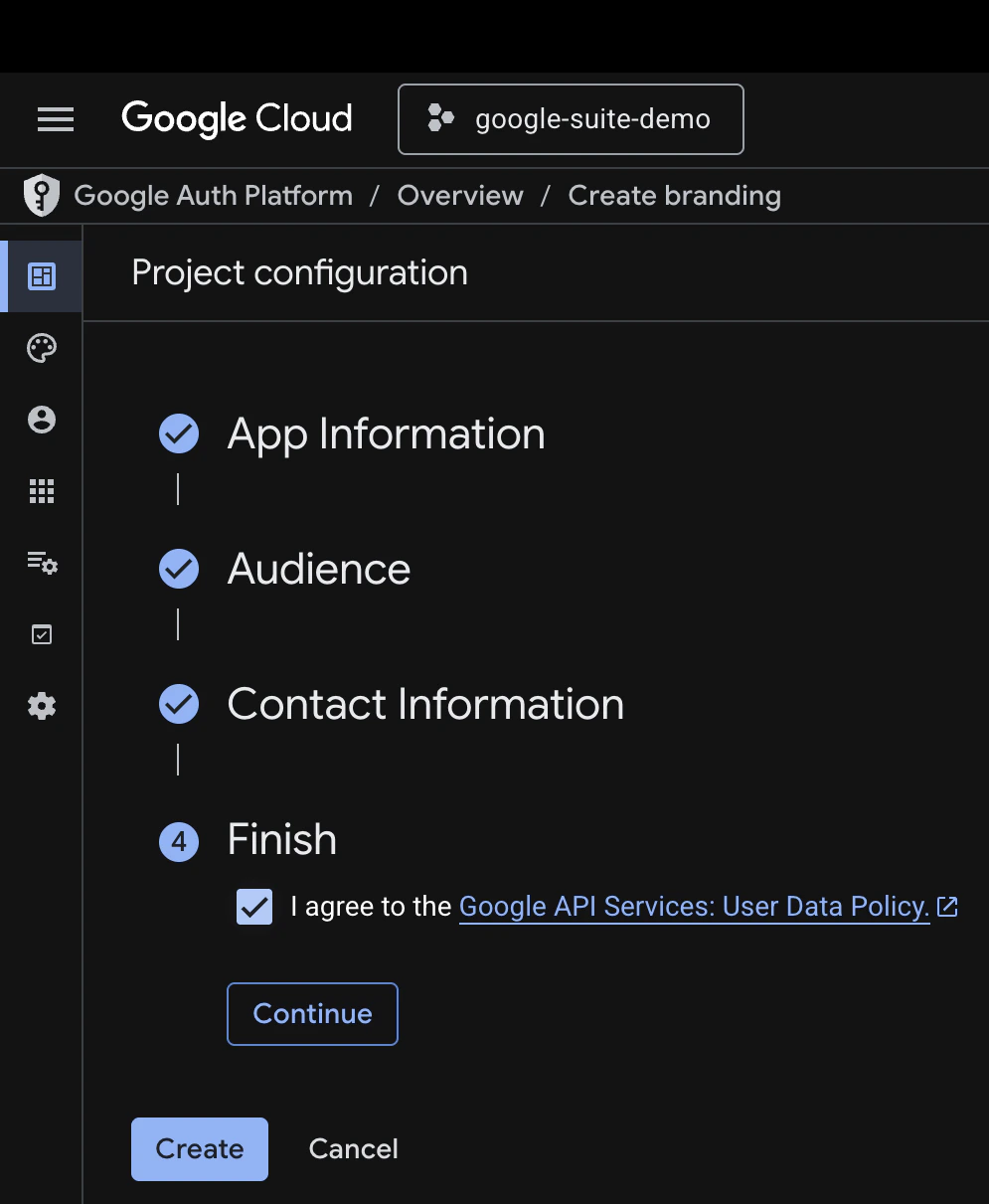
Create an OAuth consent screen
Go to Create OAuth consent screen or search for OAuth consent screen in the search bar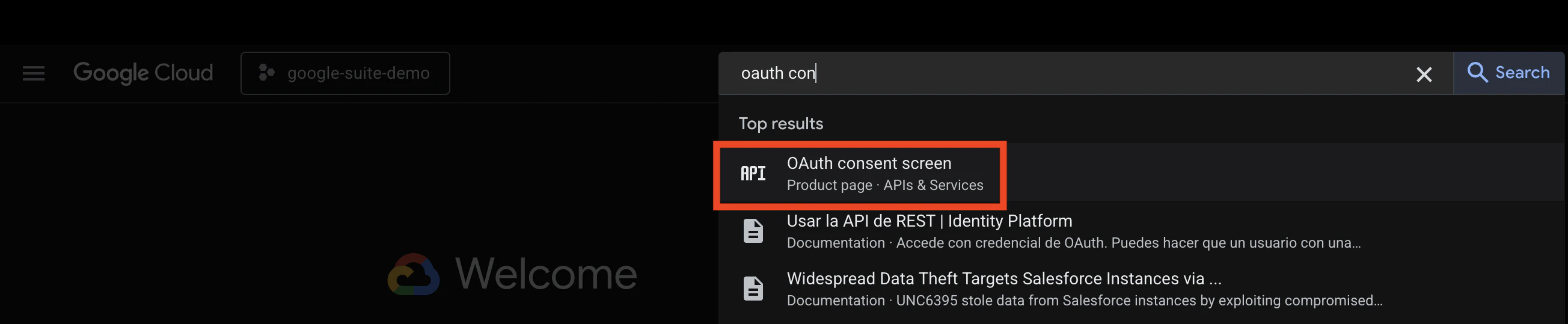
3
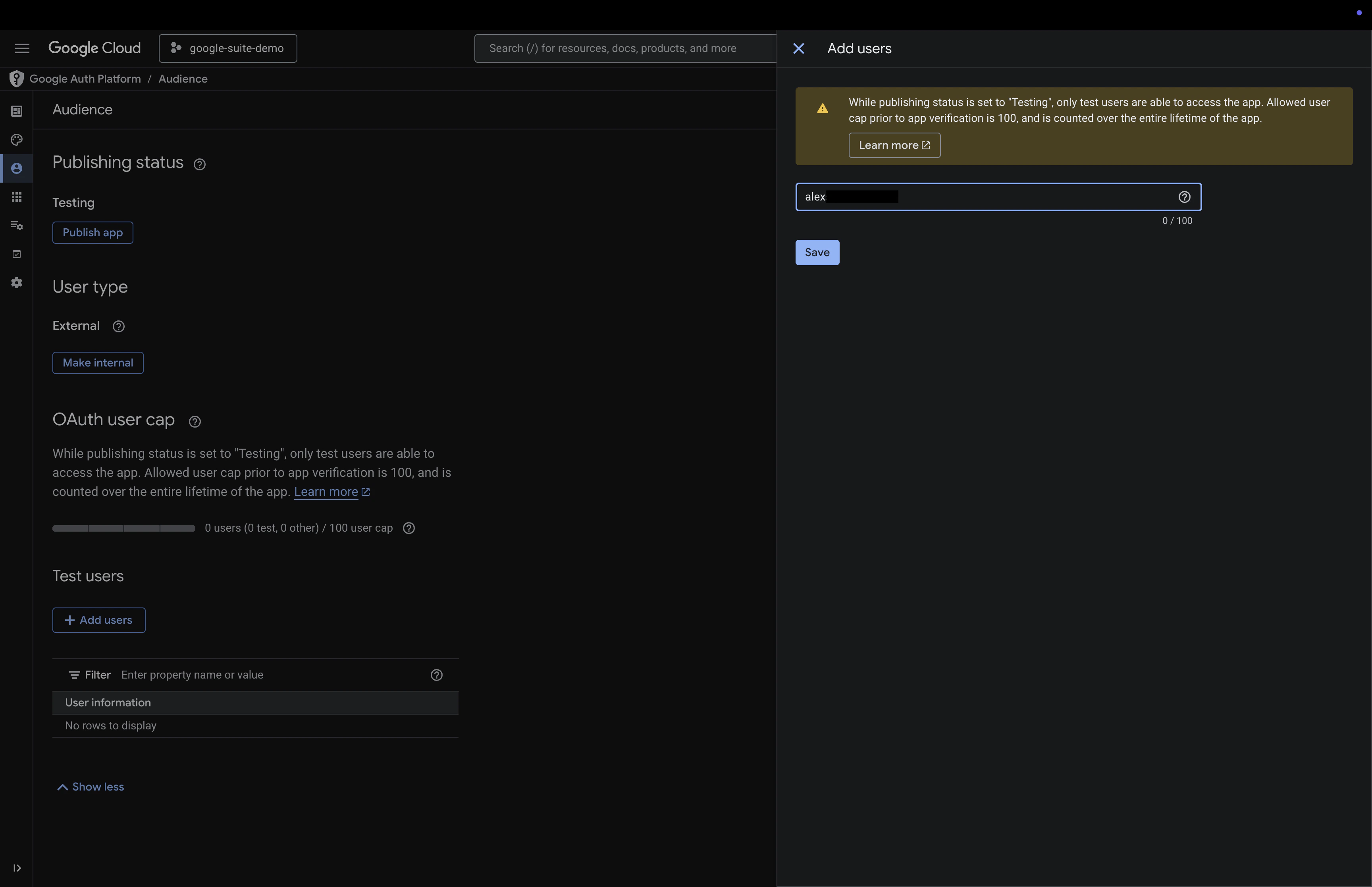
Add your email as a test user
Go to the Audience page and add your Google email under Test users.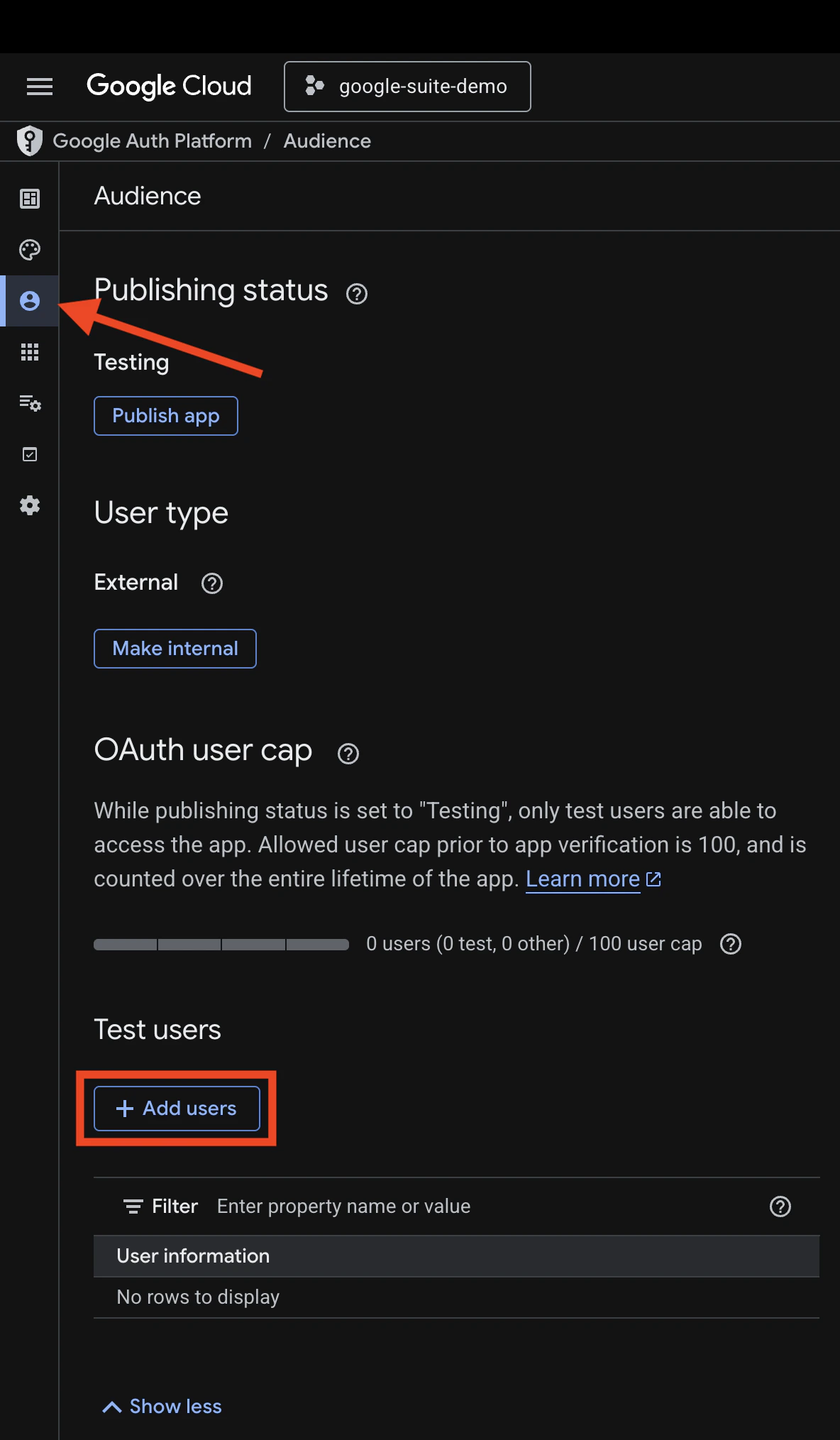
4
Create OAuth client credentials
Go to Clients, click Create Client, select Desktop app as the application type, give desired na,e, and click Create.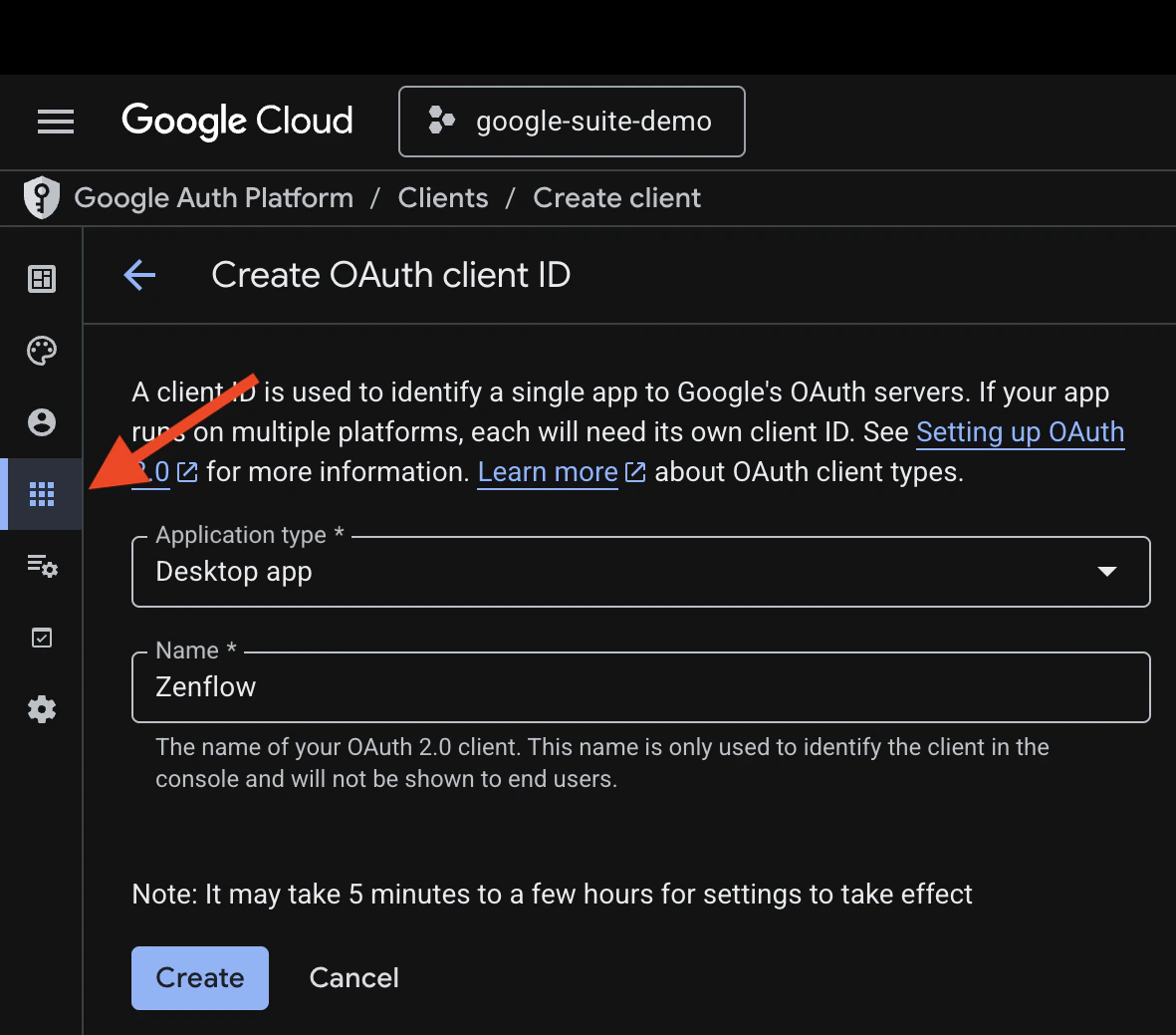
5
Copy your credentials
Copy the Client ID and Client Secret from the created credential. You will need these in the next step.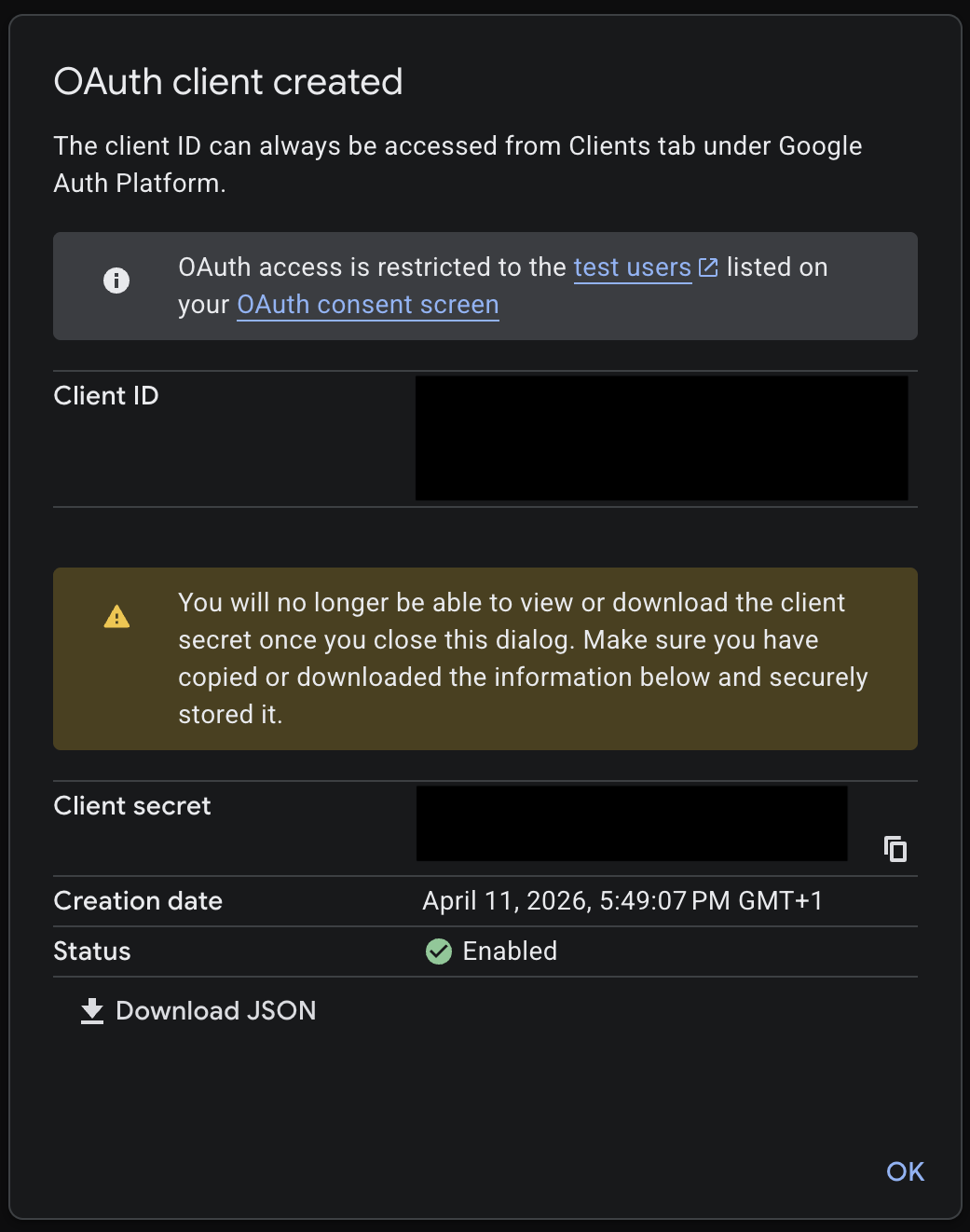
Step 2: Enable required APIs
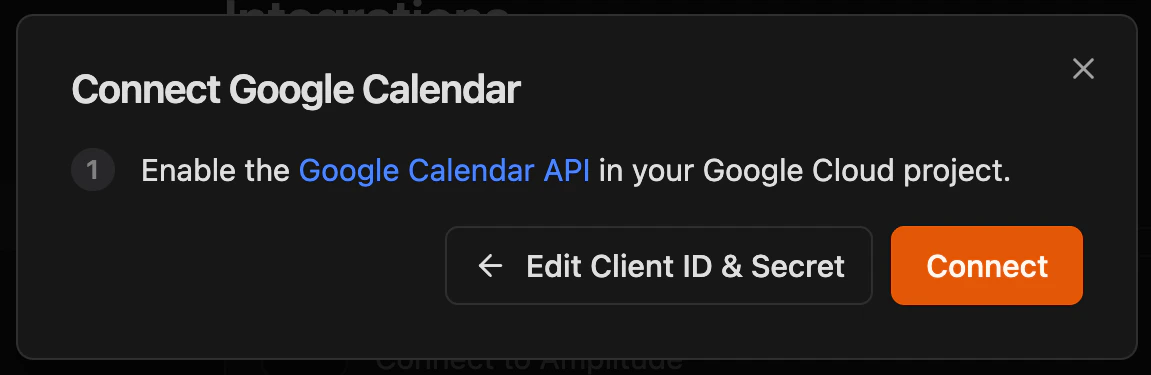
Enable APIs for corresponding integrations that you want to enable. When opening links, make sure the project is set to the correct one in the dropdown in the top left corner1
Gmail
Navigate to Gmail API, click Enable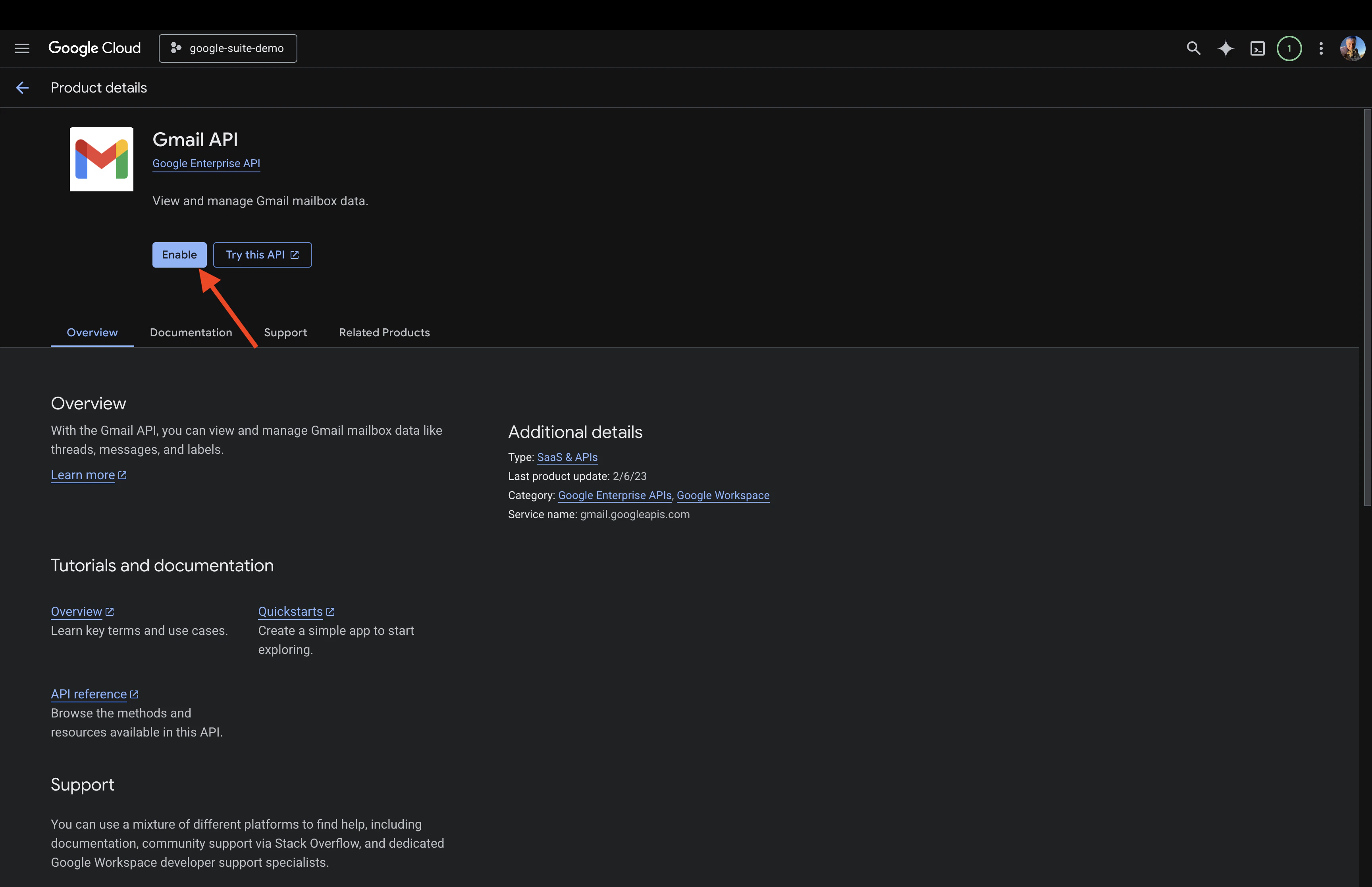
2
Google Calendar
Navigate to Google Calendar API, click Enable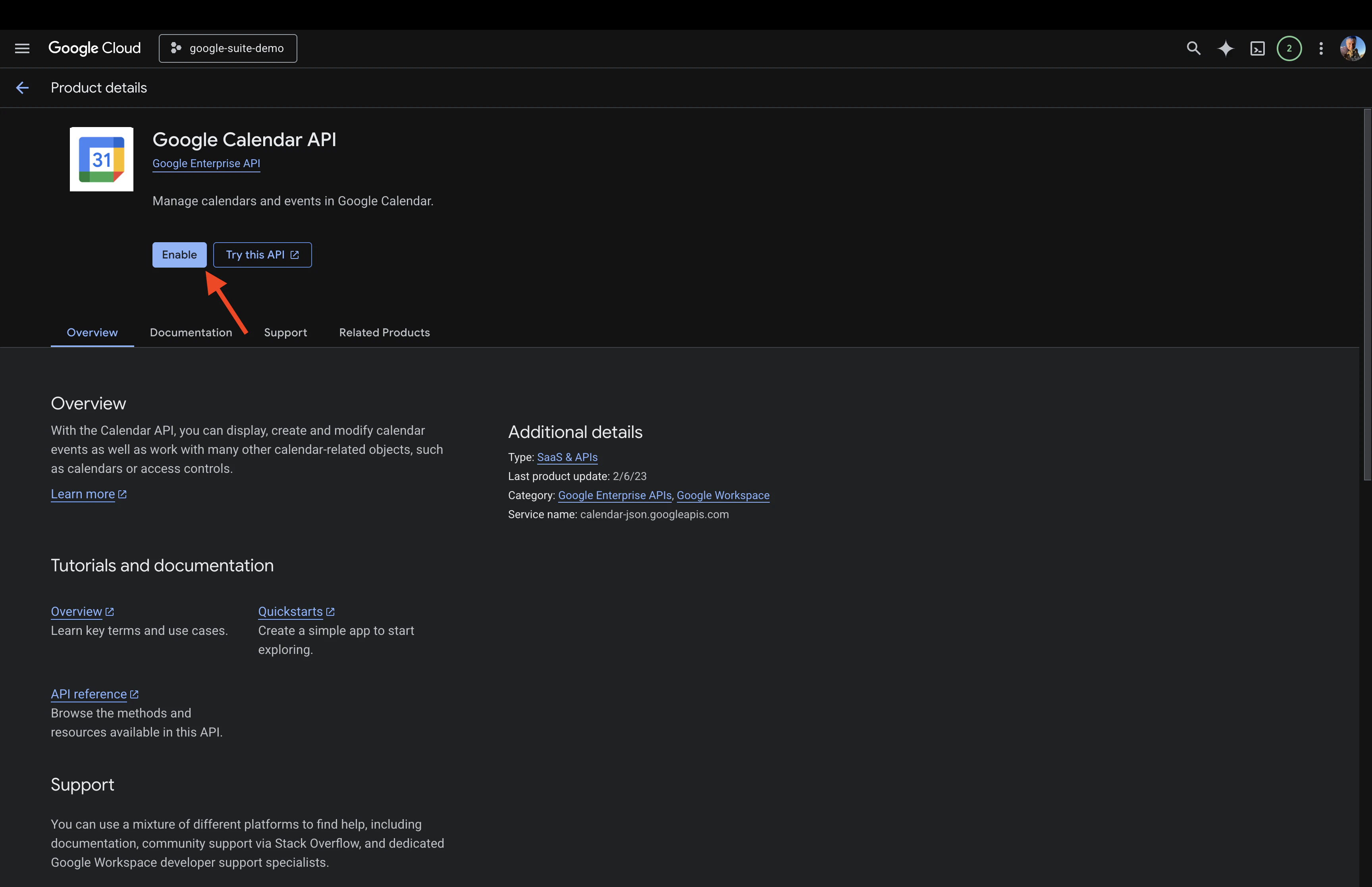
3
Gmail
Navigate to Google Drive API, click Enable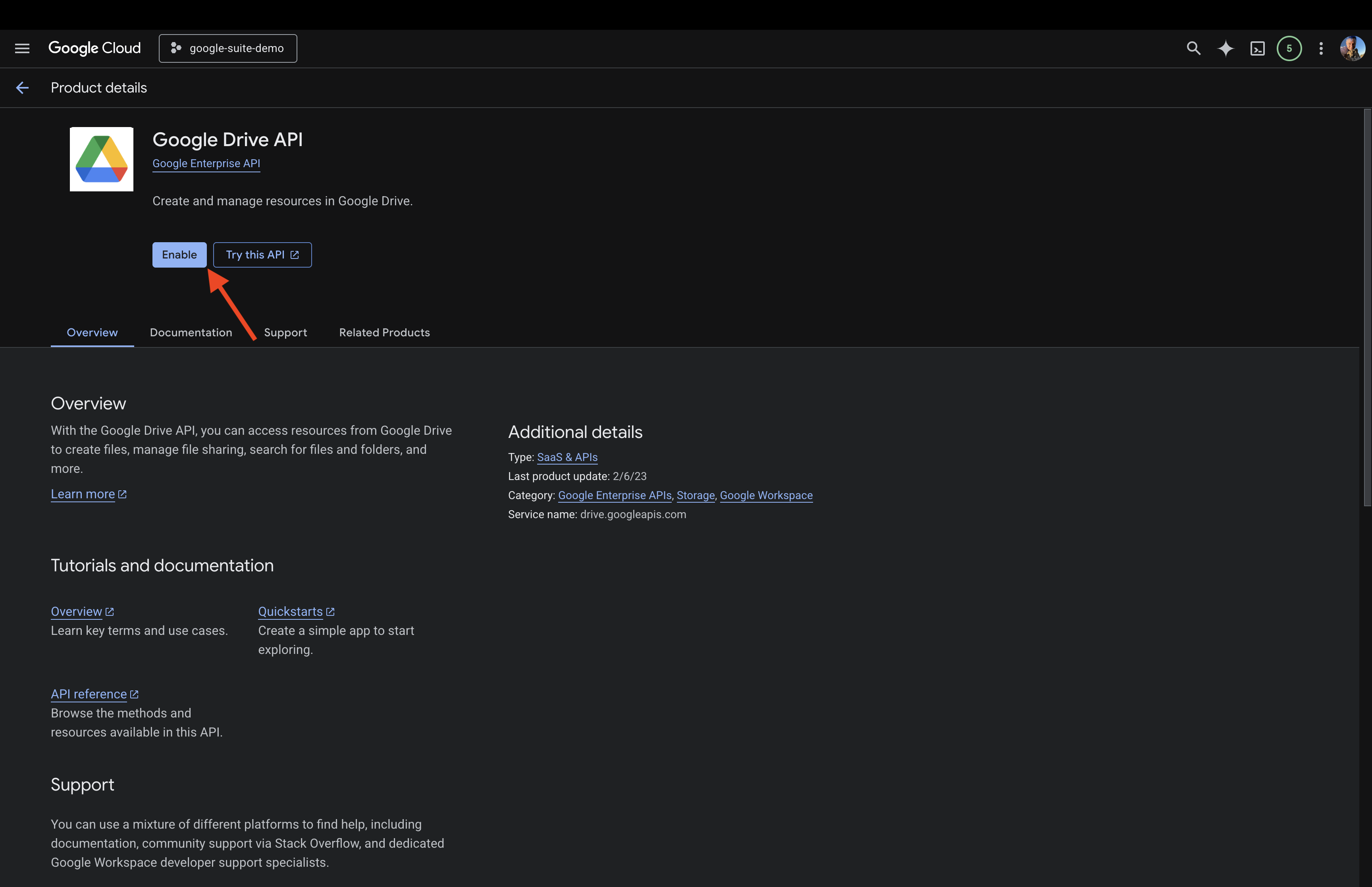
Step 3: Connect in Zenflow
- Gmail
- Google Calendar
- Google Drive & Docs
1
Open Settings & Integrations
Navigate to Settings → Integrations in the Zenflow sidebar (the gear icon at the bottom left).
2
Find Gmail
Locate Gmail in the Integrations Catalog.
3
Choose your permission level
Select Read only or Read & Write from the dropdown depending on your needs.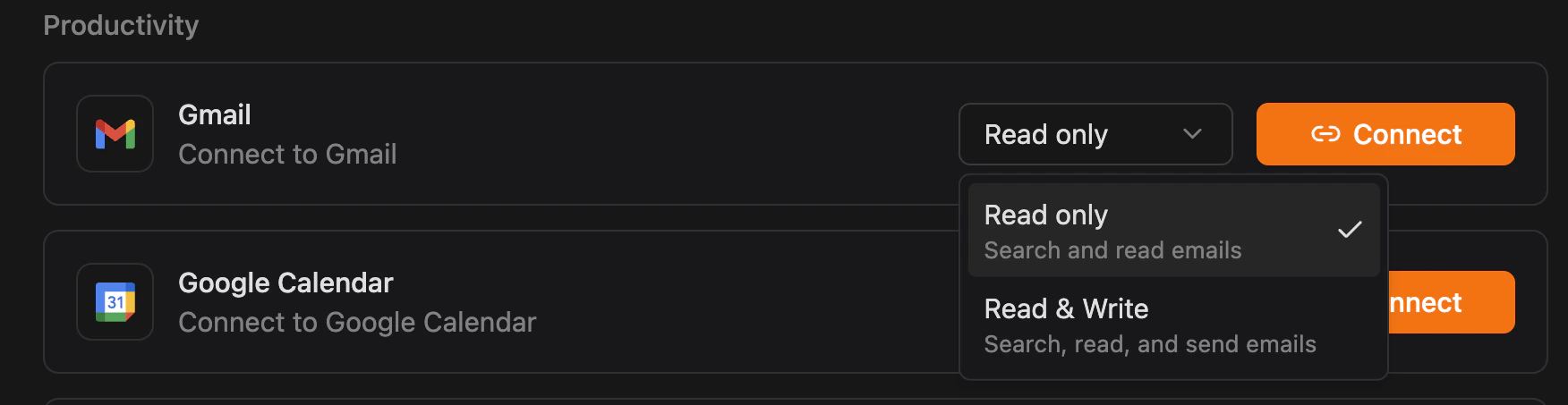
4
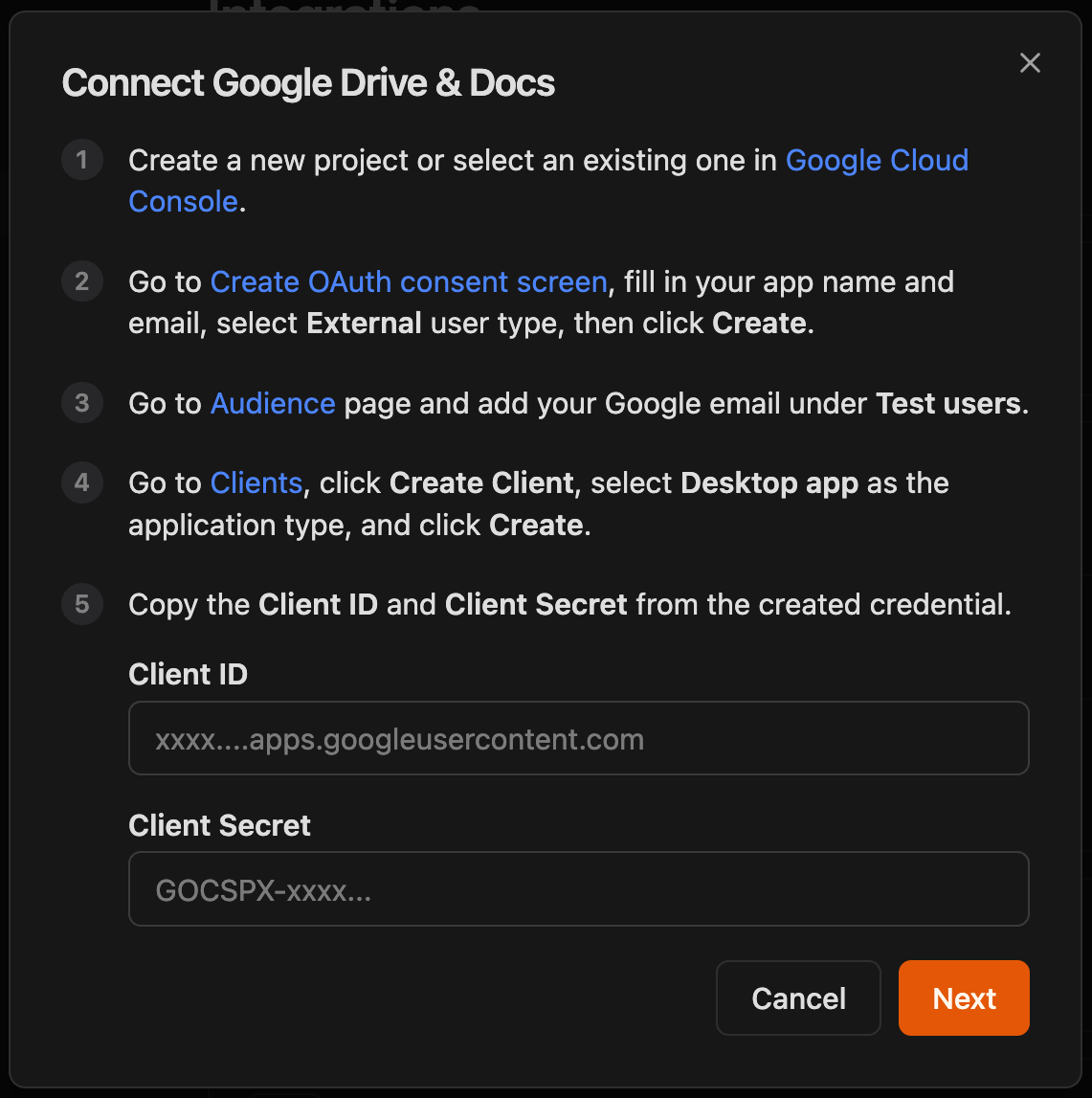
Click Connect and enter credentials
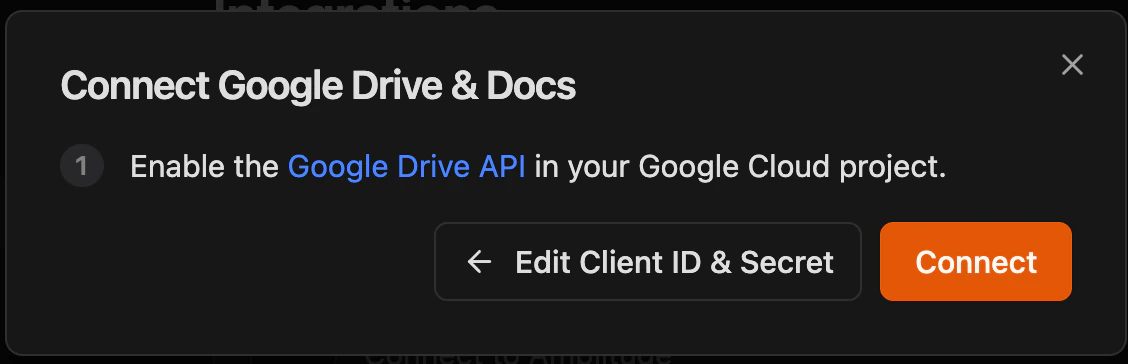
Click Connect, paste your Client ID and Client Secret from OAuth client created above, then click Next, enable Gmail API if haven’t done so yet (see Step 2 above) and click Connect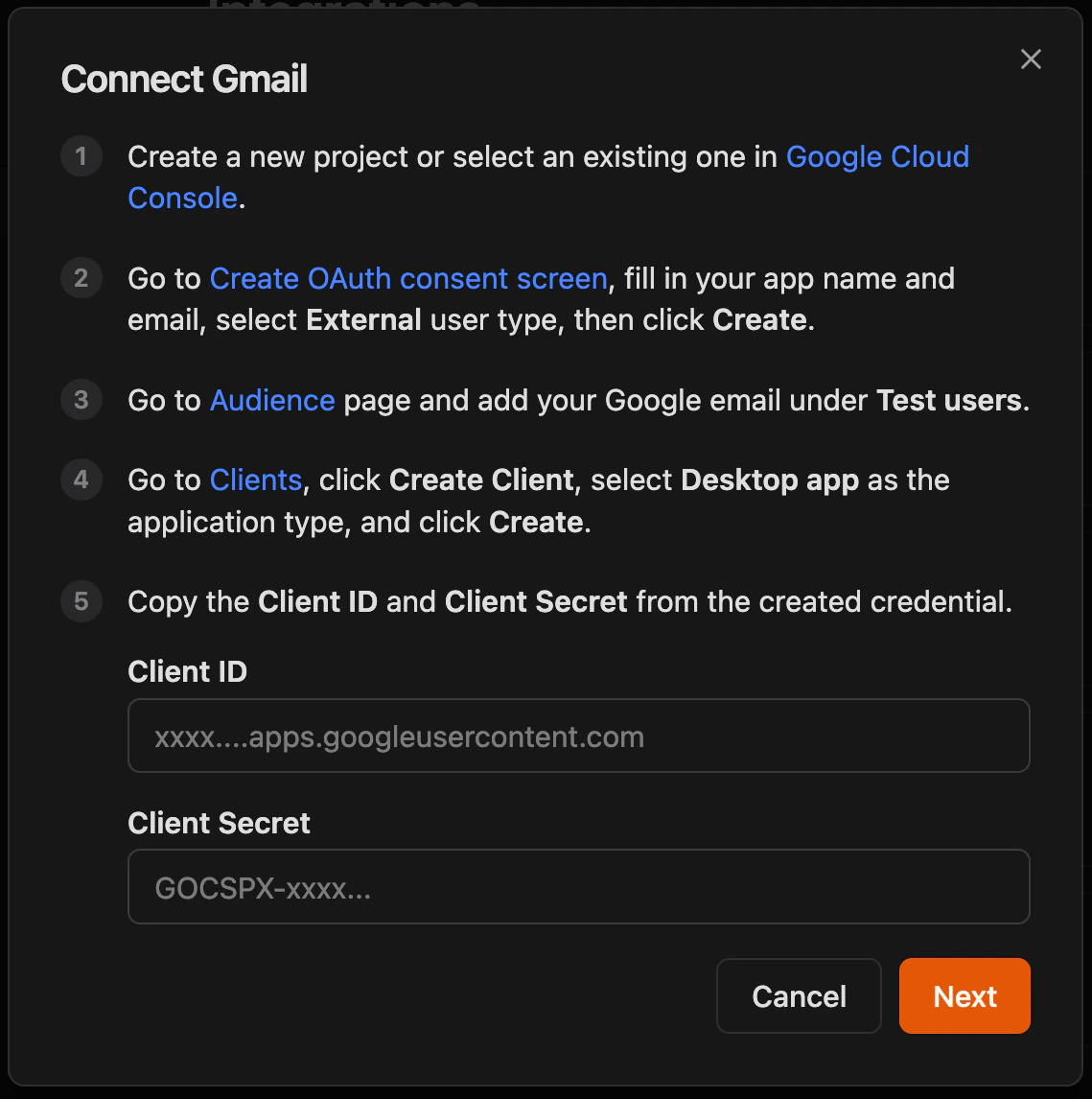
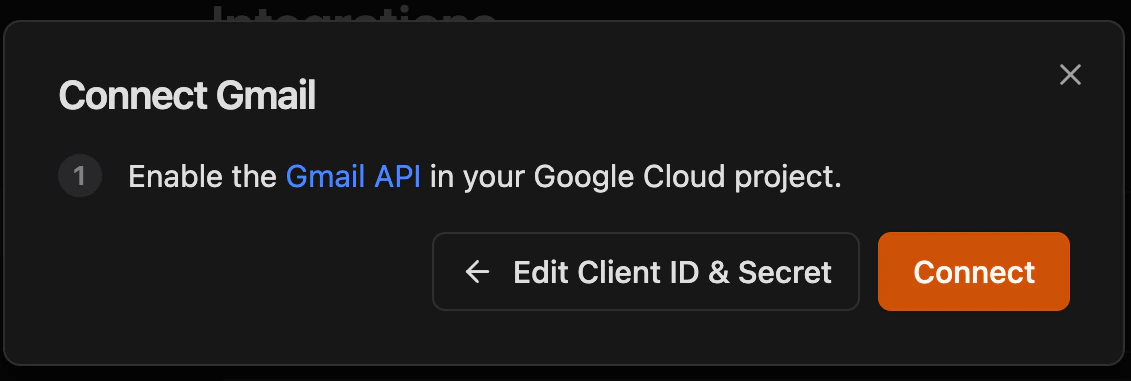
5
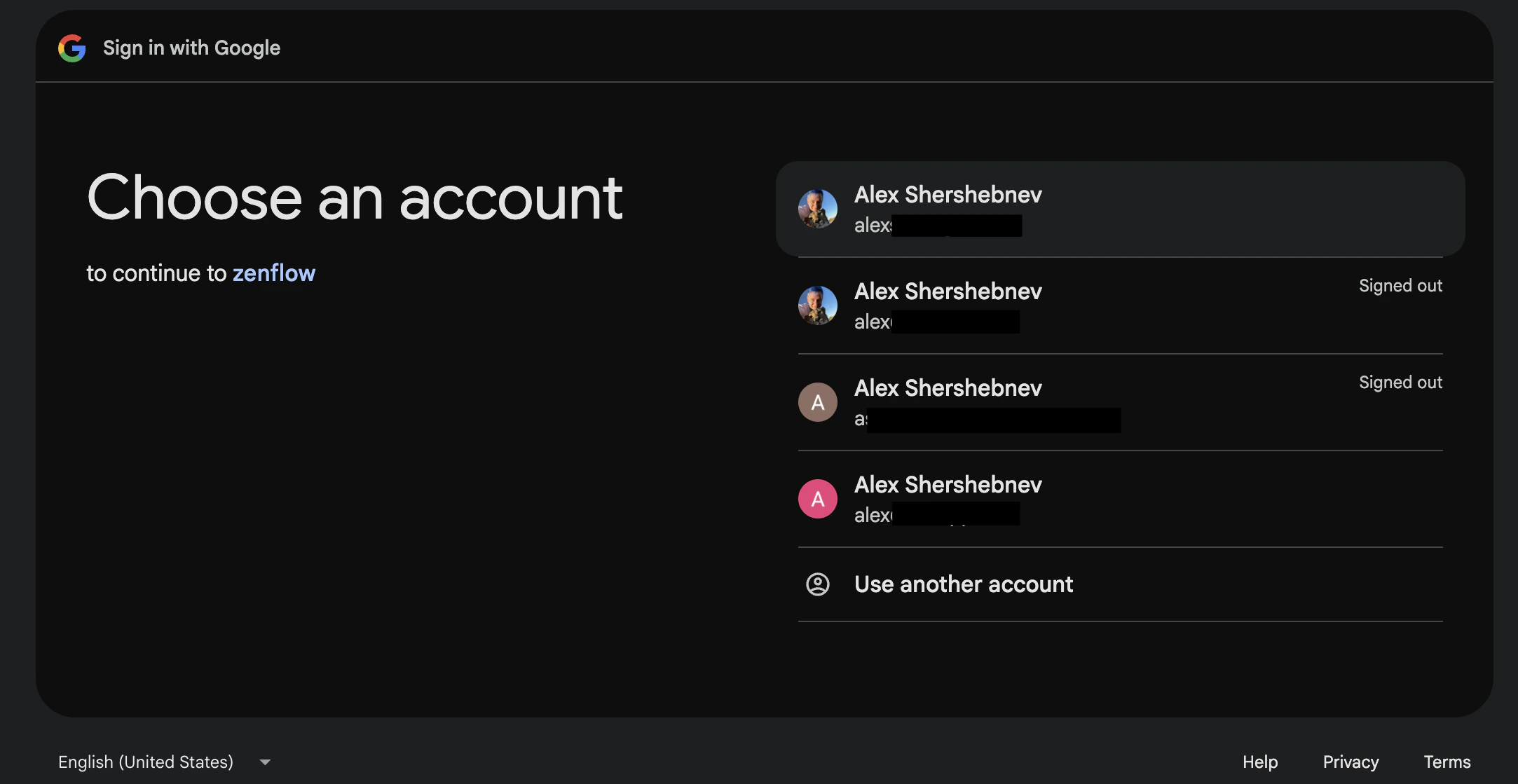
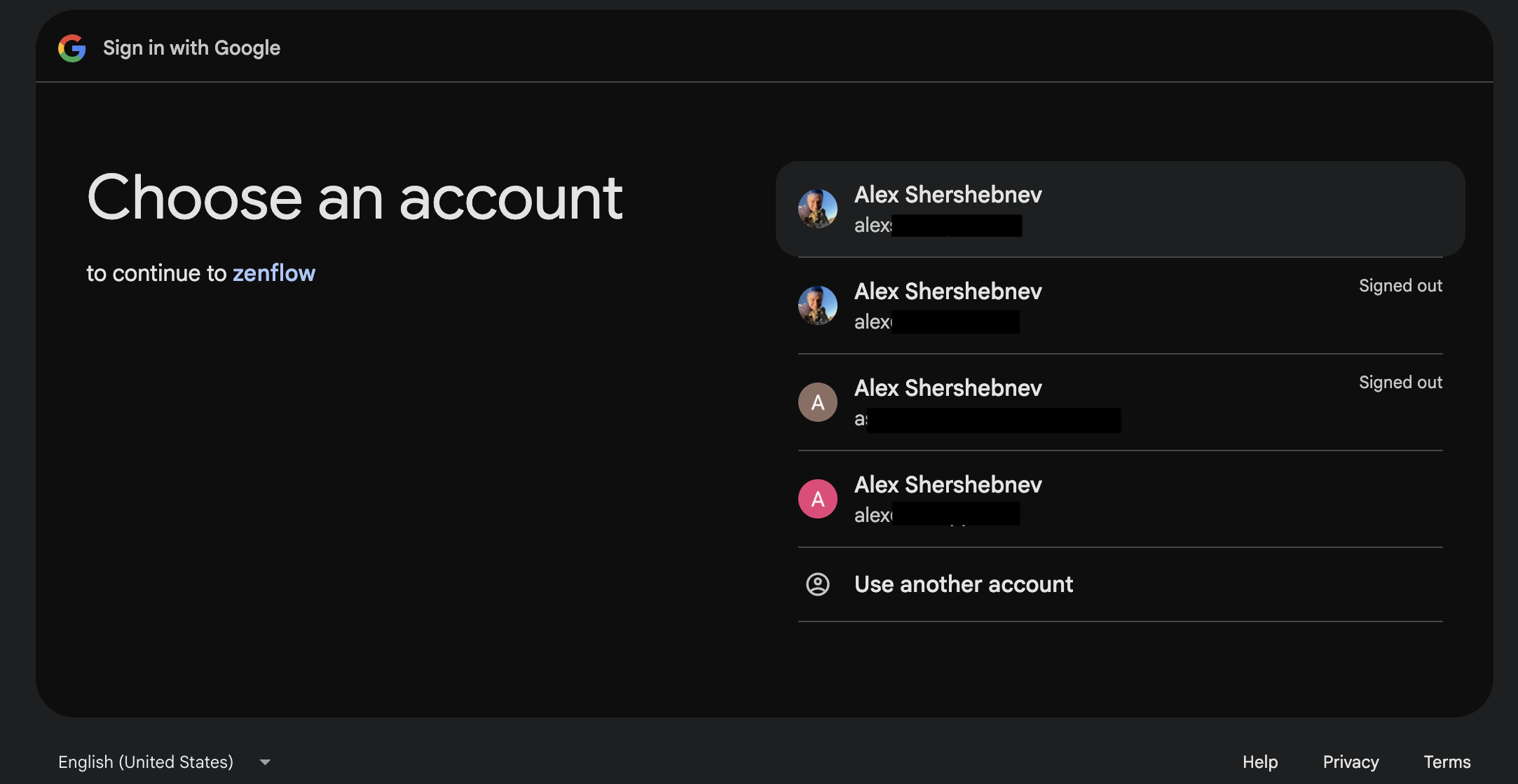
Choose an account
You will be redirected to a webpage where you need to select which account you want to connect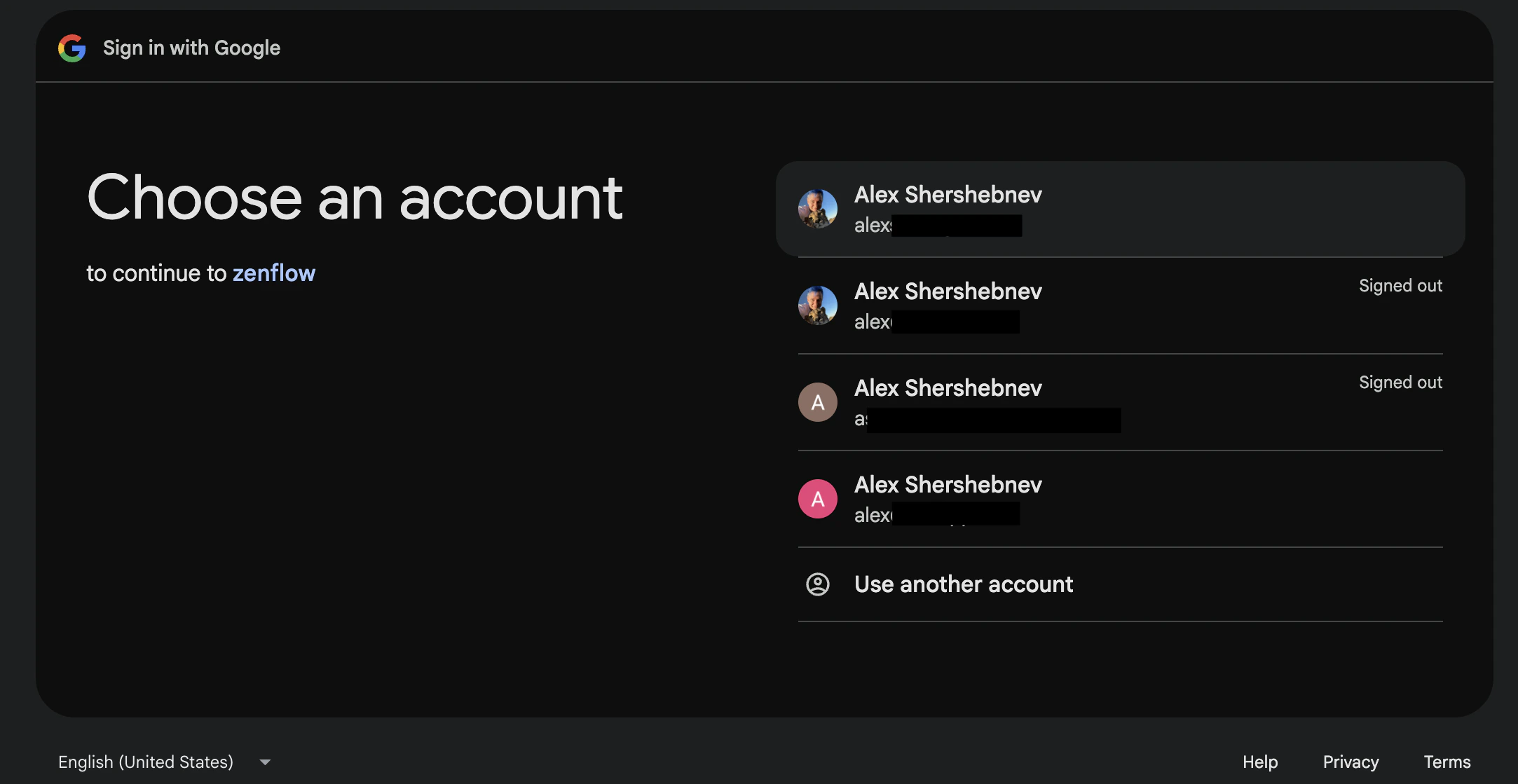
6
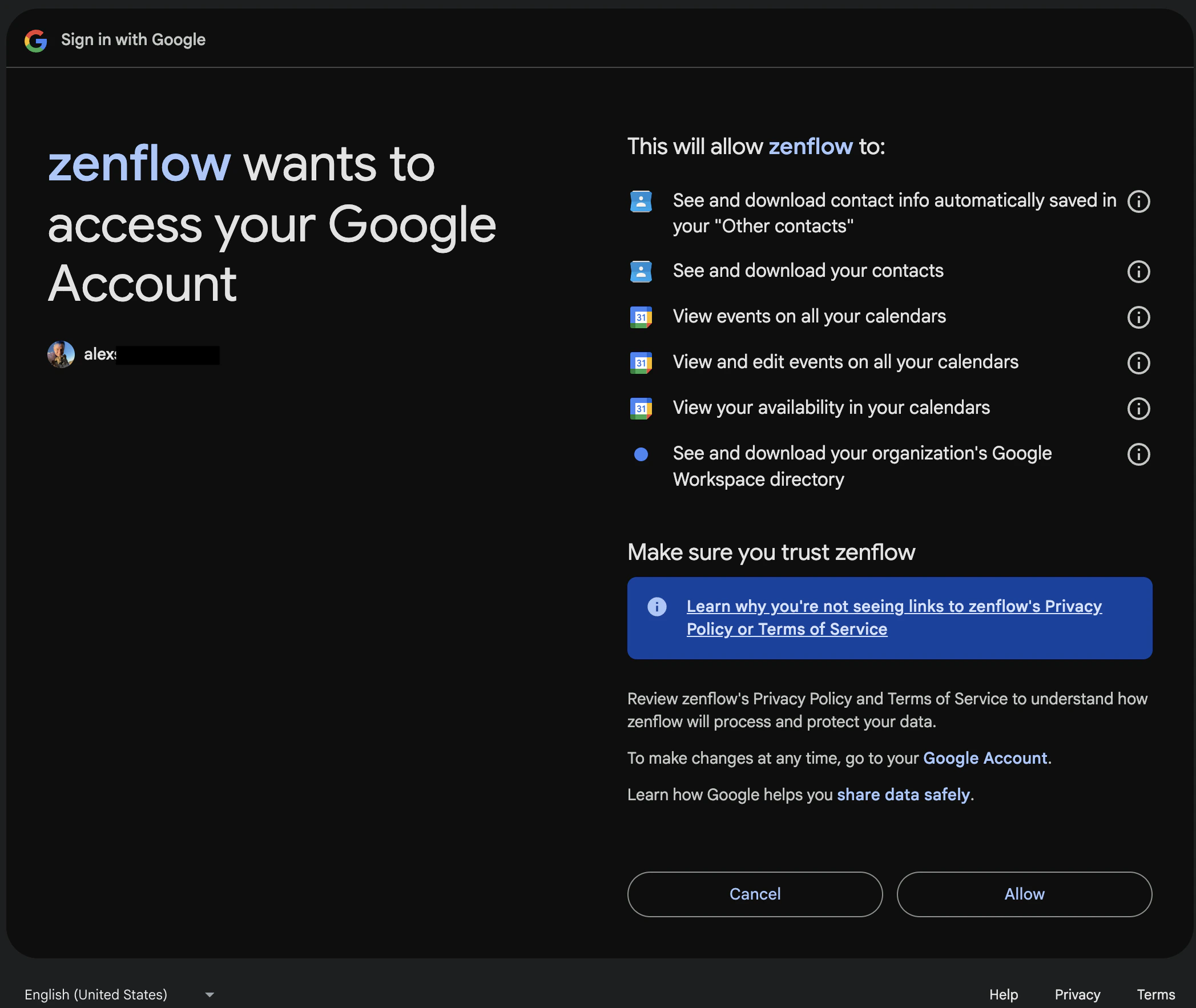
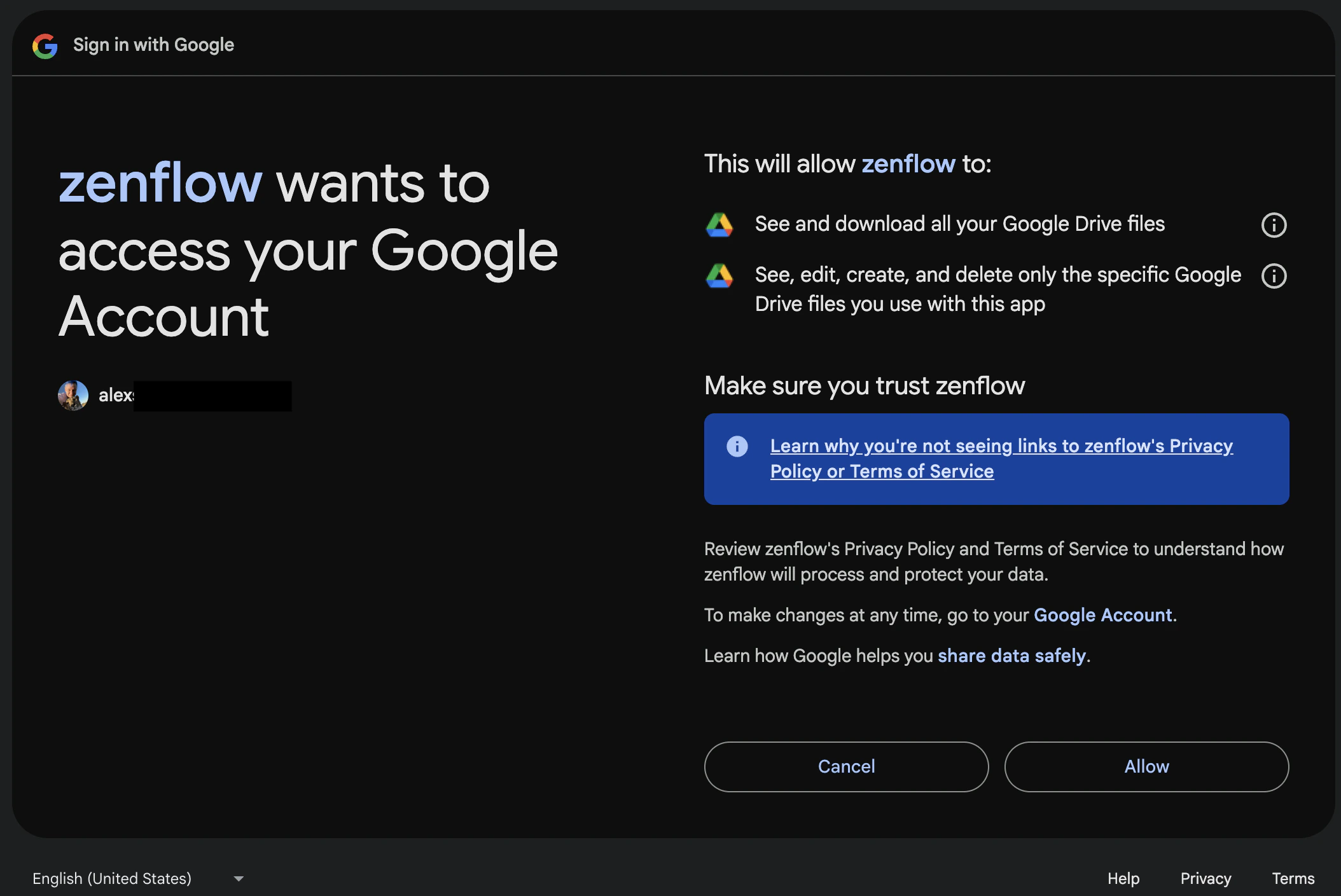
Allow access
After choosing an account, you’ll be redirected to the access authorization screen. If you’ve chosen Read only your scopes might be different from the screenshot below (it is for Read & Write)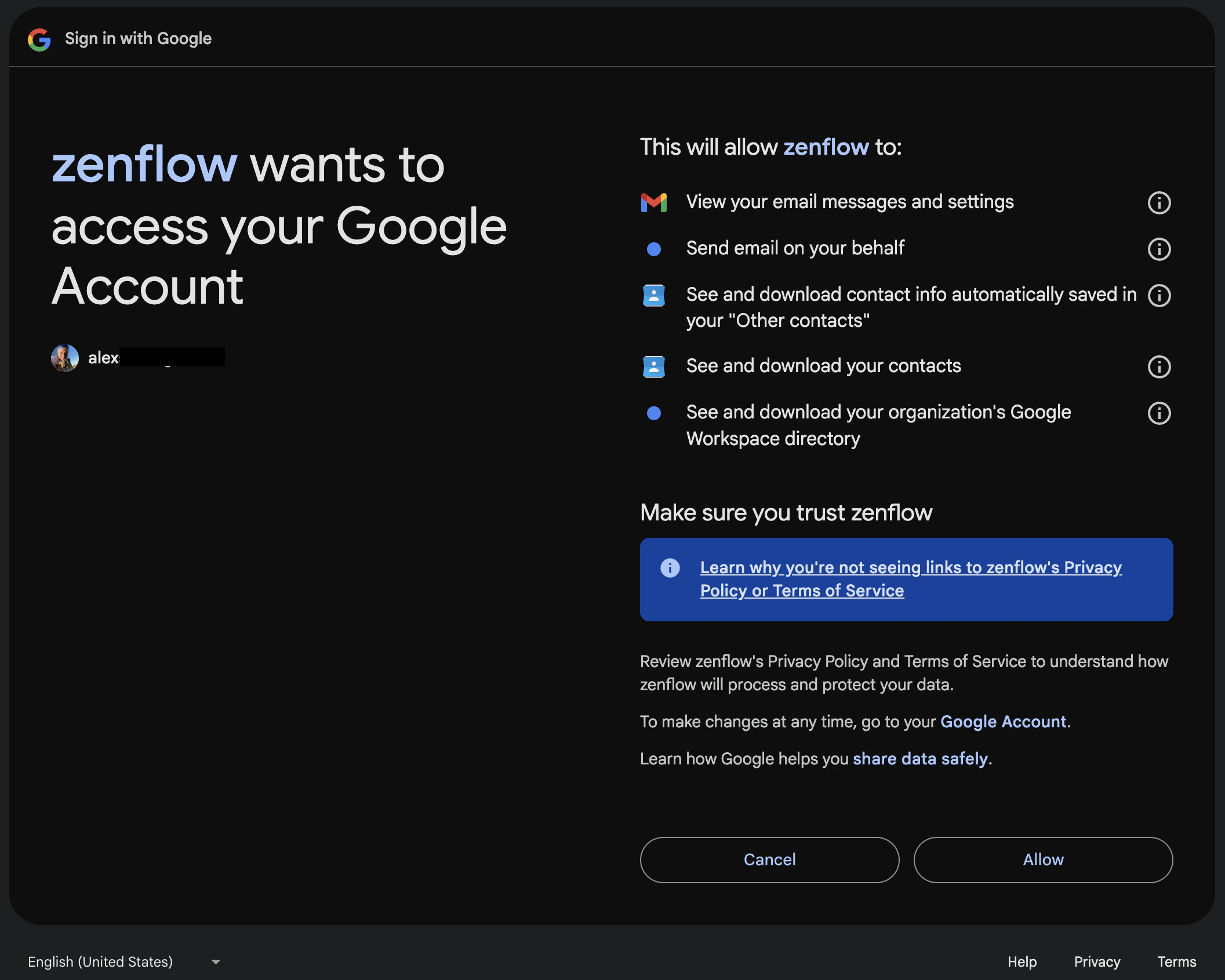
7
Integration enabled



What the Agent Can Do
Gmail
- Search — Find emails by keyword, sender, recipient, date range, or label
- Read — Open and read full email threads including attachments
- Draft — Compose new emails or replies and save them as drafts for your review before sending
- Send — Send emails directly (requires Read & Write permission)
Google Calendar
- Read events — View upcoming meetings, attendees, and event details
- Check availability — Find open time slots across your calendar
- Create events — Schedule meetings, add attendees, and set locations or video links
- Set reminders — Create calendar reminders and recurring events
Google Drive & Docs
- Search — Find files and folders across your Google Drive by name, content, or type
- Read — Open and read Google Docs, Sheets, and Slides
- Create — Generate new documents, spreadsheets, and presentations
- Update — Edit existing documents with new content
- Organize — Create folders and move files into structured locations
- Write reports — Generate briefs, proposals, summaries, and formatted documents
Example Use Cases
Gmail
- Draft follow-up emails to prospects after sales calls
- Scan inbox for customer feedback or churn signals
- Compile weekly digest emails from project updates
- Auto-draft replies to common inquiries
Google Calendar
- Prepare meeting briefs by pulling context from calendar events
- Schedule follow-up meetings after sales calls
- Create onboarding calendar events for new hires
- Coordinate content publishing schedules
Google Drive & Docs
- Compile weekly executive briefs from multiple data sources into a Google Doc
- Create proposal drafts from email threads and save to a shared Drive folder
- Build expense reports by extracting data from Gmail receipts into Sheets
- Organize meeting notes into structured folders by team and date