

This native integration requires a Zencoder account.
Overview
Zenflow integrates with Jira to sync tasks and issues between both platforms. Create Zenflow tasks from Jira tickets, push status updates back, and keep your project management in sync with AI-driven development work.Connecting to Jira
Authorize Connection
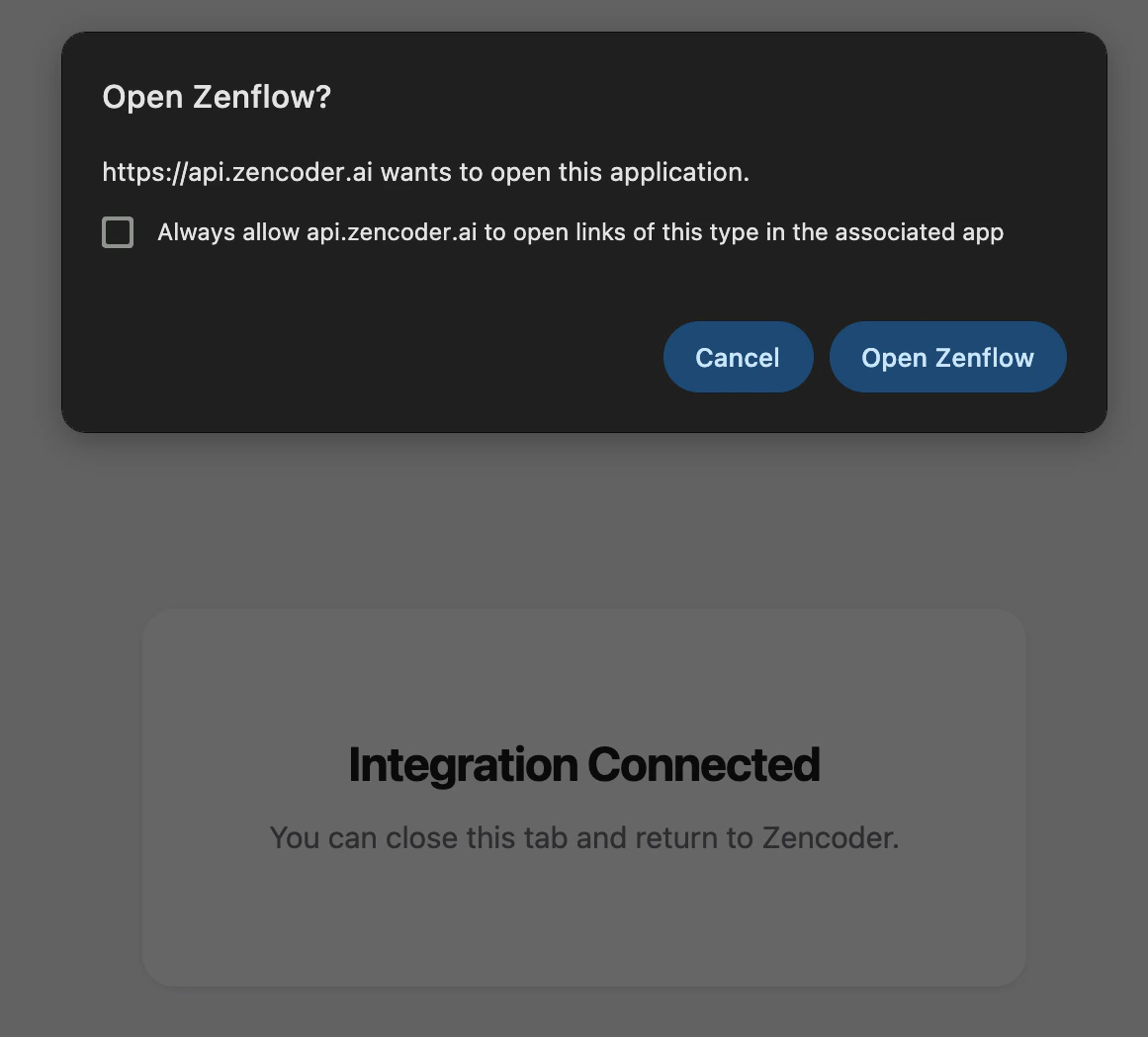
Authenticate and authorize Zenflow to access your Jira workspace via the secure OAuth popup window:
Select the space you want to authorize the app in, click Accept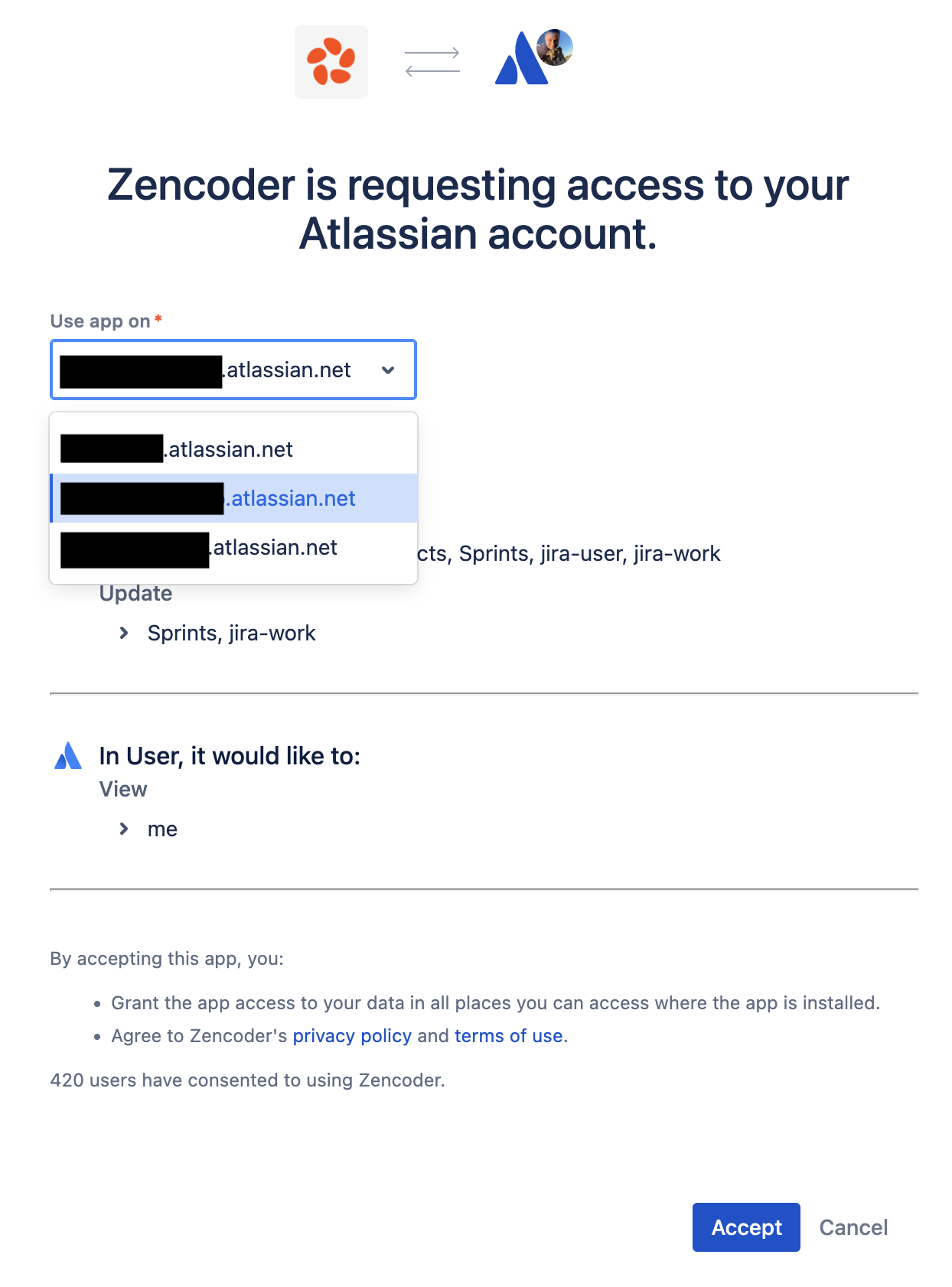

Features
Create Tasks from Jira Tickets
Pull Jira issues directly into Zenflow as tasks:- Open the task creation dialog
- Select Import from Jira
- Choose the ticket to work on
- Zenflow creates a task with the ticket context pre-filled
Status Sync
Zenflow syncs task status back to Jira:| Zenflow Status | Jira Status |
|---|---|
| Running | In Progress |
| Review | In Review |
| Completed | Done |
Branch and PR Linking
When a task creates a branch or PR, Zenflow attaches the link to the corresponding Jira ticket for traceability.Next Steps
GitHub Integration
Connect to GitHub for PRs
MCPs
Add more tool integrations