

Disconnecting an Integration in Zenflow
To temporarily or permanently disconnect an active integration within Zenflow, follow these steps:Open Connections
Go to Connections (or click the Settings gear icon and select Connections) in the left sidebar of Zenflow.
Locate the Connected Integration
Find the active integration you wish to remove under its corresponding category (such as Development, Messaging, or Infrastructure).
Click Disconnect
Next to the connection status (e.g., Connected as Username), click the Disconnect button.
Removing Zenflow from Third-Party Marketplaces
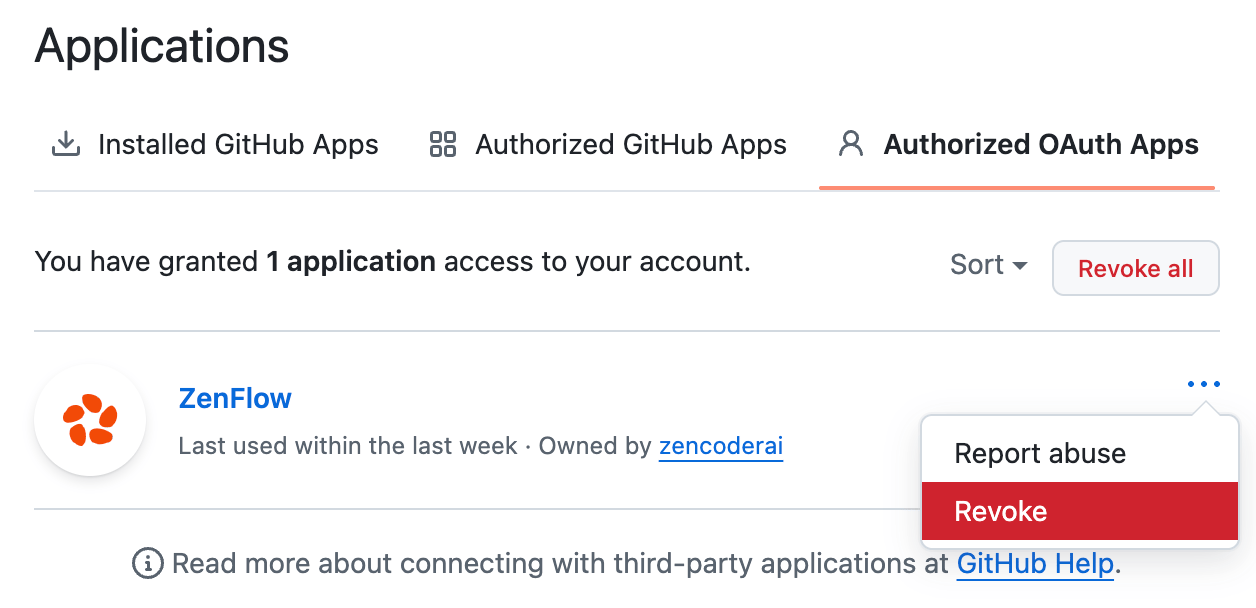
For full compliance and complete removal, you can also uninstall Zenflow directly from your third-party provider’s marketplace or application directory. Below is an example of revoking access for GitHub, which is an OAuth-based integration:GitHub (OAuth App Example)
- Go to your GitHub Settings.
- In the left sidebar, navigate to Integrations > Applications > Authorized OAuth Apps.
- Locate ZenFlow (or Zencoder).
-
Click the … (three dots) icon next to it and select Revoke.
Revoking Manually Created API Keys & Personal Access Tokens
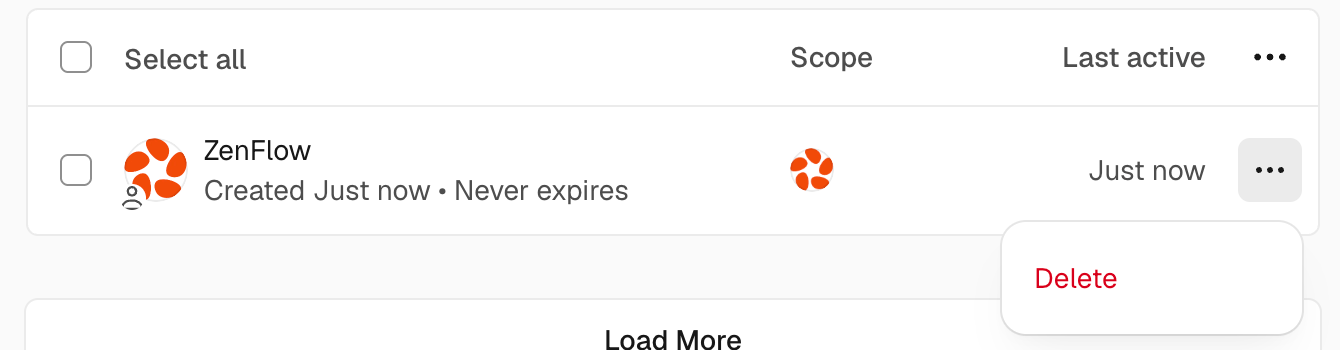
Some integrations connect via manually generated API Keys or Personal Access Tokens (PATs) rather than standard OAuth marketplace apps. For these token-based integrations, you must revoke or delete the token directly within the provider’s account settings to completely remove access. Below is an example of revoking access for Vercel, which is a token-based integration:Vercel (Personal Access Tokens Example)
- Open Vercel and click your user profile avatar in the top right to open the user menu.
- Select the Settings gear icon next to your profile name.
- In the left navigation menu under your account settings, click Tokens.
- Locate the token created for Zenflow/Zencoder (e.g., named Zenflow or Zencoder).
-
Click the … (three dots) icon next to the token, select Delete, and confirm the deletion.
Disconnecting or uninstalling an integration will stop all automated tasks and workflows that rely on that specific tool. You can reconnect the integration at any time by following the standard installation guide.