

This native integration requires a Zencoder account.
Overview
The Notion integration gives the AI agent access to your Notion workspace. Read pages and databases, create new entries, update records, and build structured dashboards — enabling automated documentation, tracking, and knowledge management.Notion integration is based on Notion MCP
Connecting Notion
Authorize Connection
Authenticate and authorize Zenflow to access your Notion workspace via the secure OAuth popup window:
Check 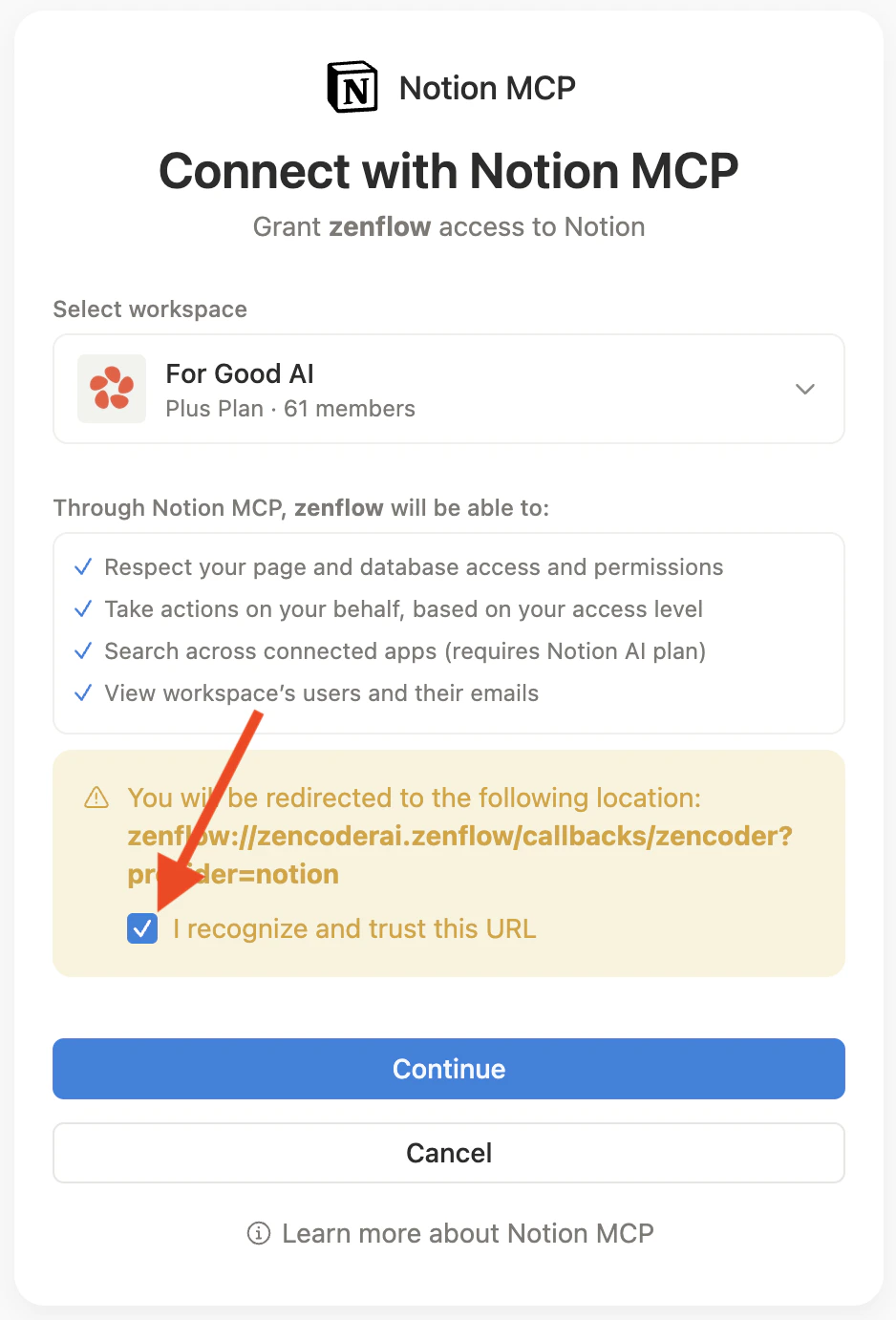
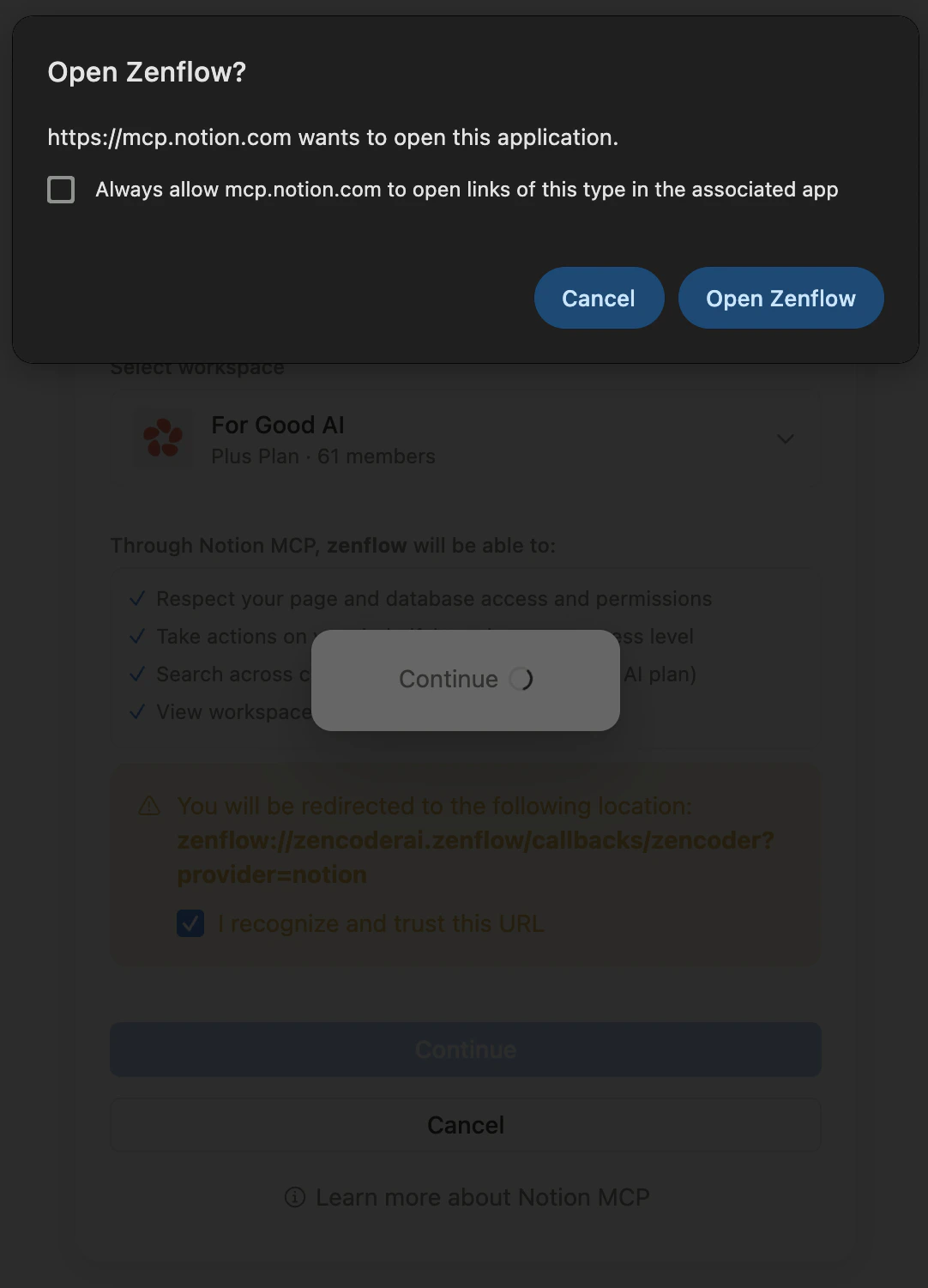
I recognize and trust this URL checkbox and click Continue
What the Agent Can Do
- Read — Search and read pages, databases, and wiki entries
- Create — Add new pages, database entries, and structured records
- Update — Modify existing pages, properties, and database fields
- Build dashboards — Create structured trackers, tables, and status boards
Example Use Cases
- Sync sprint progress from Linear or Jira into a Notion dashboard
- Create onboarding checklists for new hires automatically
- Archive customer quotes and testimonials from email into a Notion database
- Maintain a running competitive intel page updated weekly