

This extended integration requires a paid Zencoder account.
Overview
The Google Sheets integration enables Zenflow agents to read, write, and format data inside Google Sheets. Create spreadsheets, update rows, analyze tabular data, and build real-time trackers — perfect for automated reporting and data management.Connecting Google Sheets
1
Open Settings & Integrations
Navigate to Settings → Integrations in the Zenflow sidebar.
2
Search for Google Sheets
Locate Google Sheets in the Integrations Catalog and click the Connect or [+] button.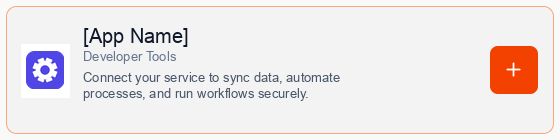
3
Consent to Connection
A secure popup window will open asking for permission to connect your account. Click Continue to proceed.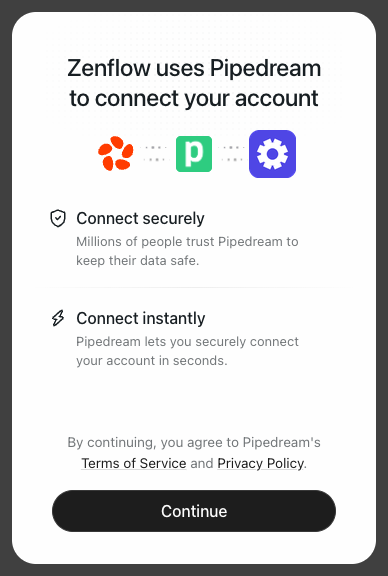
4
Authorize Connection
Authenticate and authorize Zenflow via the secure Google OAuth popup window to grant the required file access scopes.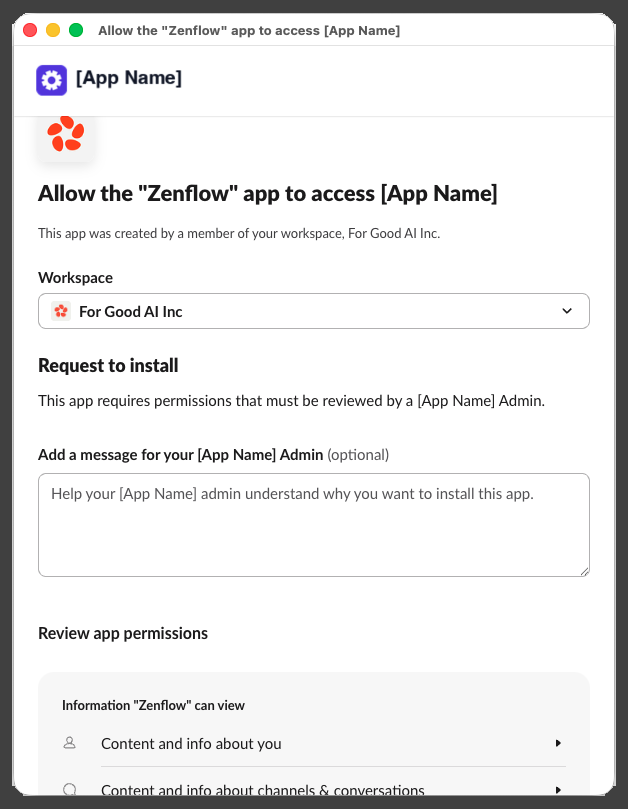
5
Complete Setup
A progress window will briefly indicate that the account connection is in progress, followed by a confirmation.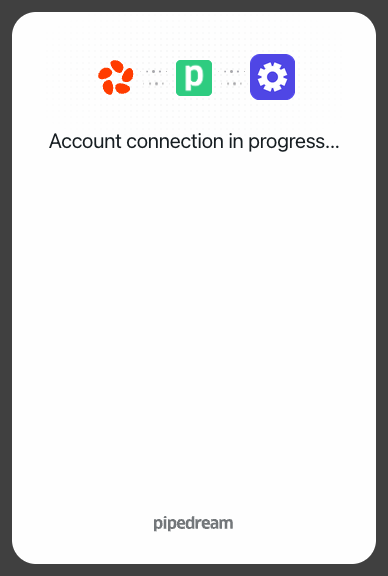
What the Agent Can Do
- Read Sheets — Retrieve values, rows, and sheets metadata
- Write Data — Append rows, update cells, and insert new data
- Format Cells — Style sheets, add headers, and adjust column widths
- Manage Files — Create and share new spreadsheets
Example Use Cases
- Export lead information from CRM or forms into a Google Sheet
- Maintain an active status report of git pull requests and build status
- Automatically compile weekly or monthly marketing analytics report
- Update financial and budgeting tables based on Stripe payment events