> ## Documentation Index
> Fetch the complete documentation index at: https://docs.zencoder.ai/llms.txt
> Use this file to discover all available pages before exploring further.
# VPS Setup
> Setup Zenflow on a VPS for remote access
## Overview
Zenflow now supports installation on a VPS (Virtual Private Server). Follow instructions below to set it up or watch this video walkthrough for [DigitalOcean](https://www.digitalocean.com)
Regardless of VPS provider, main requirement is to enable HTTPS traffic to the instance
1. Log into [DigitalOcean](https://www.digitalocean.com)
2. Click **Create** dropdown and select **Droplets**
3. Choose the region based on your requirements
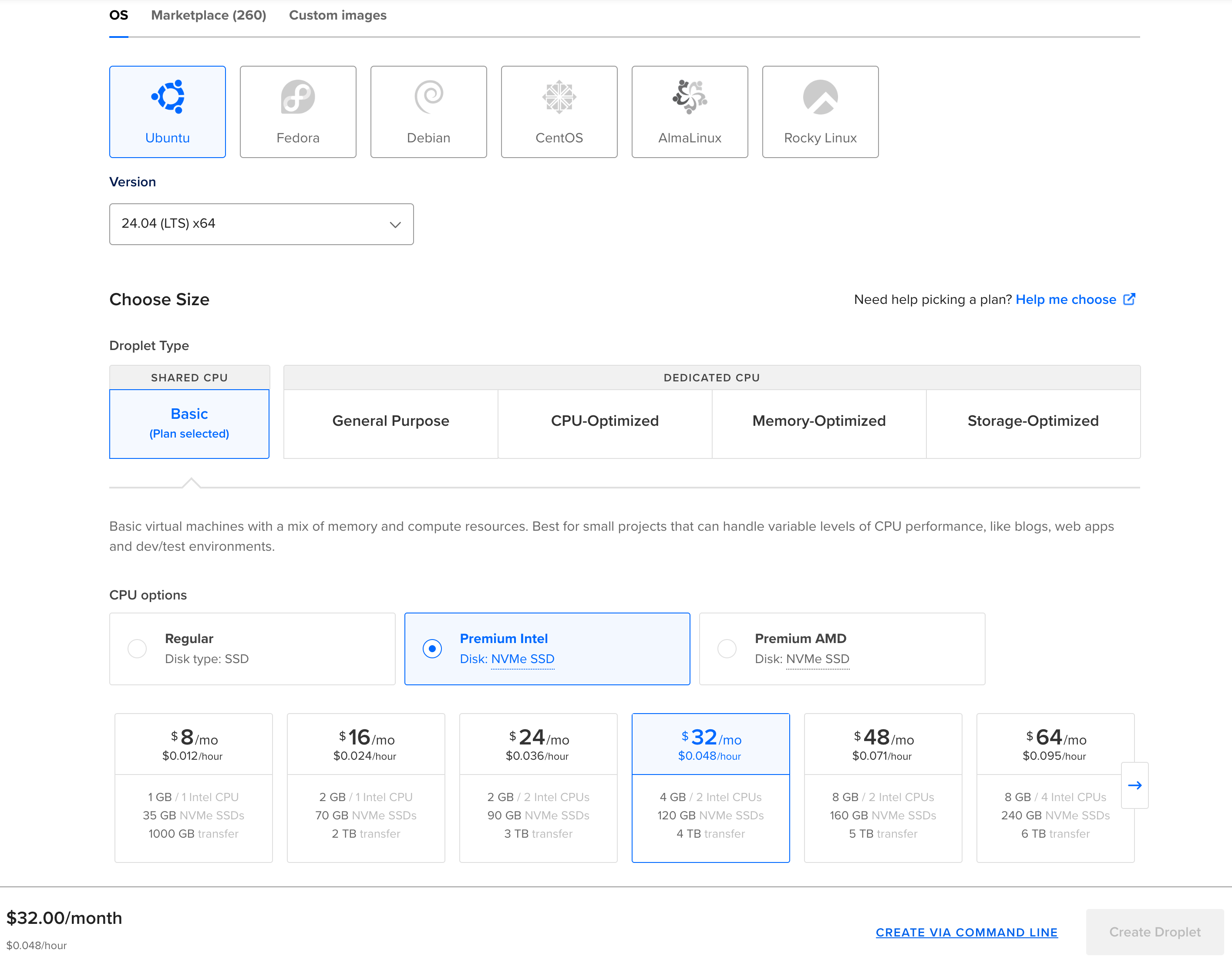
4. Choose **Ubuntu 24.04** for the OS (the default image)
5. Droplet size depends on your needs - if you expect Zenflow to execute heavy tasks (e.g. compiling code), you might want to create larger droplet. Or you can start with the default
6. Choose and set up your authentication method
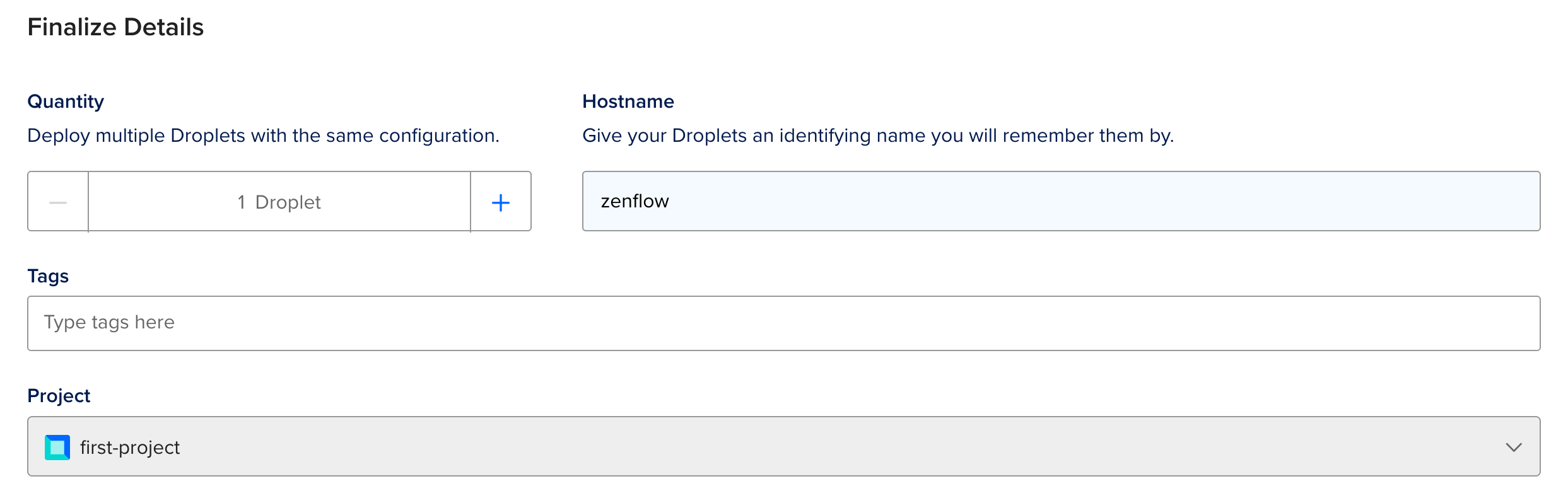
7. Optionally rename the droplet to something meaningful, like `Zenflow`
8. Click **Create Droplet** button
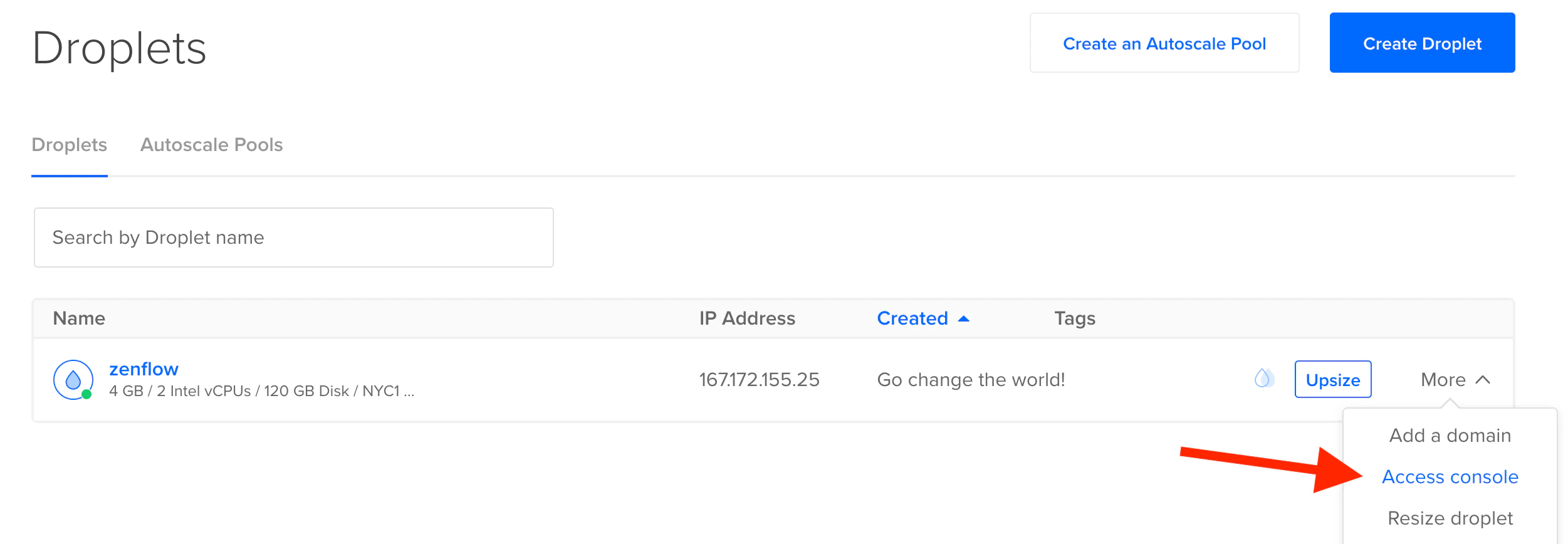
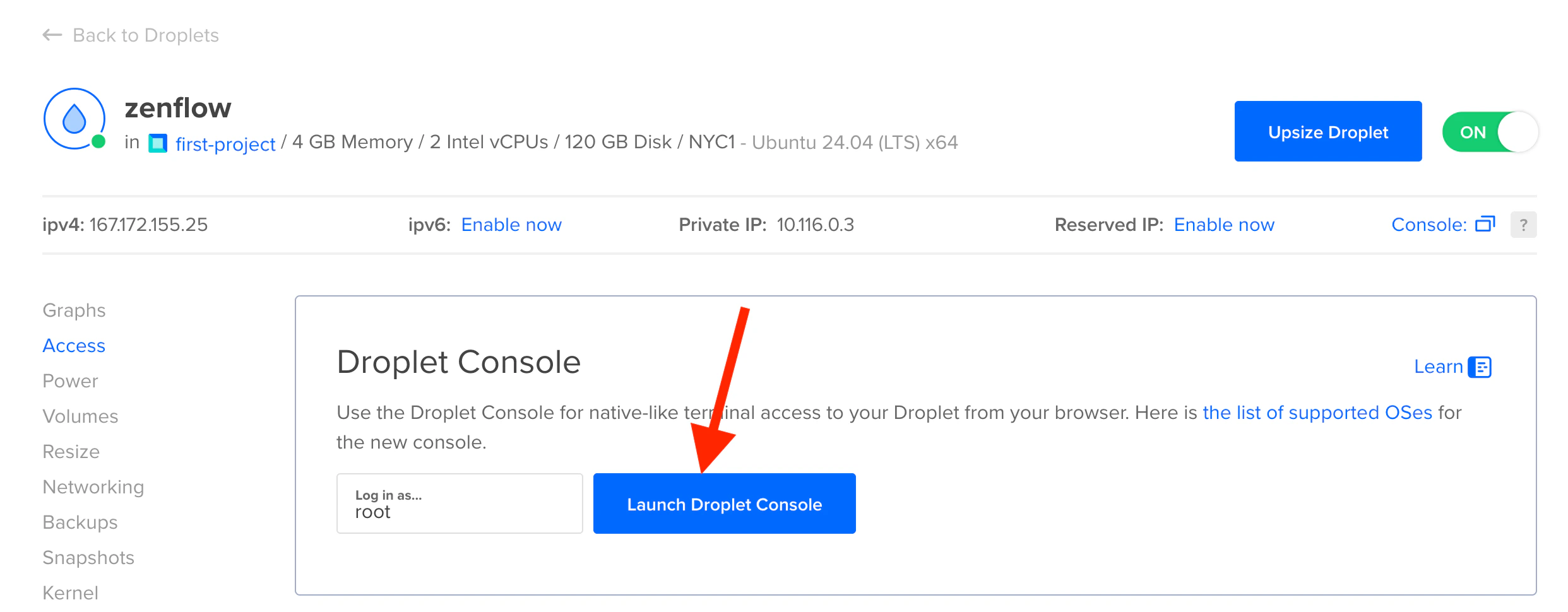
9. After droplet gets created, connect to it either using terminal or through Digital Ocean's **Access console**
1. Log into [Google Cloud console](https://console.cloud.google.com/)
2. Search for **compute engine** in a search bar
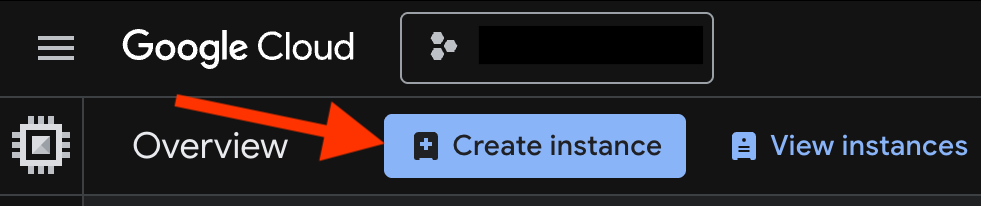
3. Select **Compute Engine** from search results and click **Create instance** button
4. At **Machine configuration** step set **Name**, **Region**, **Zone** and **Machine type** based on your needs (if you expect Zenflow to execute heavy tasks (e.g. compiling code), you might want to create larger instance. Or you can start with the default)
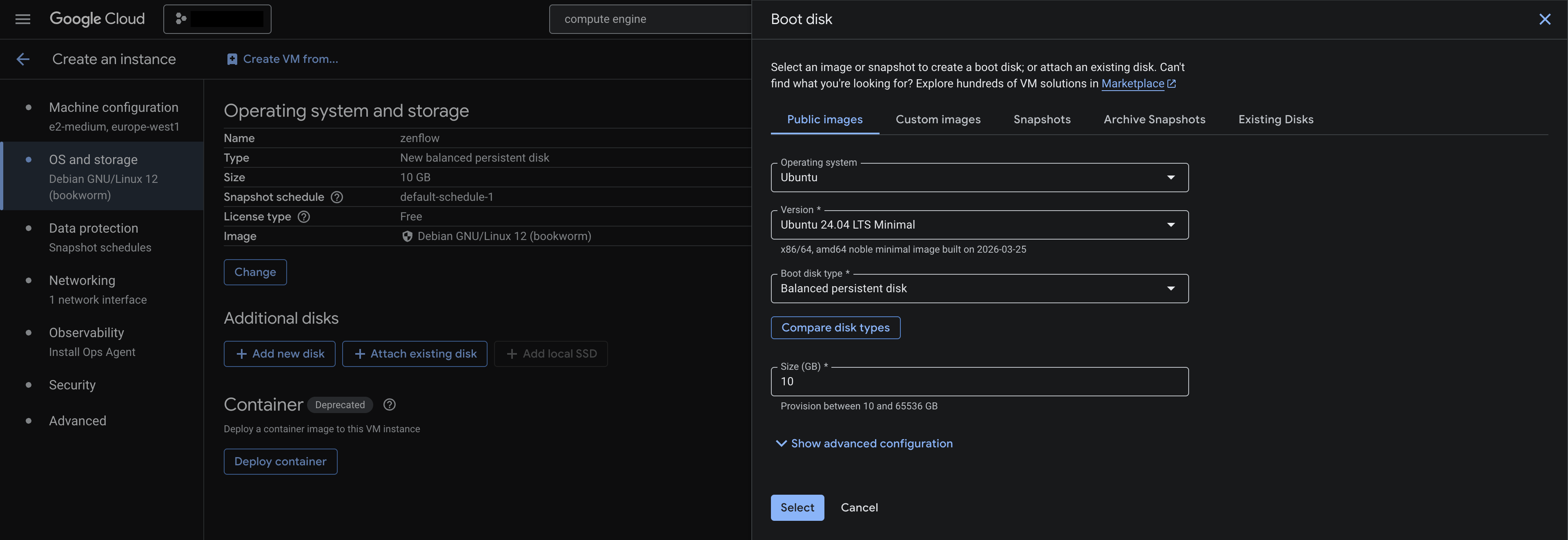
5. At **OS and storage** step set the image to Ubuntu 24.04. Optionally also adjust boot disk type and size or attach extra disks as per your needs
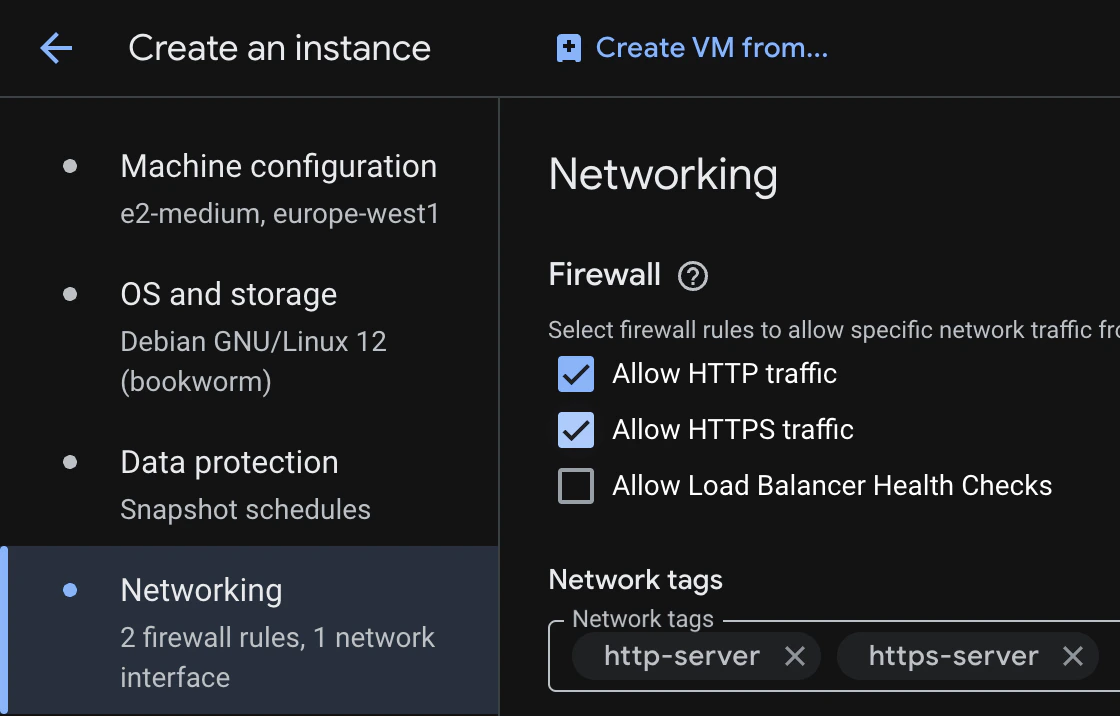
6. At **Networking** step in **Firewall** section make sure to check **Allow HTTP traffic** and **Allow HTTPS traffic** checkboxes
7. Set the rest of the settings according to your needs. Once all is set, click **Create** button
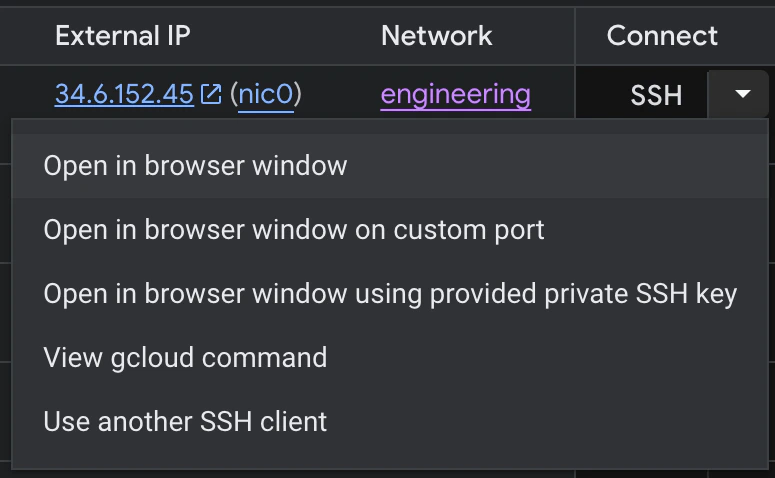
8. After instance gets created, connect to it either using terminal or through Google Cloud's in-browser connection tool
Once you are connected to the VPS:
1. Create non-root user with desired name (for example, `zenflow`), give it sudo rights and switch to the user:
```bash theme={"system"}
adduser zenflow
usermod -aG sudo zenflow
su - zenflow
```
2. Run the following command to download and execute set up script:
```
curl -fsSL https://download.zencoder.ai/releases/vps_setup.sh | sudo bash
```
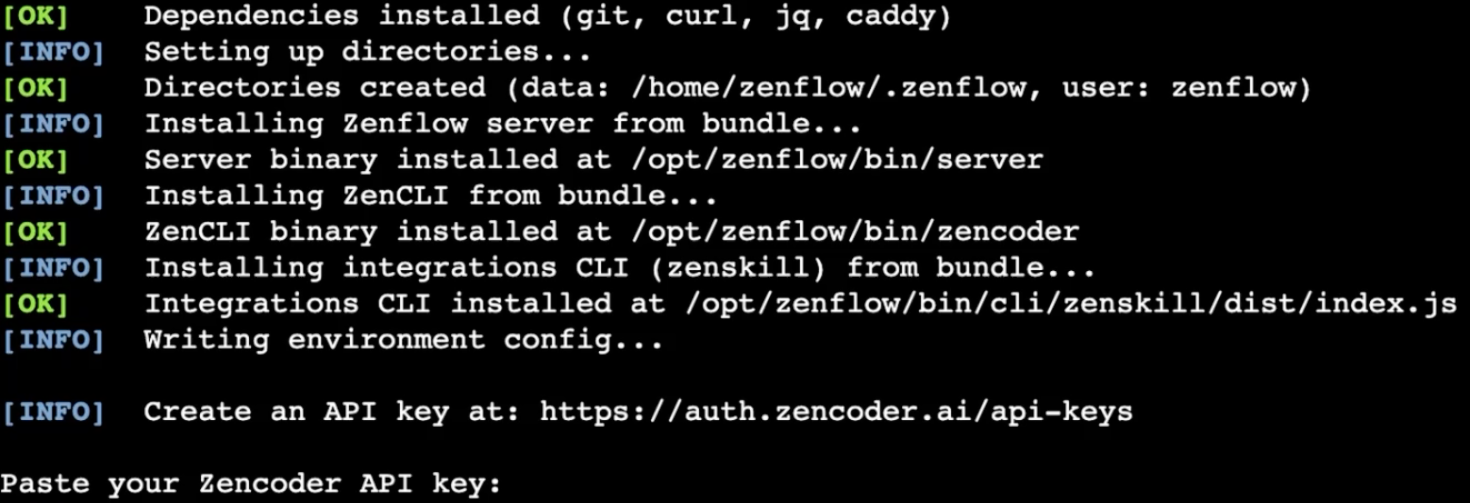
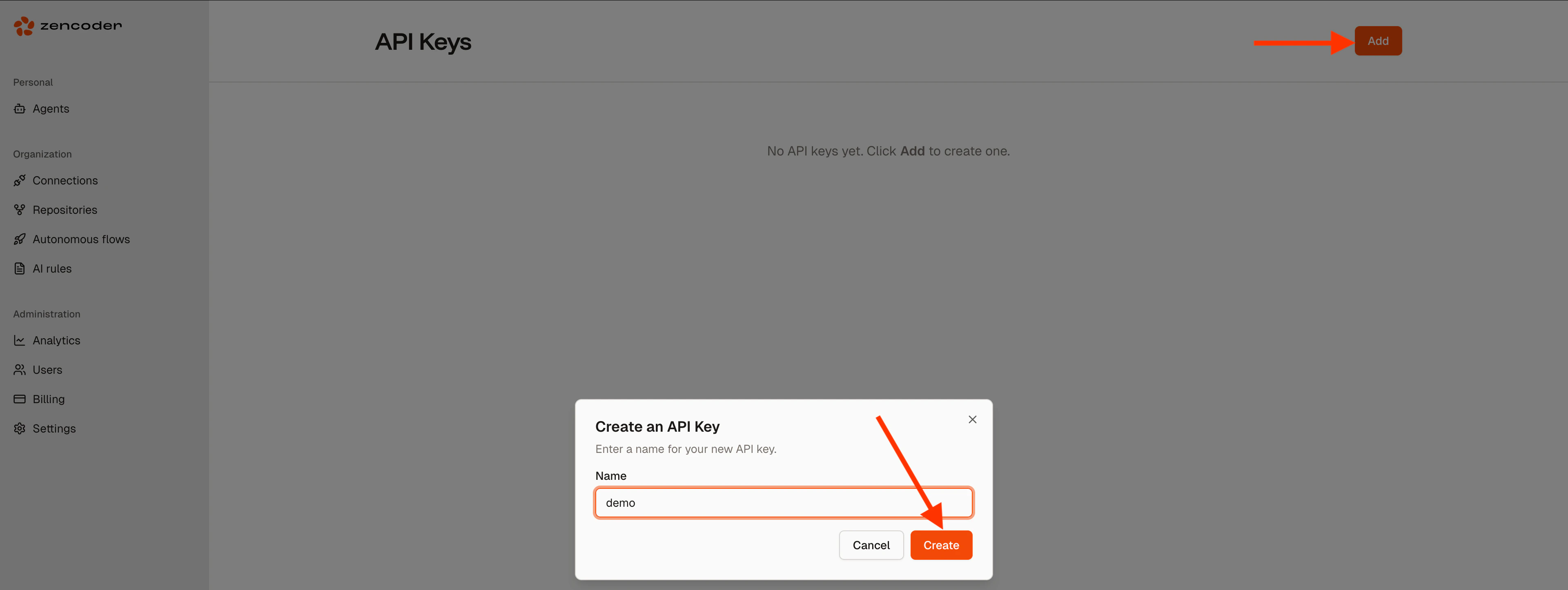
3. After initial setup the script will ask you to create API key at [https://auth.zencoder.ai/api-keys](https://auth.zencoder.ai/api-keys)
4. On that page click **Add**, give the API key a name and click **Create**. You will be shown the API key, store it in a secure place, it is only shown **once**
5. Go back to your VPS and paste the API key
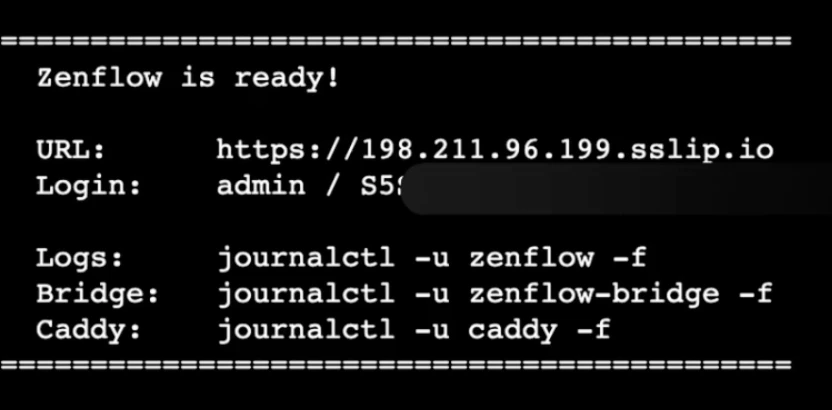
6. You will then be shown the URL at which you can access Zenflow and credentials (username/password)
7. When you visit the URL, you'll be prompted for Username/Password from the previous step
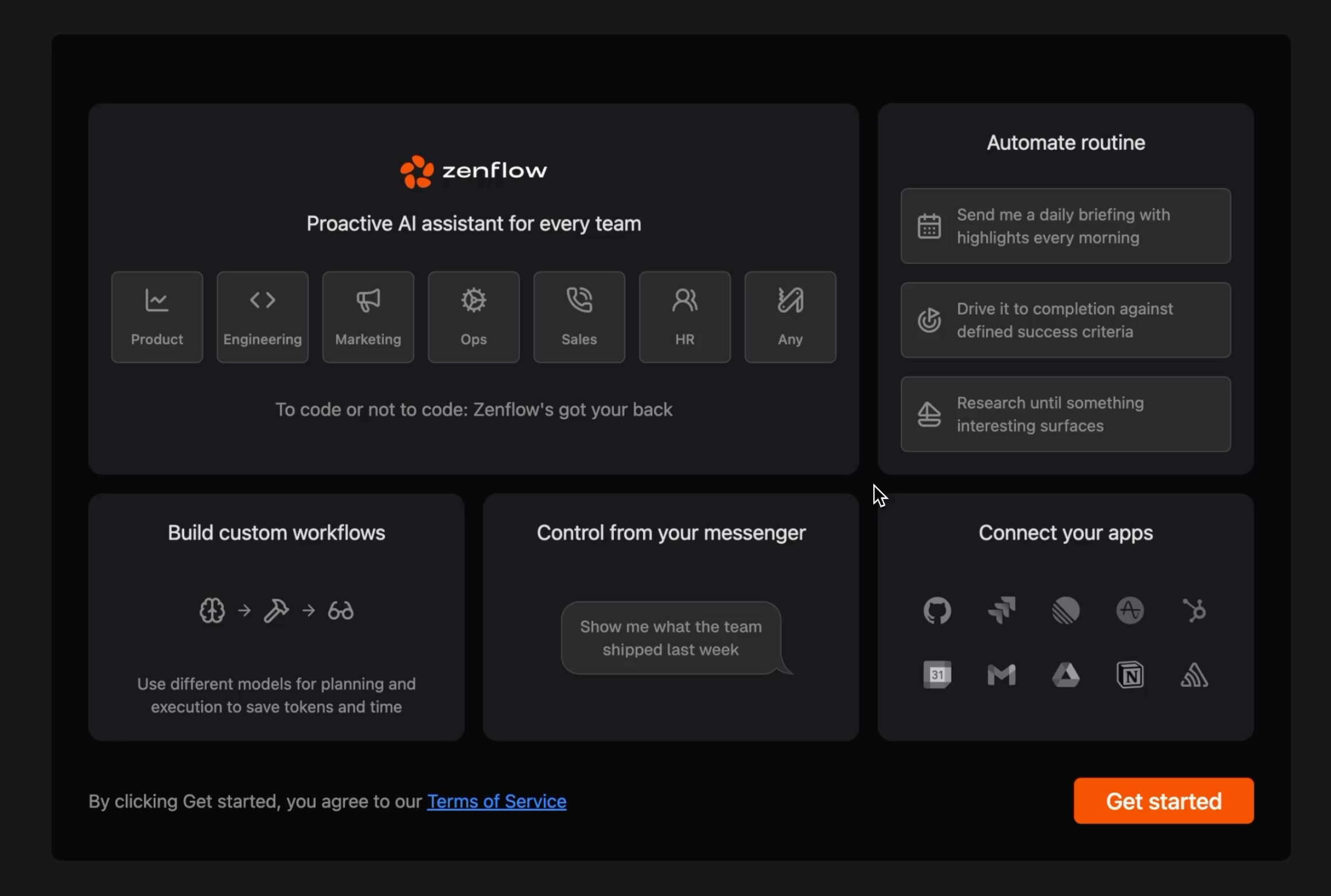
8. Once logged in, you'll see the onboarding screen of Zenflow and now can work with it through browser remotely
 3. Choose the region based on your requirements
4. Choose **Ubuntu 24.04** for the OS (the default image)
5. Droplet size depends on your needs - if you expect Zenflow to execute heavy tasks (e.g. compiling code), you might want to create larger droplet. Or you can start with the default
3. Choose the region based on your requirements
4. Choose **Ubuntu 24.04** for the OS (the default image)
5. Droplet size depends on your needs - if you expect Zenflow to execute heavy tasks (e.g. compiling code), you might want to create larger droplet. Or you can start with the default
 6. Choose and set up your authentication method
7. Optionally rename the droplet to something meaningful, like `Zenflow`
6. Choose and set up your authentication method
7. Optionally rename the droplet to something meaningful, like `Zenflow`
 8. Click **Create Droplet** button
9. After droplet gets created, connect to it either using terminal or through Digital Ocean's **Access console**
8. Click **Create Droplet** button
9. After droplet gets created, connect to it either using terminal or through Digital Ocean's **Access console**
 3. Select **Compute Engine** from search results and click **Create instance** button
 4. At **Machine configuration** step set **Name**, **Region**, **Zone** and **Machine type** based on your needs (if you expect Zenflow to execute heavy tasks (e.g. compiling code), you might want to create larger instance. Or you can start with the default)
5. At **OS and storage** step set the image to Ubuntu 24.04. Optionally also adjust boot disk type and size or attach extra disks as per your needs
4. At **Machine configuration** step set **Name**, **Region**, **Zone** and **Machine type** based on your needs (if you expect Zenflow to execute heavy tasks (e.g. compiling code), you might want to create larger instance. Or you can start with the default)
5. At **OS and storage** step set the image to Ubuntu 24.04. Optionally also adjust boot disk type and size or attach extra disks as per your needs
 6. At **Networking** step in **Firewall** section make sure to check **Allow HTTP traffic** and **Allow HTTPS traffic** checkboxes
 7. Set the rest of the settings according to your needs. Once all is set, click **Create** button
8. After instance gets created, connect to it either using terminal or through Google Cloud's in-browser connection tool
7. Set the rest of the settings according to your needs. Once all is set, click **Create** button
8. After instance gets created, connect to it either using terminal or through Google Cloud's in-browser connection tool
 4. On that page click **Add**, give the API key a name and click **Create**. You will be shown the API key, store it in a secure place, it is only shown **once**
 5. Go back to your VPS and paste the API key
6. You will then be shown the URL at which you can access Zenflow and credentials (username/password)
5. Go back to your VPS and paste the API key
6. You will then be shown the URL at which you can access Zenflow and credentials (username/password)
 7. When you visit the URL, you'll be prompted for Username/Password from the previous step
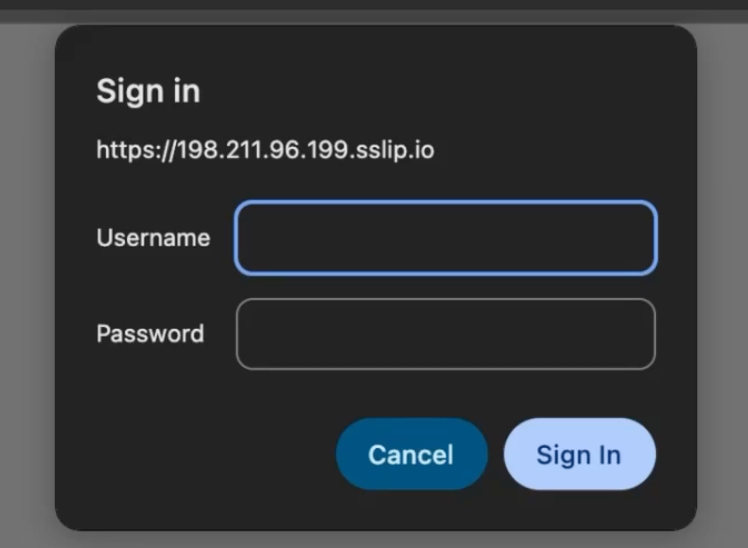 8. Once logged in, you'll see the onboarding screen of Zenflow and now can work with it through browser remotely