> ## Documentation Index
> Fetch the complete documentation index at: https://docs.zencoder.ai/llms.txt
> Use this file to discover all available pages before exploring further.
# Tasks Overview
> Create, run, and manage tasks in Zenflow for AI-driven code changes.
## What is a Task?
A task is a discrete unit of work that an AI agent executes within an isolated workspace. Tasks can range from quick fixes to full feature implementations, with workflows that adapt to scope and complexity.
Every task runs in its own Git worktree with a dedicated branch, ensuring parallel execution without conflicts.
## Task Modes
Zenflow supports two task modes, selectable via the **Code / Work** toggle at the top of the creation screen:
**"What do you want to build?"** — For coding tasks in git repositories. Tasks run in an isolated worktree with a dedicated branch.
**"What do you want to get done?"** — For non-code tasks like brainstorming, research, and writing. No repository required — tasks use a local folder.
### Code Workflows
| Workflow | Description |
| --------------------------------------------------------------- | ----------------------------------------------------- |
| [**Auto**](/zenflow/workflows/auto) | Agent decides the approach based on your prompt |
| [**Fix a Bug**](/zenflow/workflows/fix-a-bug) | Investigation → Solution → Implementation |
| [**Spec First**](/zenflow/workflows/spec-first) | Technical spec before coding |
| [**Requirements First**](/zenflow/workflows/requirements-first) | Full PRD → spec → staged implementation |
| [**Multi-model**](/zenflow/workflows/multi-model) | Different models for planning, implementation, review |
| [**Custom**](/zenflow/workflows/custom) | Your own workflow definitions |
### Work Workflows
| Workflow | Description |
| ------------------- | ---------------------------------------- |
| **Auto** | Agent decides the approach |
| **Brainstorm** | Ideation and exploration |
| **Deep Brainstorm** | Extended multi-step brainstorming (beta) |
| **Research** | Web research and analysis |
| **Write** | Content creation and writing |
## Creating a Task
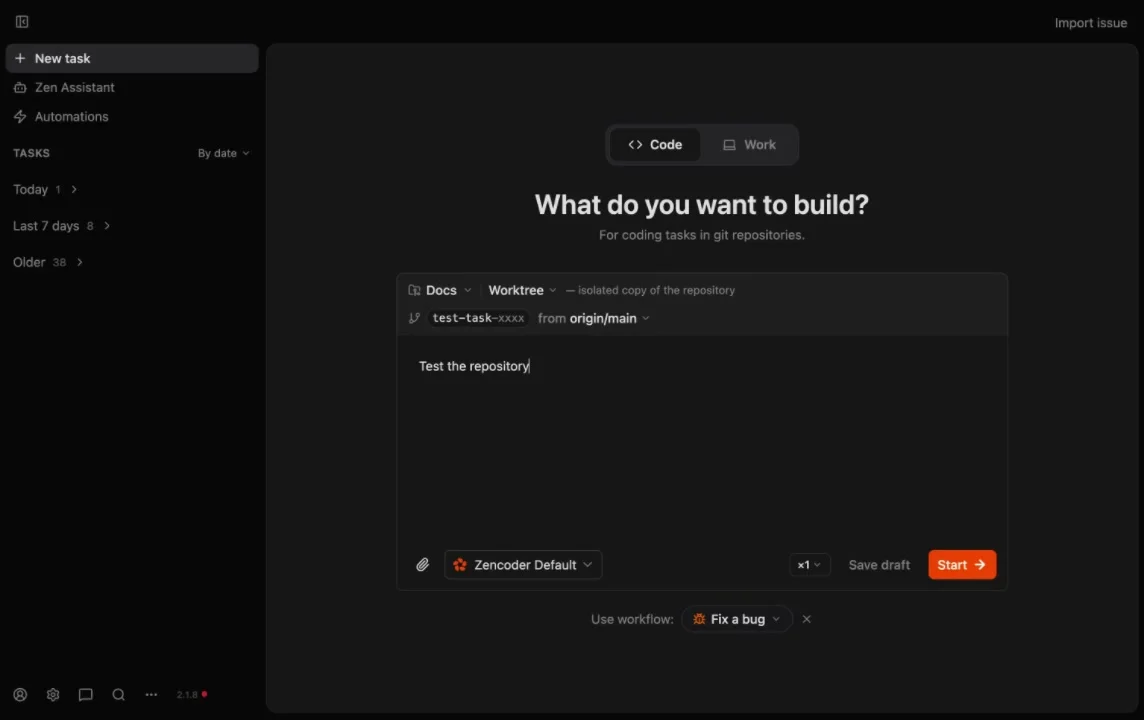 Choose **Code** for repository-based work or **Work** for non-code tasks.
In Code mode, select the repository and source branch. In Work mode, select a local folder. Each Code task creates an isolated worktree at `.zenflow/worktrees/{task_id}`.
Write a clear description. Use `@` to reference files or attach images for context.
Select from the workflow buttons below the input area, or let the agent use **Auto** by default.
Click the preset dropdown (defaults to **Zencoder Default**) to choose a different agent configuration, or create a new preset.
Click **Start** to spin up the agent immediately, or **Save draft** to run later.
You can also import tasks directly from external tools using the **Import issue** button in the top-right corner.
## Task View
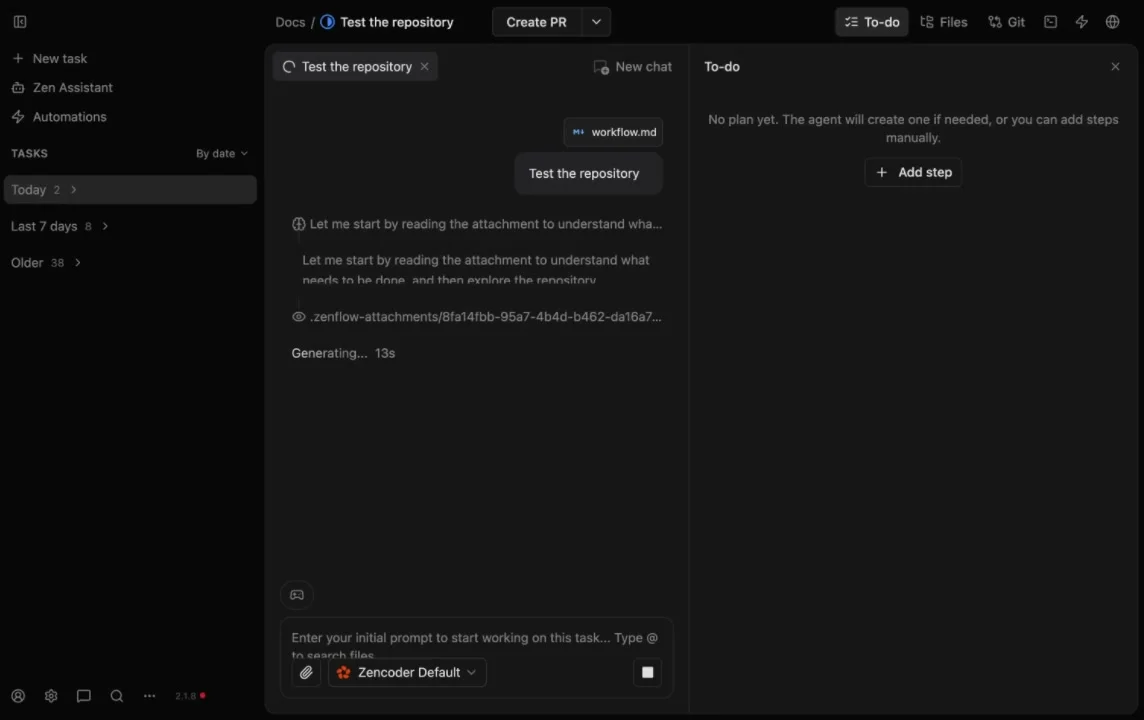
Once a task is running, the interface splits into a multi-panel layout:
### Top Bar
The top bar shows the repository name, task name, and key actions:
| Element | Description |
| ----------------- | ----------------------------------------------------------------------------------------------- |
| **Create PR** | Push the branch and open a pull request. The dropdown arrow offers additional merge options. |
| **To-do** | View and manage workflow steps. Add steps manually or let the agent generate them. |
| **Files** | Browse and search all files in the task worktree. **Task files** view shows workflow artifacts. |
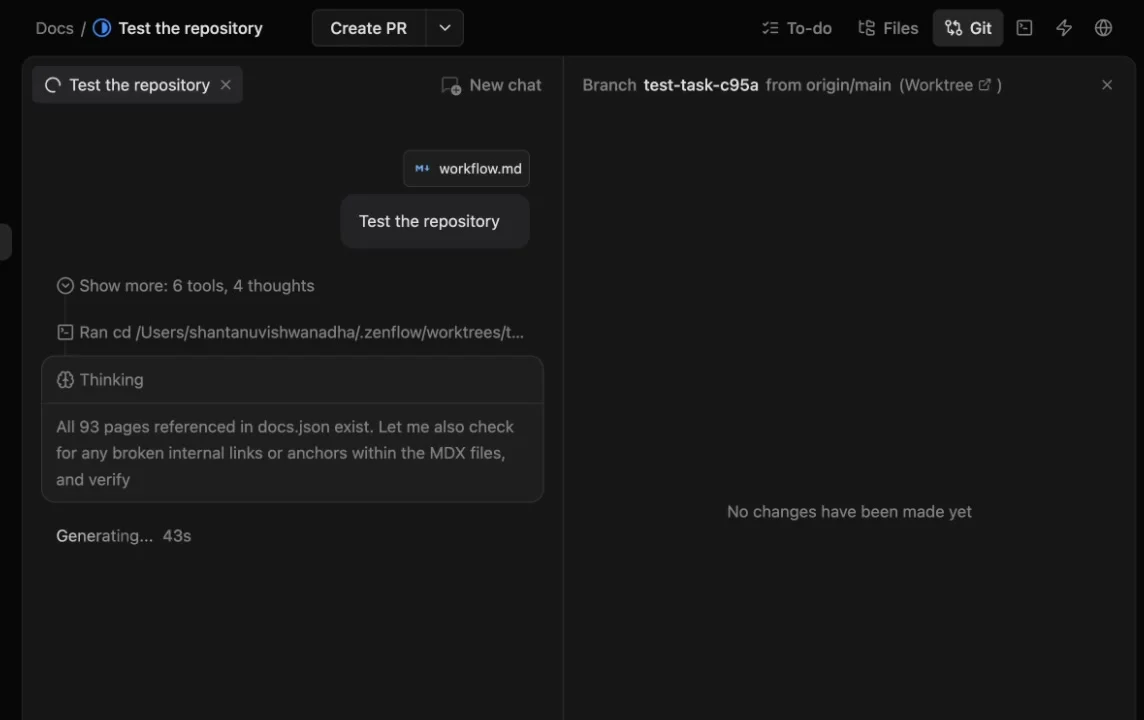
| **Git** | See the task branch, base branch, diffs, and committed file changes. |
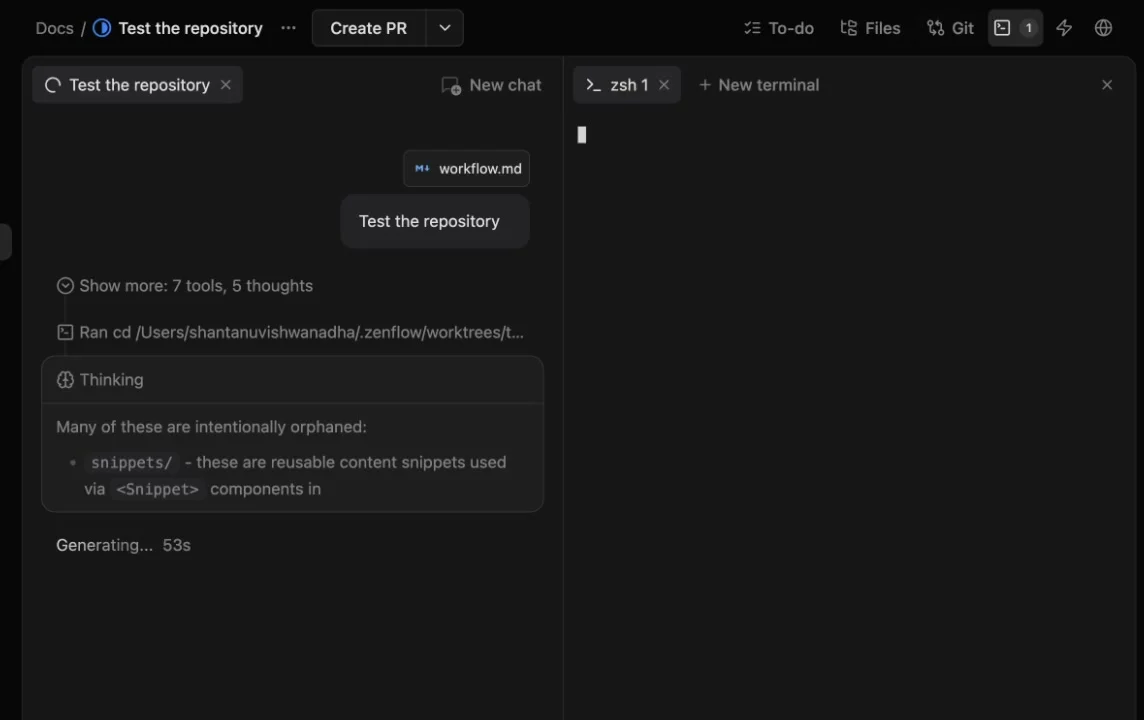
| **Terminal** | Open terminal sessions inside the task's worktree. Multiple tabs supported. |
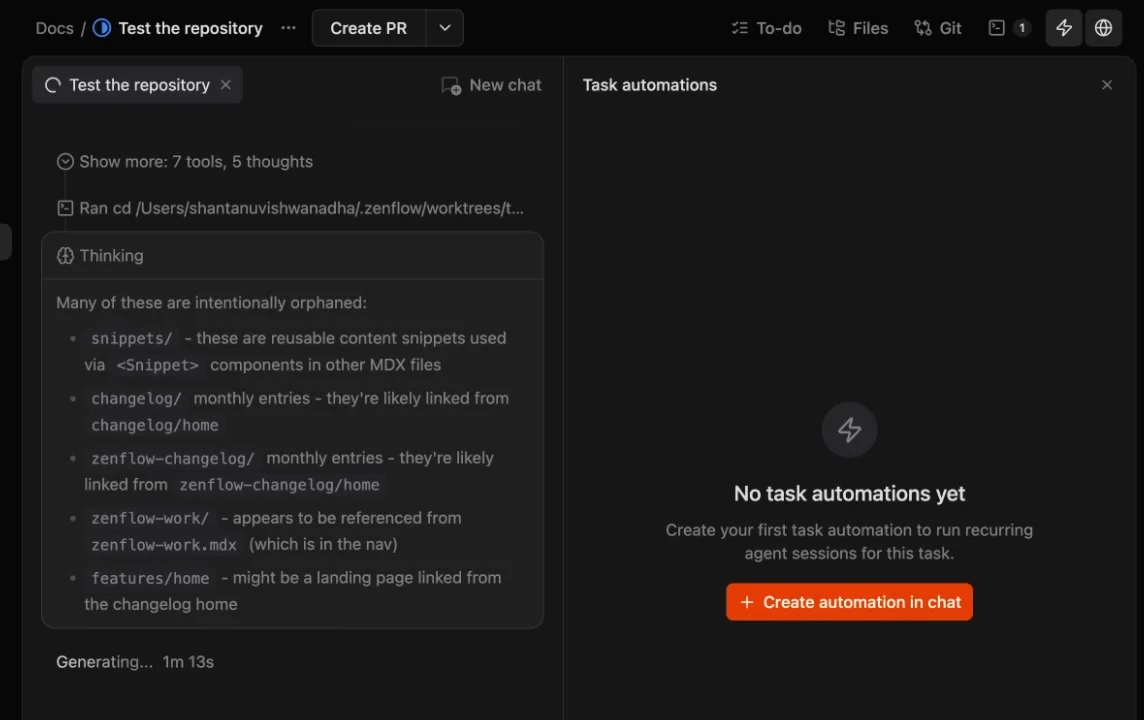
| **Automations** | Create and manage recurring agent sessions for this task. |
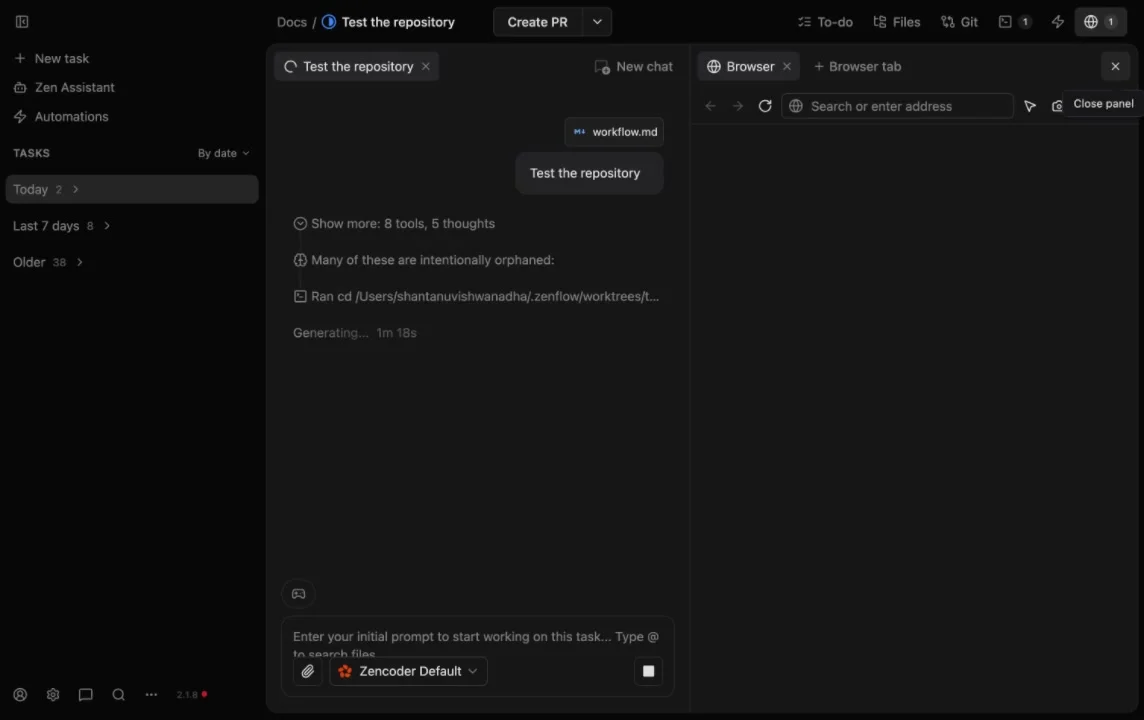
| **Browser** | Built-in browser for previewing web apps or browsing documentation. |
| **Task menu (⋯)** | Edit, Open in IDE, Reveal in Finder, Duplicate, Archive, Delete. |
### Chat Panel (Left)
The left side contains the agent conversation:
* **Chat tabs** — Each workflow step or subtask gets its own tab. Click **New chat** to open additional conversations for follow-ups or guidance.
* **Live telemetry** — Streams tool calls, shell commands, file reads, and thinking so you can watch what the agent is doing.
* **Interactive composer** — Type follow-up prompts, use `@` to reference files, attach images, and switch agent presets mid-task.
### Context Panel (Right)
The right side changes based on which top bar tab is active. Here are the **Git**, **Terminal**, **Browser**, and **Automations** panels:
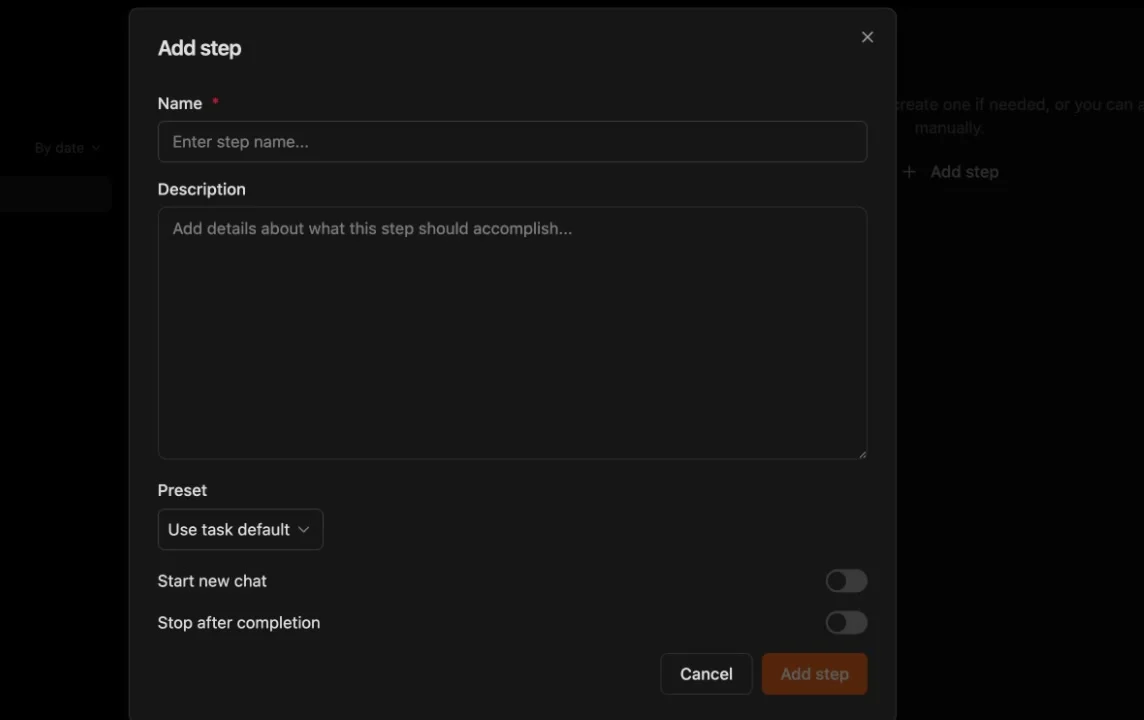
* **To-do** — Shows workflow steps from the plan. Use **+ Add step** to create custom steps with a name, description, preset override, and toggles for "Start new chat" and "Stop after completion."
* **Files** — File explorer with search and a **Task files** section for quick access to artifacts like `workflow.md` and `plan.md`.
* **Git** — Branch name, base branch, and file-level diffs for all committed changes.
* **Terminal** — One or more terminal sessions rooted in the task worktree.
* **Automations** — In-task automation manager. Create recurring agent sessions that run on a schedule.
* **Browser** — Embedded Chromium browser with address bar, navigation, and dev tools.
## Task States
Tasks move through these states as work progresses:
| State | Icon | Description |
| --------------- | --------------- | ---------------------------------- |
| **To Do** | Dashed circle | Task created but not yet started |
| **In Progress** | Blue circle | Agent actively working on the task |
| **In Review** | Orange circle | Changes ready for human review |
| **Done** | Green checkmark | Work completed successfully |
| **Cancelled** | Gray X | Task was stopped or abandoned |
## Adding Steps
You can add steps to a task's plan manually at any time:
1. Open the **To-do** panel from the top bar
2. Click **+ Add step**
3. Fill in the step details:
| Field | Description |
| ------------------------- | --------------------------------------------------------------------------------- |
| **Name** | Short label for the step (required) |
| **Description** | Detailed instructions for what the step should accomplish |
| **Preset** | Agent preset override — defaults to "Use task default" |
| **Start new chat** | Toggle to open a fresh chat context for this step |
| **Stop after completion** | Toggle to pause the task after this step finishes (useful for review checkpoints) |
If you don't add steps manually, the agent will create a plan automatically based on the workflow type and your task description.
## Task Actions
### Create PR
Push the task branch and open a pull request on GitHub. The dropdown offers additional options for merge strategies.
### Open in IDE
Launch your editor directly in the task's worktree directory so you can make manual edits alongside the agent.
### Duplicate
Create a copy of the task with the same description and configuration. Useful for running variations of the same work.
### Archive
Remove the task from the active view and clean up the worktree. Archived tasks can still be referenced but no longer consume disk space.
### Delete
Permanently remove the task, its worktree, and all associated data.
## Parallel Execution
Zenflow supports running multiple tasks simultaneously:
* Each task has its own worktree and branch
* Agents don't interfere with each other
* You can start new tasks while others are in progress
* Disk space scales with active task count
Each worktree is a full copy of working files. Archive completed tasks regularly to free disk space.
## Task Artifacts
Depending on the workflow, tasks generate artifacts in the task worktree:
| Artifact | Workflow |
| ------------------ | ---------------------------------------------- |
| `workflow.md` | All workflows — defines the workflow structure |
| `plan.md` | All workflows — execution steps and progress |
| `spec.md` | Spec First, Requirements First |
| `requirements.md` | Requirements First |
| `investigation.md` | Fix a Bug |
| `solution.md` | Fix a Bug |
## Sidebar
The left sidebar provides quick access to all task management:
* **+ New task** — Opens the task creation screen
* **Zen Assistant** — General-purpose AI chat (not tied to a task)
* **Automations** — Manage workspace-level and in-task automations
* **TASKS** — All your tasks, sortable **By date**, **By status**, or **By repo**
* **Today** — Tasks created or updated today
* **Last 7 days** — Recent task activity
* **Older** — Archived and historical tasks
## Next Steps
Choose the right workflow for your task
Understanding task isolation
Monitor and review agent modifications
Set up recurring agent tasks
Choose **Code** for repository-based work or **Work** for non-code tasks.
In Code mode, select the repository and source branch. In Work mode, select a local folder. Each Code task creates an isolated worktree at `.zenflow/worktrees/{task_id}`.
Write a clear description. Use `@` to reference files or attach images for context.
Select from the workflow buttons below the input area, or let the agent use **Auto** by default.
Click the preset dropdown (defaults to **Zencoder Default**) to choose a different agent configuration, or create a new preset.
Click **Start** to spin up the agent immediately, or **Save draft** to run later.
You can also import tasks directly from external tools using the **Import issue** button in the top-right corner.
## Task View
Once a task is running, the interface splits into a multi-panel layout:
### Top Bar
The top bar shows the repository name, task name, and key actions:
| Element | Description |
| ----------------- | ----------------------------------------------------------------------------------------------- |
| **Create PR** | Push the branch and open a pull request. The dropdown arrow offers additional merge options. |
| **To-do** | View and manage workflow steps. Add steps manually or let the agent generate them. |
| **Files** | Browse and search all files in the task worktree. **Task files** view shows workflow artifacts. |
| **Git** | See the task branch, base branch, diffs, and committed file changes. |
| **Terminal** | Open terminal sessions inside the task's worktree. Multiple tabs supported. |
| **Automations** | Create and manage recurring agent sessions for this task. |
| **Browser** | Built-in browser for previewing web apps or browsing documentation. |
| **Task menu (⋯)** | Edit, Open in IDE, Reveal in Finder, Duplicate, Archive, Delete. |
### Chat Panel (Left)
The left side contains the agent conversation:
* **Chat tabs** — Each workflow step or subtask gets its own tab. Click **New chat** to open additional conversations for follow-ups or guidance.
* **Live telemetry** — Streams tool calls, shell commands, file reads, and thinking so you can watch what the agent is doing.
* **Interactive composer** — Type follow-up prompts, use `@` to reference files, attach images, and switch agent presets mid-task.
### Context Panel (Right)
The right side changes based on which top bar tab is active. Here are the **Git**, **Terminal**, **Browser**, and **Automations** panels:
* **To-do** — Shows workflow steps from the plan. Use **+ Add step** to create custom steps with a name, description, preset override, and toggles for "Start new chat" and "Stop after completion."
* **Files** — File explorer with search and a **Task files** section for quick access to artifacts like `workflow.md` and `plan.md`.
* **Git** — Branch name, base branch, and file-level diffs for all committed changes.
* **Terminal** — One or more terminal sessions rooted in the task worktree.
* **Automations** — In-task automation manager. Create recurring agent sessions that run on a schedule.
* **Browser** — Embedded Chromium browser with address bar, navigation, and dev tools.
## Task States
Tasks move through these states as work progresses:
| State | Icon | Description |
| --------------- | --------------- | ---------------------------------- |
| **To Do** | Dashed circle | Task created but not yet started |
| **In Progress** | Blue circle | Agent actively working on the task |
| **In Review** | Orange circle | Changes ready for human review |
| **Done** | Green checkmark | Work completed successfully |
| **Cancelled** | Gray X | Task was stopped or abandoned |
## Adding Steps
You can add steps to a task's plan manually at any time:
1. Open the **To-do** panel from the top bar
2. Click **+ Add step**
3. Fill in the step details:
| Field | Description |
| ------------------------- | --------------------------------------------------------------------------------- |
| **Name** | Short label for the step (required) |
| **Description** | Detailed instructions for what the step should accomplish |
| **Preset** | Agent preset override — defaults to "Use task default" |
| **Start new chat** | Toggle to open a fresh chat context for this step |
| **Stop after completion** | Toggle to pause the task after this step finishes (useful for review checkpoints) |
If you don't add steps manually, the agent will create a plan automatically based on the workflow type and your task description.
## Task Actions
### Create PR
Push the task branch and open a pull request on GitHub. The dropdown offers additional options for merge strategies.
### Open in IDE
Launch your editor directly in the task's worktree directory so you can make manual edits alongside the agent.
### Duplicate
Create a copy of the task with the same description and configuration. Useful for running variations of the same work.
### Archive
Remove the task from the active view and clean up the worktree. Archived tasks can still be referenced but no longer consume disk space.
### Delete
Permanently remove the task, its worktree, and all associated data.
## Parallel Execution
Zenflow supports running multiple tasks simultaneously:
* Each task has its own worktree and branch
* Agents don't interfere with each other
* You can start new tasks while others are in progress
* Disk space scales with active task count
Each worktree is a full copy of working files. Archive completed tasks regularly to free disk space.
## Task Artifacts
Depending on the workflow, tasks generate artifacts in the task worktree:
| Artifact | Workflow |
| ------------------ | ---------------------------------------------- |
| `workflow.md` | All workflows — defines the workflow structure |
| `plan.md` | All workflows — execution steps and progress |
| `spec.md` | Spec First, Requirements First |
| `requirements.md` | Requirements First |
| `investigation.md` | Fix a Bug |
| `solution.md` | Fix a Bug |
## Sidebar
The left sidebar provides quick access to all task management:
* **+ New task** — Opens the task creation screen
* **Zen Assistant** — General-purpose AI chat (not tied to a task)
* **Automations** — Manage workspace-level and in-task automations
* **TASKS** — All your tasks, sortable **By date**, **By status**, or **By repo**
* **Today** — Tasks created or updated today
* **Last 7 days** — Recent task activity
* **Older** — Archived and historical tasks
## Next Steps
Choose the right workflow for your task
Understanding task isolation
Monitor and review agent modifications
Set up recurring agent tasks