> ## Documentation Index
> Fetch the complete documentation index at: https://docs.zencoder.ai/llms.txt
> Use this file to discover all available pages before exploring further.
# Settings
> Configure preferences, repositories, and profile in Zenflow.
Zenflow settings are organized into sections accessible from the left sidebar. Open settings from the gear icon or **Settings** in the navigation.
## General
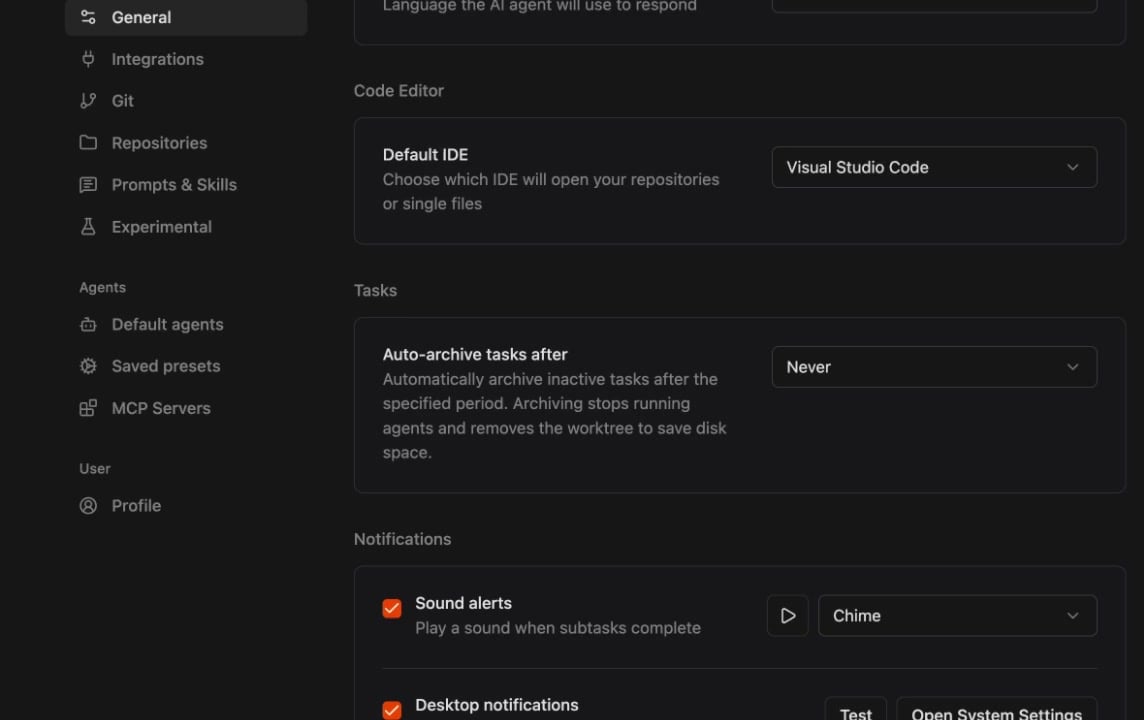
| Setting | Description |
| ---------------------------- | -------------------------------------------------------------------------- |
| **Language** | Language the AI agent will use to respond |
| **Default IDE** | Which IDE opens when you click "Open in IDE" (VS Code, Cursor, etc.) |
| **Auto-archive tasks after** | Automatically archive inactive tasks after a set period to save disk space |
| **Sound alerts** | Play a sound when subtasks complete (configurable chime) |
| **Desktop notifications** | System notifications for task events |
## Integrations
Connect Zenflow to external tools. See [Integrations](/zenflow/integrations) for the full list of supported apps (GitHub, Linear, Jira, Slack, Notion, and more).
## Git
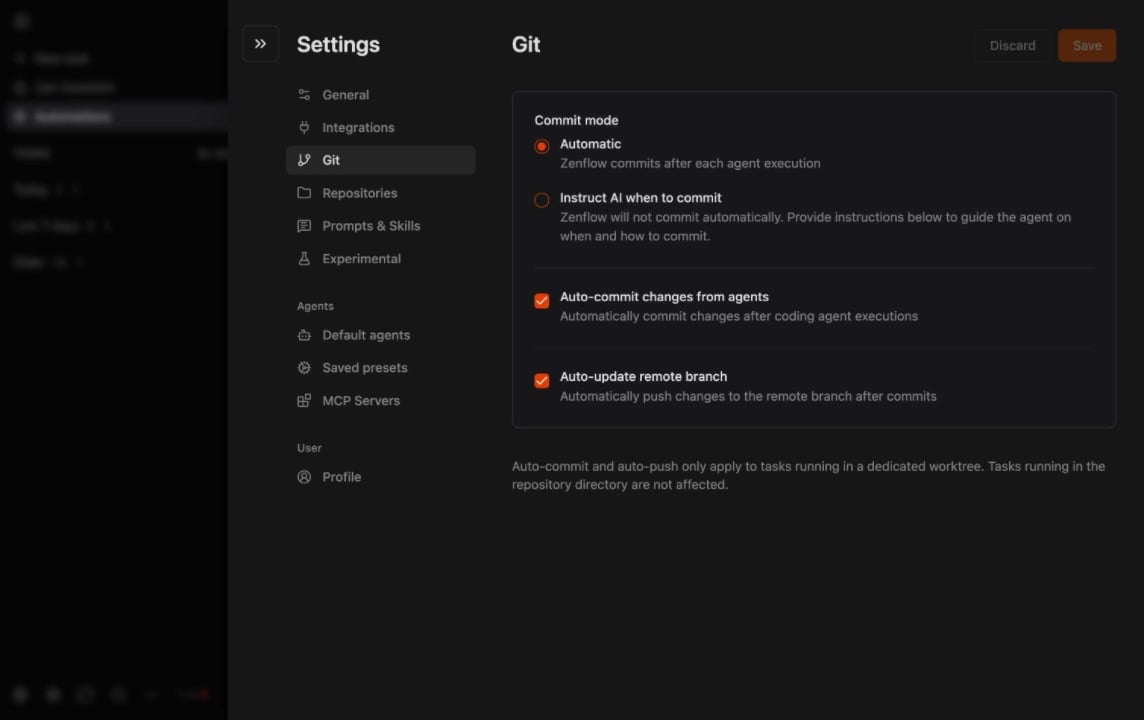
Configure how Zenflow handles commits and pushes. See [Tracking Changes](/zenflow/tracking-changes#git-settings) for details.
| Setting | Description |
| -------------------------------------------- | ----------------------------------------------------------- |
| **Commit mode — Automatic** | Zenflow commits after each agent execution |
| **Commit mode — Instruct AI when to commit** | The agent decides when to commit based on your instructions |
| **Auto-commit changes from agents** | Automatically commit after coding agent executions |
| **Auto-update remote branch** | Automatically push to the remote branch after commits |
## Repositories
Manage connected repositories. Each repository has its own configuration page with:
* **Project Name** — Display label for the project picker
* **Git Repository Path** — Absolute path to the repo Zenflow clones into task worktrees
* **Scripts & Automation** — Setup, Dev Server, and Cleanup scripts
* **Copy Files** — Local-only files (e.g., `.env`) copied into each worktree
* **AI Rules** — Rule folders and always-include rule files agents follow
See [Repository Configuration](/zenflow/project-configuration) for the full reference.
## Prompts & Skills
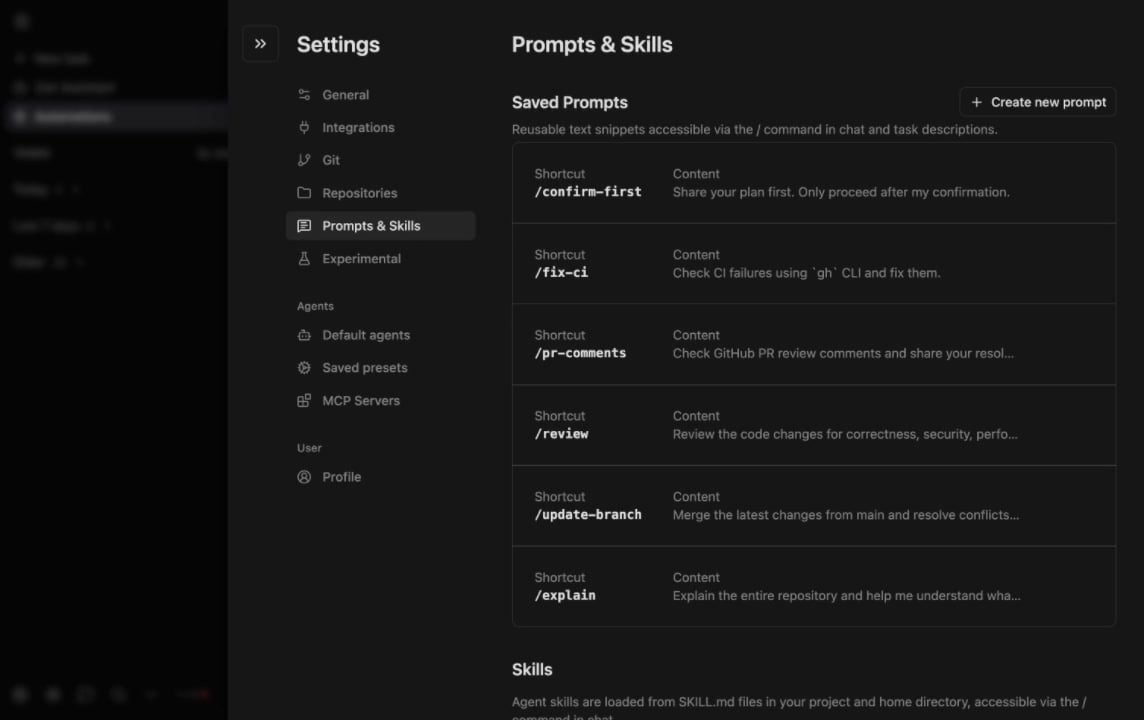
Manage [Saved Prompts](/zenflow/saved-prompts) and [Skills](/zenflow/skills) from a single page.
* **Saved Prompts** — Reusable text snippets accessible via `/` command
* **Skills** — Agent skills loaded from `SKILL.md` files in your project
## Experimental
Early-access features that may change. Enable or disable experimental capabilities here.
## Default Agents
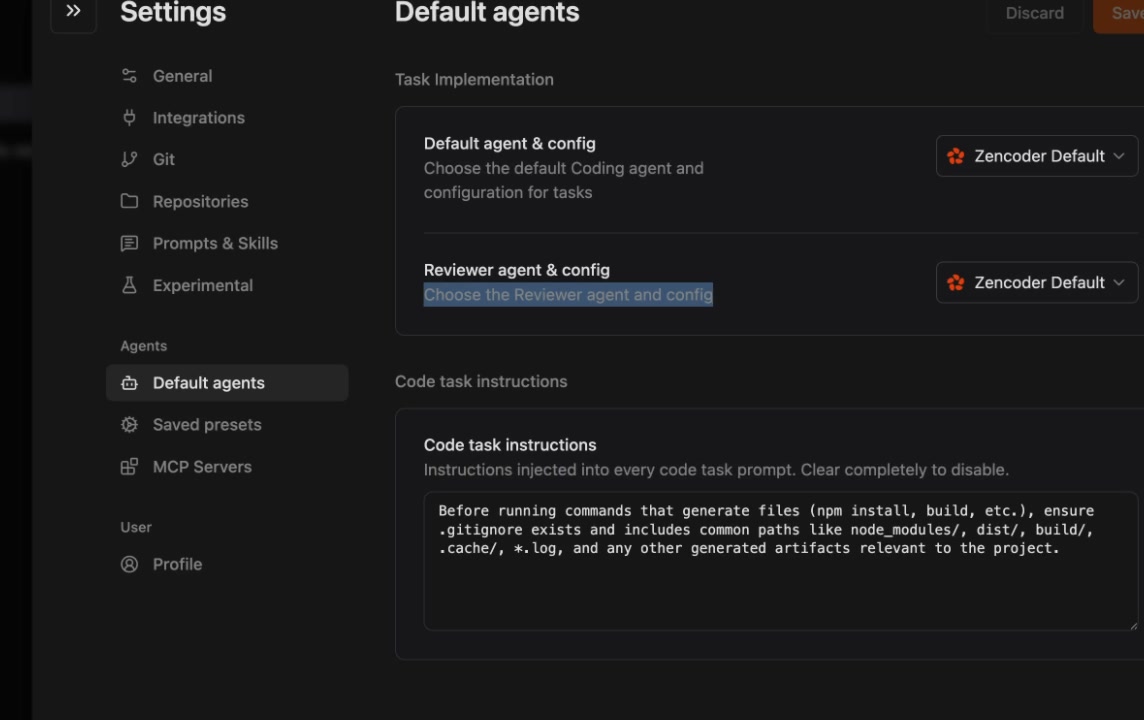
| Setting | Description |
| --------------------------- | ------------------------------------------------- |
| **Default agent & config** | The preset used for new task implementation |
| **Reviewer agent & config** | The preset used for review steps |
| **Code task instructions** | Instructions injected into every code task prompt |
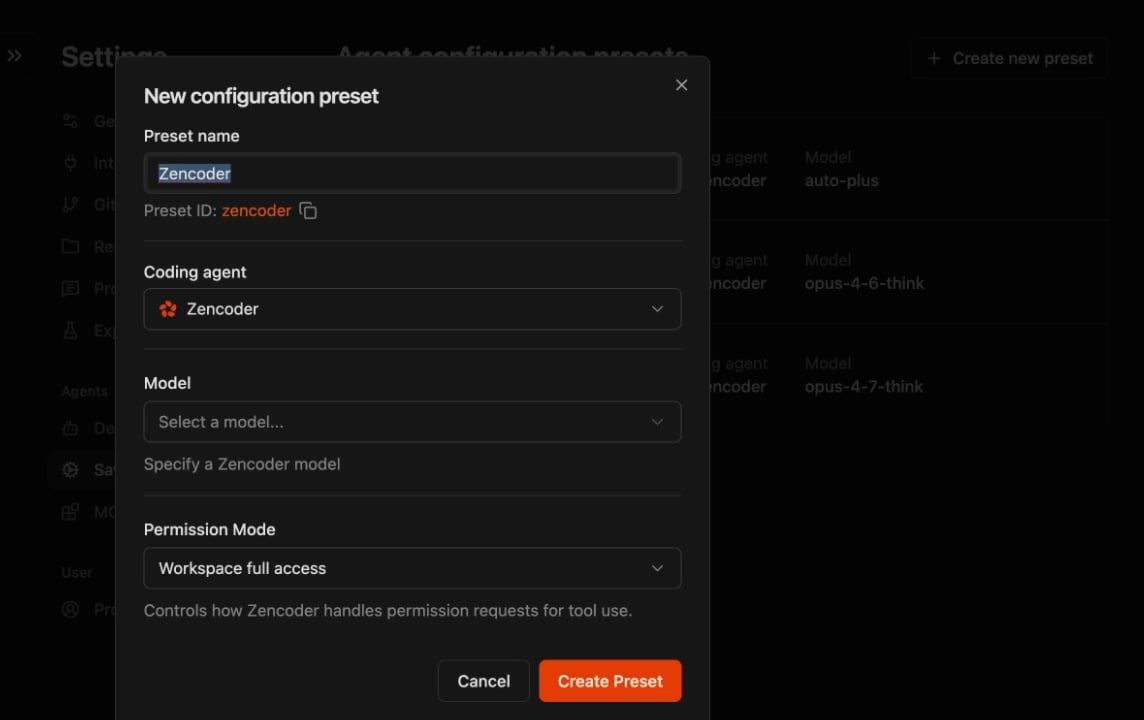
## Saved Presets
Create and manage named agent configurations. Each preset defines a coding agent, model, and permission mode.
See [Agent Presets](/zenflow/orchestration/agent-presets) for how to assign presets to workflow steps.
## MCP Servers
Configure Model Context Protocol servers for extended tool access. See [MCP Servers](/zenflow/mcps) for details.
## Profile
* Update your name, email, and authentication methods
* Review workspace membership and access levels