> ## Documentation Index
> Fetch the complete documentation index at: https://docs.zencoder.ai/llms.txt
> Use this file to discover all available pages before exploring further.
# Product Managers
> Put product health, revenue impact, and funnel tracking on autopilot with the Product Manager Dashboard automation.
## Overview
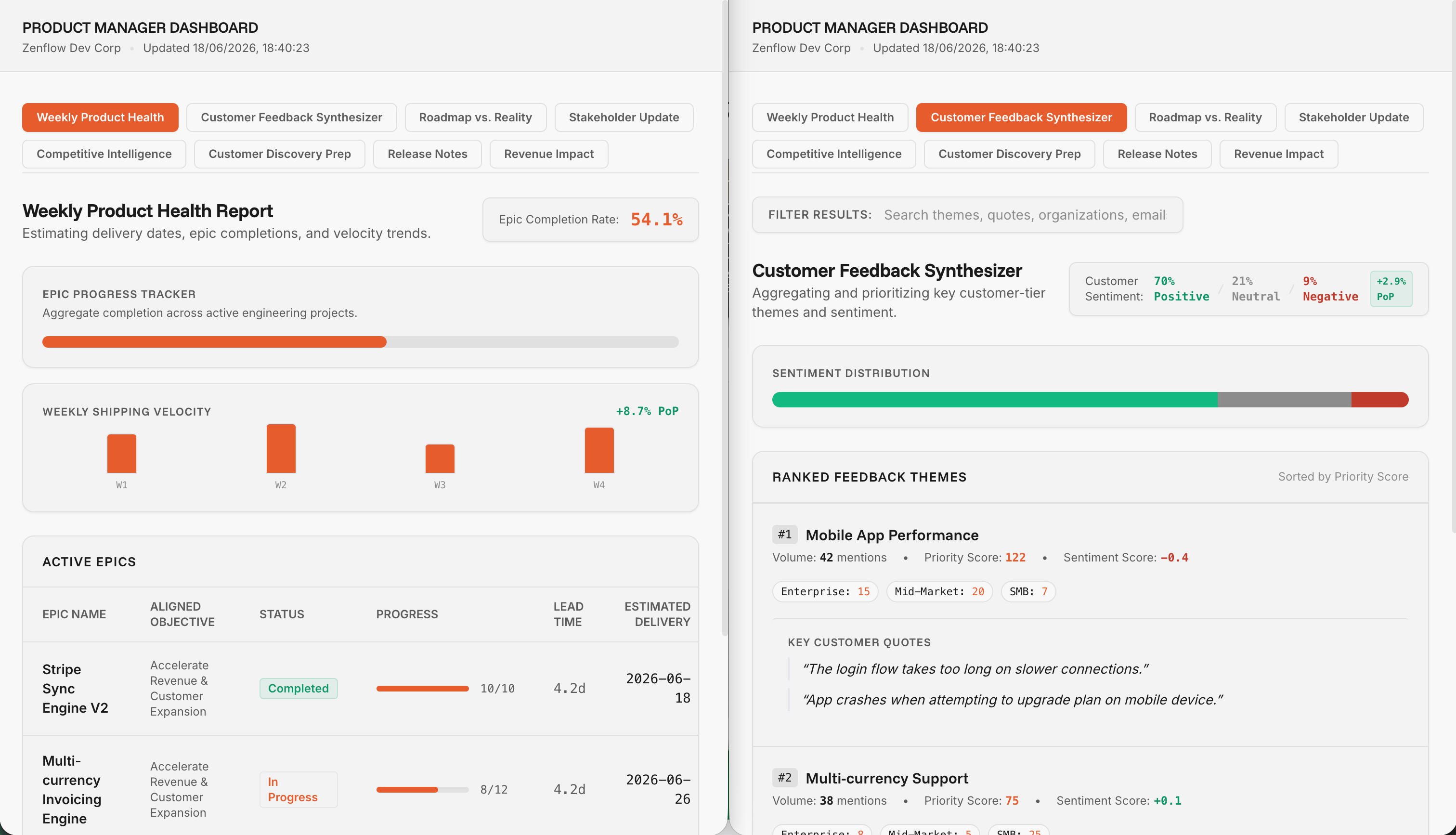 The **Product Manager Dashboard** automation helps product leaders stay on top of product health, customer feedback, and sentiment trends without manual status compilation. This scheduled automation pulls real-time data from your product and tracking systems (such as Linear, HubSpot, Stripe, Amplitude, and Sentry) to generate a comprehensive daily or weekly report of epic completions, ranked feedback themes, and customer sentiment distribution.
With this automation active, Zenflow automatically spawns a background agent task every morning to query product metrics, compile team-wide progress, and publish a live-rendered HTML dashboard directly in your workspace.
***
## How It Works
This workspace automation executes according to your configured schedule (typically every weekday morning or weekly) and follows a structured execution pipeline:
At the configured execution time, Zenflow launches a standalone task titled `Run Product Manager Dashboard` using the **Auto** workflow.
The agent searches for the globally installed `product-manager` skill across standard agent execution paths on the host machine.
If the skill is not found, the agent automatically installs it globally using the Zencoder package registry, ensuring zero-configuration execution.
The agent reads the loaded skill specification, executes the underlying product metrics, roadmap prioritization, and Jira/Linear/HubSpot queries, and compiles the live dashboard report.
***
## How to Install & Configure
Setting up the Product Manager Dashboard is straightforward. You can configure it from scratch or initialize it using the pre-built template in Zenflow.
### Quick Start with Templates
1. Open **Zenflow** and click the **thunderbolt icon** in the left sidebar to navigate to the **Automations** view.
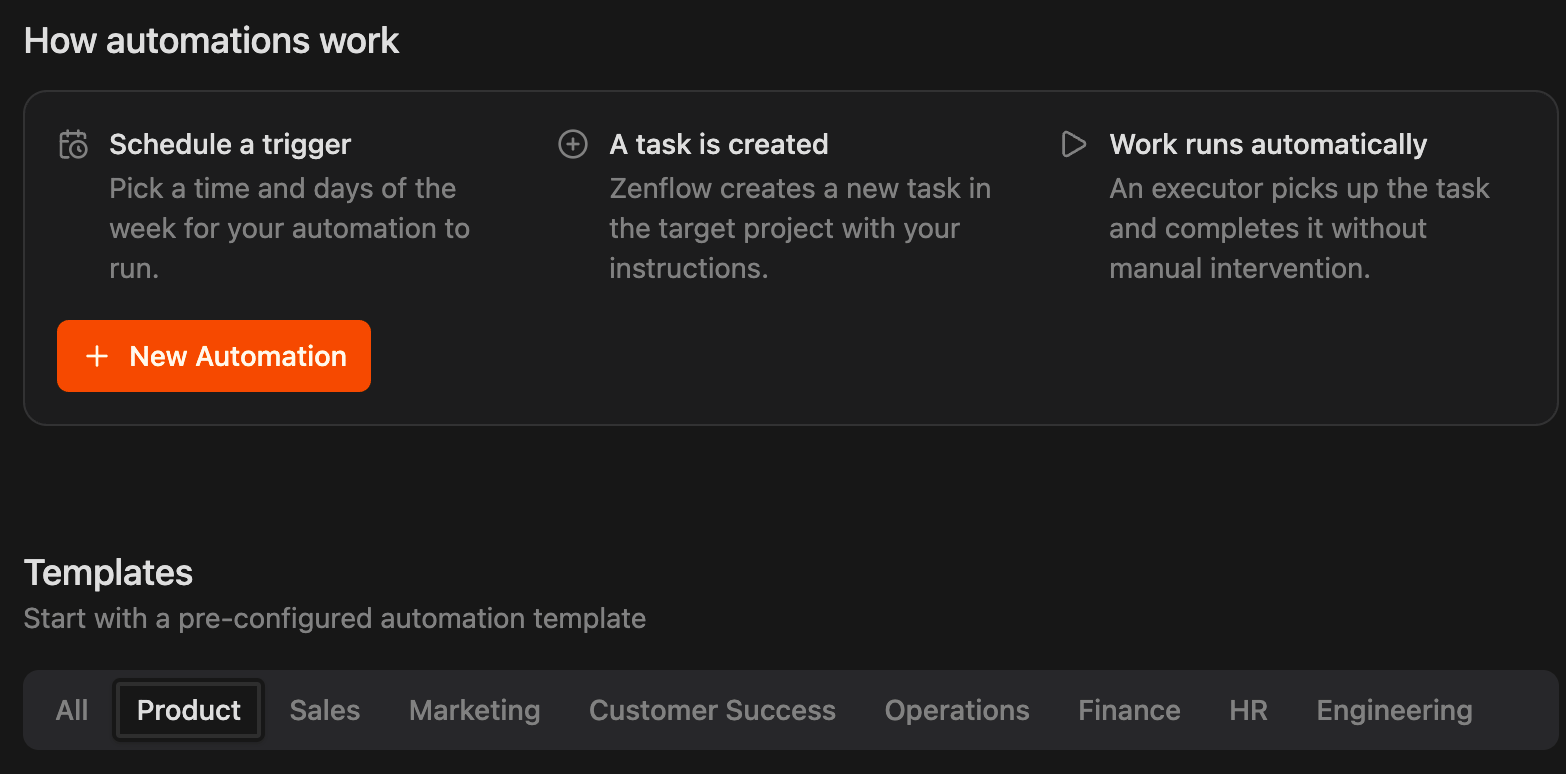
2. Scroll to the **Templates** section at the bottom of the page and click the **Product** tab.
The **Product Manager Dashboard** automation helps product leaders stay on top of product health, customer feedback, and sentiment trends without manual status compilation. This scheduled automation pulls real-time data from your product and tracking systems (such as Linear, HubSpot, Stripe, Amplitude, and Sentry) to generate a comprehensive daily or weekly report of epic completions, ranked feedback themes, and customer sentiment distribution.
With this automation active, Zenflow automatically spawns a background agent task every morning to query product metrics, compile team-wide progress, and publish a live-rendered HTML dashboard directly in your workspace.
***
## How It Works
This workspace automation executes according to your configured schedule (typically every weekday morning or weekly) and follows a structured execution pipeline:
At the configured execution time, Zenflow launches a standalone task titled `Run Product Manager Dashboard` using the **Auto** workflow.
The agent searches for the globally installed `product-manager` skill across standard agent execution paths on the host machine.
If the skill is not found, the agent automatically installs it globally using the Zencoder package registry, ensuring zero-configuration execution.
The agent reads the loaded skill specification, executes the underlying product metrics, roadmap prioritization, and Jira/Linear/HubSpot queries, and compiles the live dashboard report.
***
## How to Install & Configure
Setting up the Product Manager Dashboard is straightforward. You can configure it from scratch or initialize it using the pre-built template in Zenflow.
### Quick Start with Templates
1. Open **Zenflow** and click the **thunderbolt icon** in the left sidebar to navigate to the **Automations** view.
2. Scroll to the **Templates** section at the bottom of the page and click the **Product** tab.
 3. Locate the **Product Manager Dashboard** card.
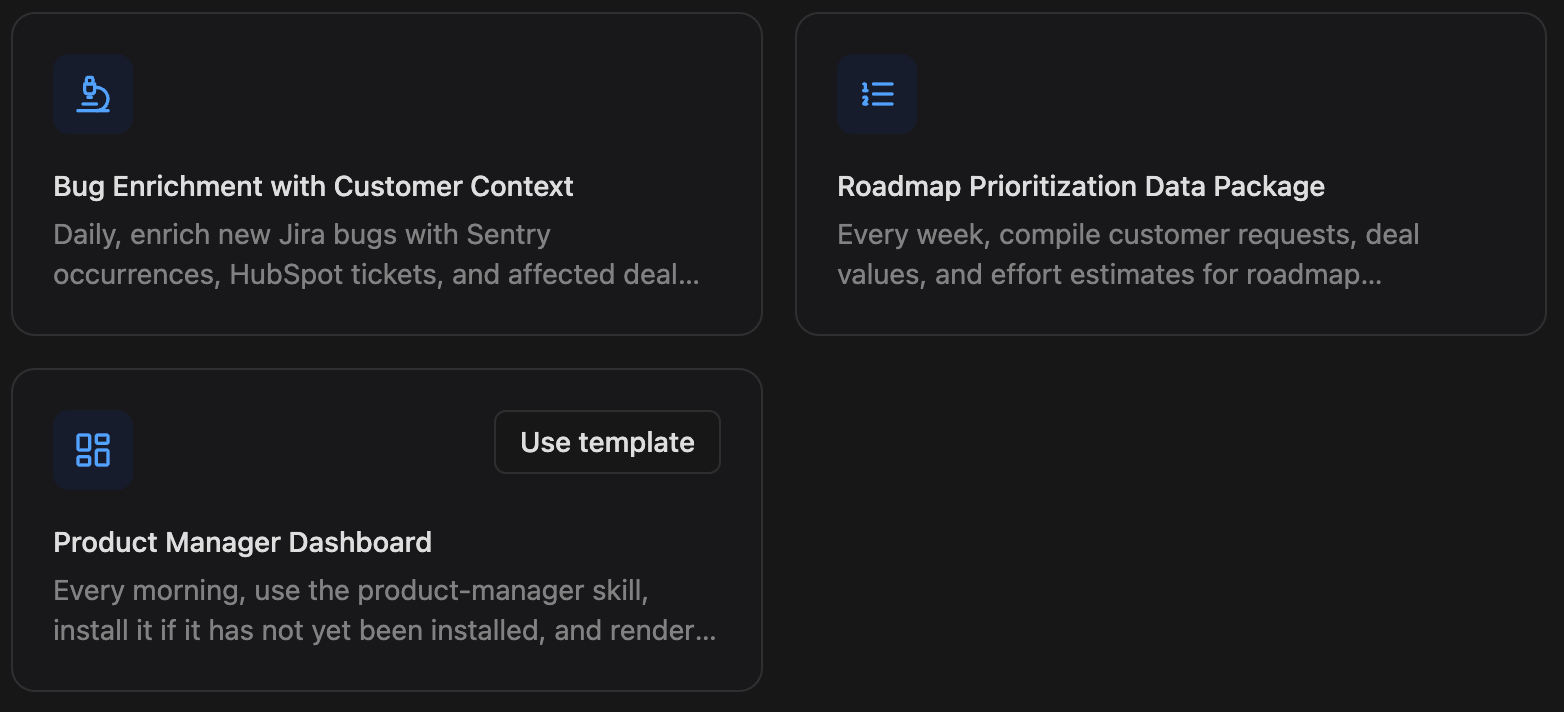 4. Click **Use template**.
5. Customize the schedule, target workspace, and execution settings in the modal dialog, and click **Create**.
### Custom Installation Details
When creating or modifying the automation, the underlying execution flow is configured as follows:
4. Click **Use template**.
5. Customize the schedule, target workspace, and execution settings in the modal dialog, and click **Create**.
### Custom Installation Details
When creating or modifying the automation, the underlying execution flow is configured as follows:
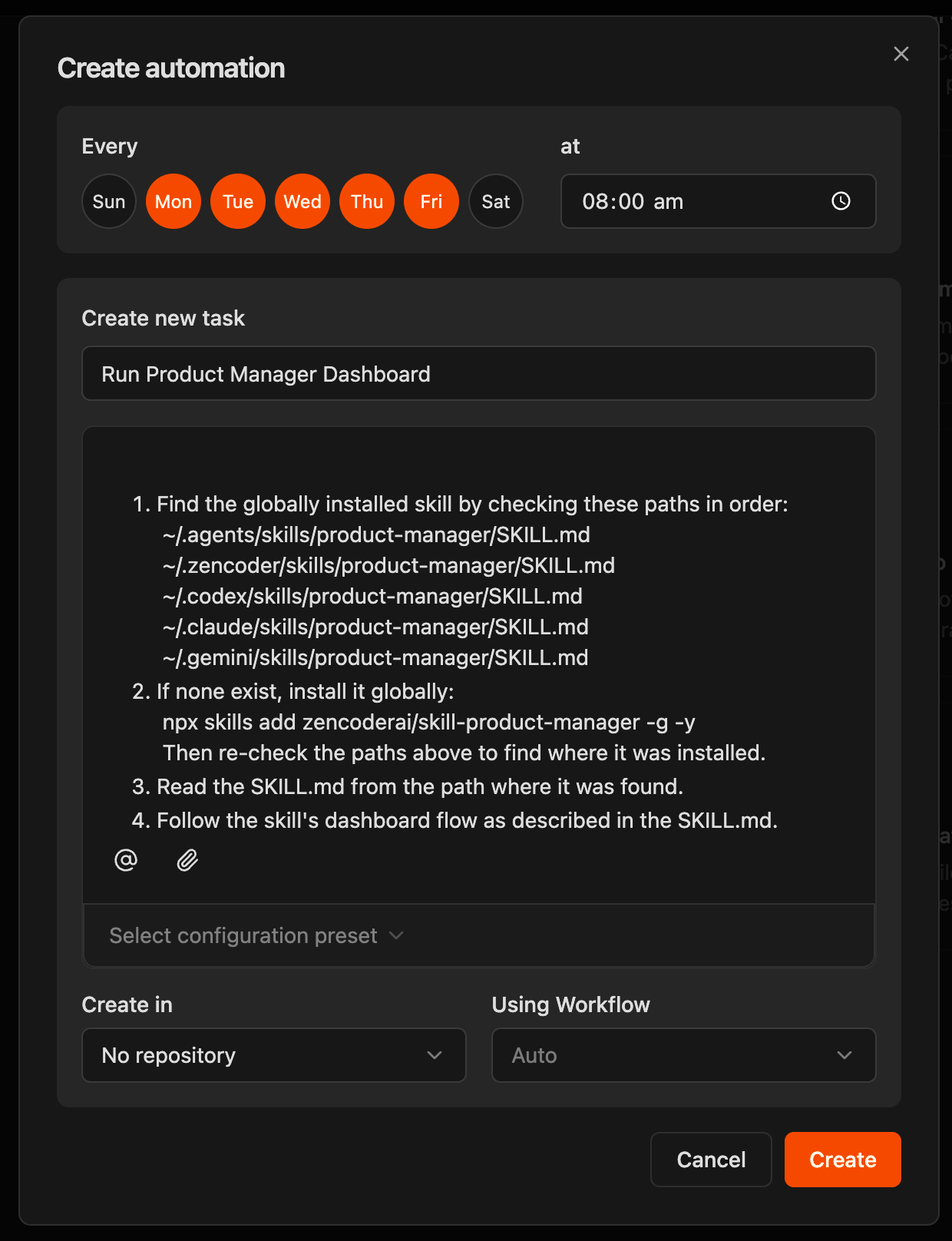 When the automation executes, the agent follows these explicit technical instructions:
The agent checks for a globally installed skill by verifying the following local paths in order:
* `~/.agents/skills/product-manager/SKILL.md`
* `~/.zencoder/skills/product-manager/SKILL.md`
* `~/.codex/skills/product-manager/SKILL.md`
* `~/.claude/skills/product-manager/SKILL.md`
* `~/.gemini/skills/product-manager/SKILL.md`
If the skill is not present in any of the checked paths, the agent automatically triggers a global installation:
```bash theme={"system"}
npx skills add zencoderai/skill-product-manager -g -y
```
Once the command completes, the agent re-scans the directories to locate the newly installed `SKILL.md` file.
The agent reads and parses the `SKILL.md` file from the identified path to initialize the specialized prompts, workflows, and execution context.
The agent executes the dashboard generation sequence outlined in the skill, compiling:
* **Weekly Product Health**: Tracking epic completion rates, active epics aligned with objectives, and shipping velocity trends
* **Customer Feedback Synthesizer**: Aggregating and prioritizing key customer-tier themes and sentiments (positive, neutral, negative)
* **Ranked Feedback Themes**: Organizing customer feedback by volume, priority score, and customer segments (Enterprise, Mid-Market, SMB)
* **Contextual Quotes**: Surfacing specific key customer quotes directly alongside categorized feedback themes for actionable engineering insights
***
## Recommended Configuration
For the best results, we recommend setting up the automation with the following default parameters:
| Configuration Field | Recommended Setting |
| :------------------ | :------------------------------------------------------------------------- |
| **Schedule** | Weekdays (**Mon, Tue, Wed, Thu, Fri**) at `08:00 am` |
| **Task Name** | `Run Product Manager Dashboard` |
| **Repository** | `No repository` (Runs standalone to aggregate multiple external platforms) |
| **Using Workflow** | `Auto` |
| **Agent Model** | `Zencoder Default` |
When the automation executes, the agent follows these explicit technical instructions:
The agent checks for a globally installed skill by verifying the following local paths in order:
* `~/.agents/skills/product-manager/SKILL.md`
* `~/.zencoder/skills/product-manager/SKILL.md`
* `~/.codex/skills/product-manager/SKILL.md`
* `~/.claude/skills/product-manager/SKILL.md`
* `~/.gemini/skills/product-manager/SKILL.md`
If the skill is not present in any of the checked paths, the agent automatically triggers a global installation:
```bash theme={"system"}
npx skills add zencoderai/skill-product-manager -g -y
```
Once the command completes, the agent re-scans the directories to locate the newly installed `SKILL.md` file.
The agent reads and parses the `SKILL.md` file from the identified path to initialize the specialized prompts, workflows, and execution context.
The agent executes the dashboard generation sequence outlined in the skill, compiling:
* **Weekly Product Health**: Tracking epic completion rates, active epics aligned with objectives, and shipping velocity trends
* **Customer Feedback Synthesizer**: Aggregating and prioritizing key customer-tier themes and sentiments (positive, neutral, negative)
* **Ranked Feedback Themes**: Organizing customer feedback by volume, priority score, and customer segments (Enterprise, Mid-Market, SMB)
* **Contextual Quotes**: Surfacing specific key customer quotes directly alongside categorized feedback themes for actionable engineering insights
***
## Recommended Configuration
For the best results, we recommend setting up the automation with the following default parameters:
| Configuration Field | Recommended Setting |
| :------------------ | :------------------------------------------------------------------------- |
| **Schedule** | Weekdays (**Mon, Tue, Wed, Thu, Fri**) at `08:00 am` |
| **Task Name** | `Run Product Manager Dashboard` |
| **Repository** | `No repository` (Runs standalone to aggregate multiple external platforms) |
| **Using Workflow** | `Auto` |
| **Agent Model** | `Zencoder Default` |