> ## Documentation Index
> Fetch the complete documentation index at: https://docs.zencoder.ai/llms.txt
> Use this file to discover all available pages before exploring further.

# Quickstart

> Install Zenflow and run your first Code task.

Zenflow is a desktop app that runs AI agents inside your codebase to implement features, fix bugs, refactor, write tests, and open PRs. It connects to GitHub, Jira, Linear, and your preferred AI coding agent.

In this quickstart you'll:

* Add a repository to Zenflow
* Run an agent task with a built-in workflow
* Review and merge the output

<Note>
  Need to automate non-code work too? See the [Zenflow Work overview](/zenflow-work).
</Note>

## Step 1: Install Zenflow

<Steps>
  <Step title="Download Zenflow">
    Download the desktop app from the [Zenflow download page](https://zencoder.ai/zenflow).
  </Step>

  <Step title="Run the installer">
    Install the desktop app for your operating system using the guided installer.
  </Step>

  <Step title="Launch Zenflow">
    Open the app once installation finishes to initialize the workspace.
  </Step>

  <Step title="Sign in or create an account">
    Use your existing Zencoder credentials or create a new account to start orchestrating tasks.
  </Step>
</Steps>

## Step 2: Onboarding

On first launch, Zenflow walks you through initial setup:

<Steps>
  <Step title="Pick a default agent">
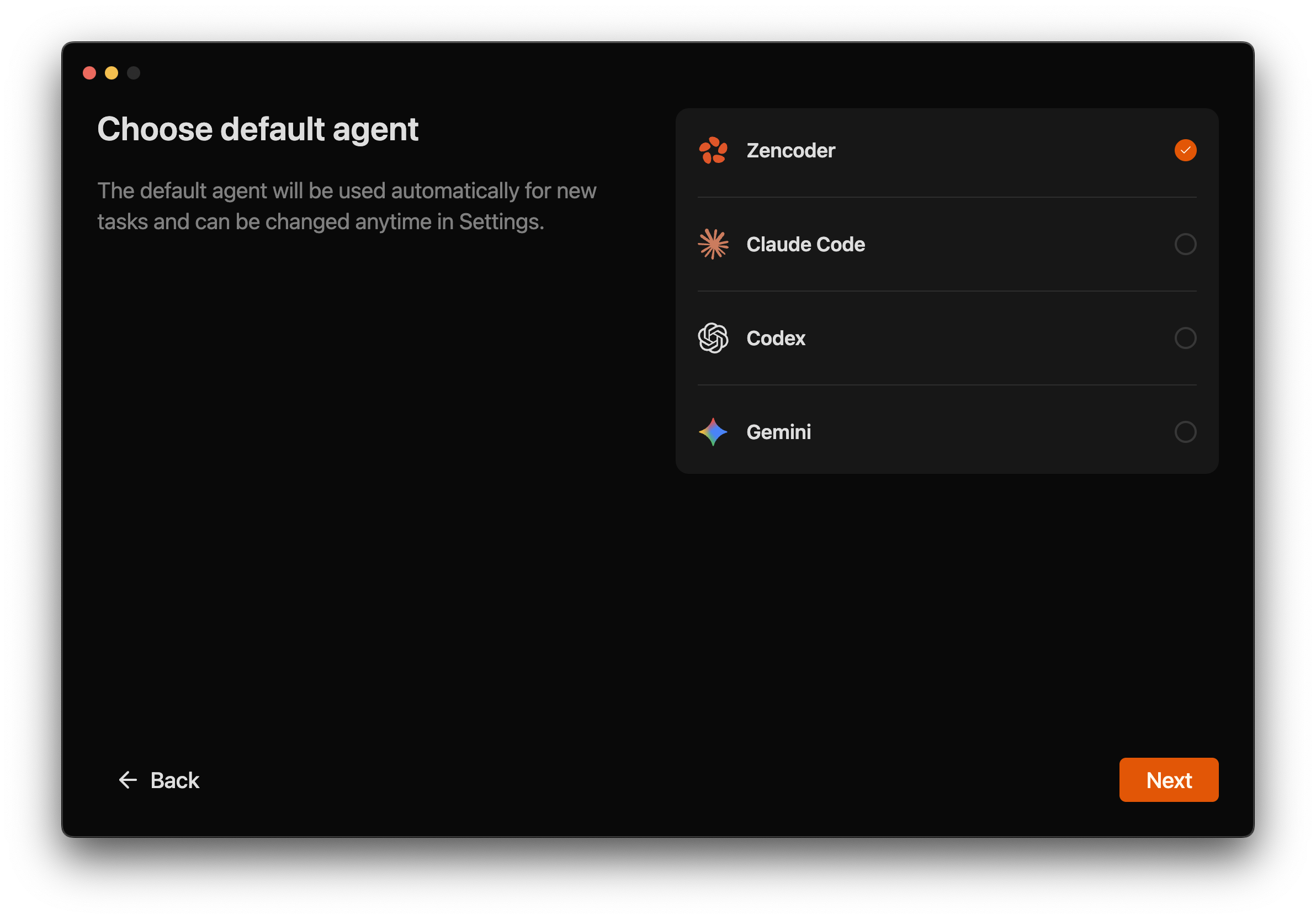
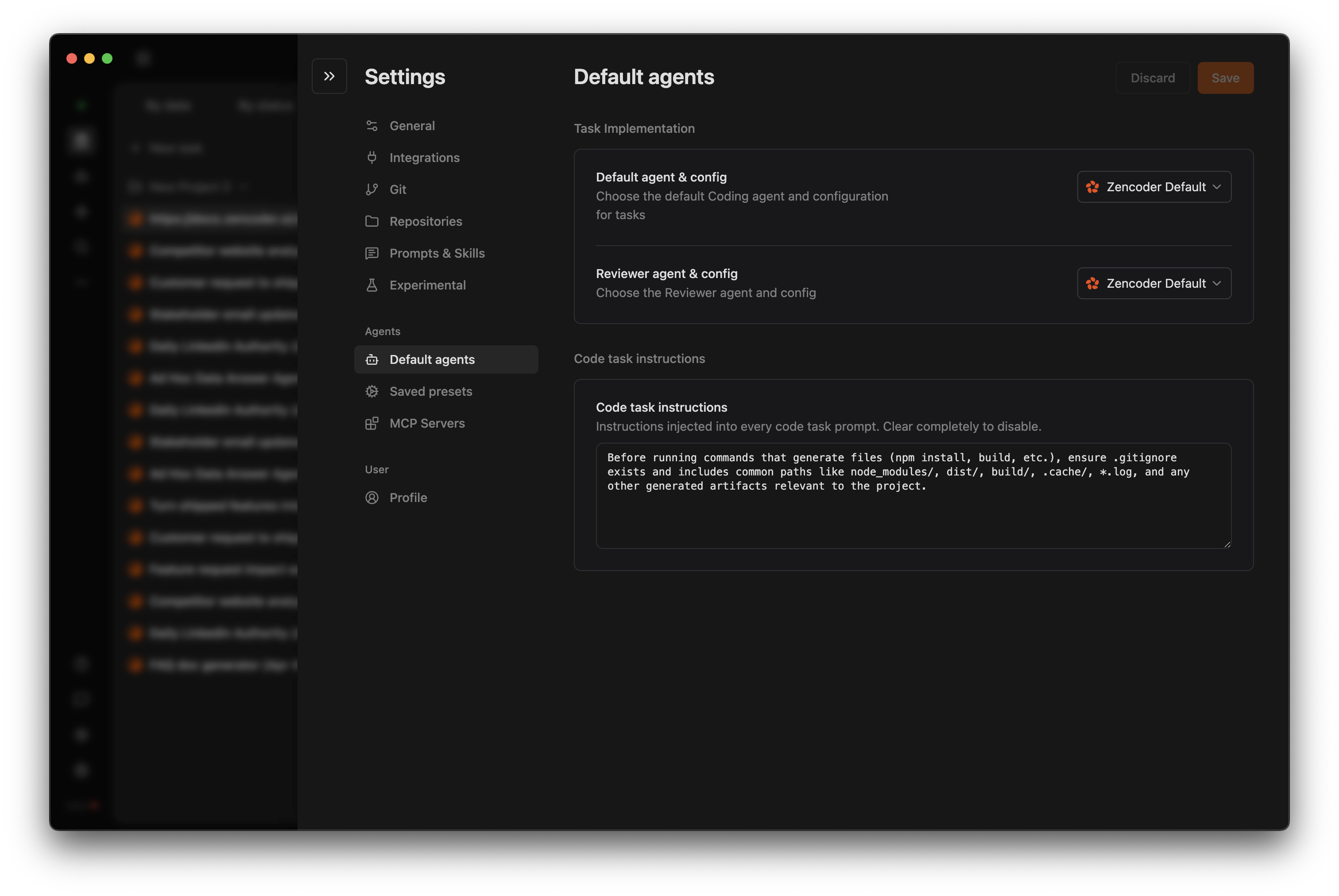
    Choose between **Zencoder**, **Claude Code**, **Codex**, or **Gemini** as your default co-pilot. You can switch this preference anytime in **Settings → Saved presets**.
  </Step>

  <Step title="Zenflow validates your setup">
    After you select an agent, Zenflow checks whether its CLI or desktop integration is already installed locally. If something is missing, you get guided installation instructions so the agent can run reliably.
  </Step>

  <Step title="Sign in to finalize">
    Zenflow then walks you through logging into the chosen agent so tasks can run end-to-end without interruption. Once authenticated, you land in Zenflow ready to create your first workflow.
  </Step>
</Steps>

<div className="grid grid-cols-1 md:grid-cols-2 gap-3 mt-2">
  <Frame>
    <img src="https://mintcdn.com/forgoodaiinc/cPedQZNYMo0HDYB1/images/zenflow/zenflow-onboarding-default-agent-picker-v2.png?fit=max&auto=format&n=cPedQZNYMo0HDYB1&q=85&s=415fad8ffdfea8014164f1e48eed73a0" alt="Default agent picker showing Zencoder, Claude Code, Codex, and Gemini options" width="2296" height="1576" data-path="images/zenflow/zenflow-onboarding-default-agent-picker-v2.png" />
  </Frame>

  <Frame>
    <img src="https://mintcdn.com/forgoodaiinc/C44A_MKv6B04y7aH/images/zenflow/zenflow-onboarding-agent-validation-v2.png?fit=max&auto=format&n=C44A_MKv6B04y7aH&q=85&s=e069d2f65309f237fa207278677e57f1" alt="Zenflow confirming whether the selected agent is installed locally" width="2384" height="1664" data-path="images/zenflow/zenflow-onboarding-agent-validation-v2.png" />
  </Frame>
</div>

<Frame>
  <img src="https://mintcdn.com/forgoodaiinc/C44A_MKv6B04y7aH/images/zenflow/zenflow-onboarding-agent-login-v2.png?fit=max&auto=format&n=C44A_MKv6B04y7aH&q=85&s=0e7ace318ab9a2c99f30be4c4d32632a" alt="Login guidance for completing the selected agent setup" width="3024" height="2024" data-path="images/zenflow/zenflow-onboarding-agent-login-v2.png" />
</Frame>

## Step 3: Create Your First Task

<Steps>
  <Step title="Create a Task (2 minutes)">
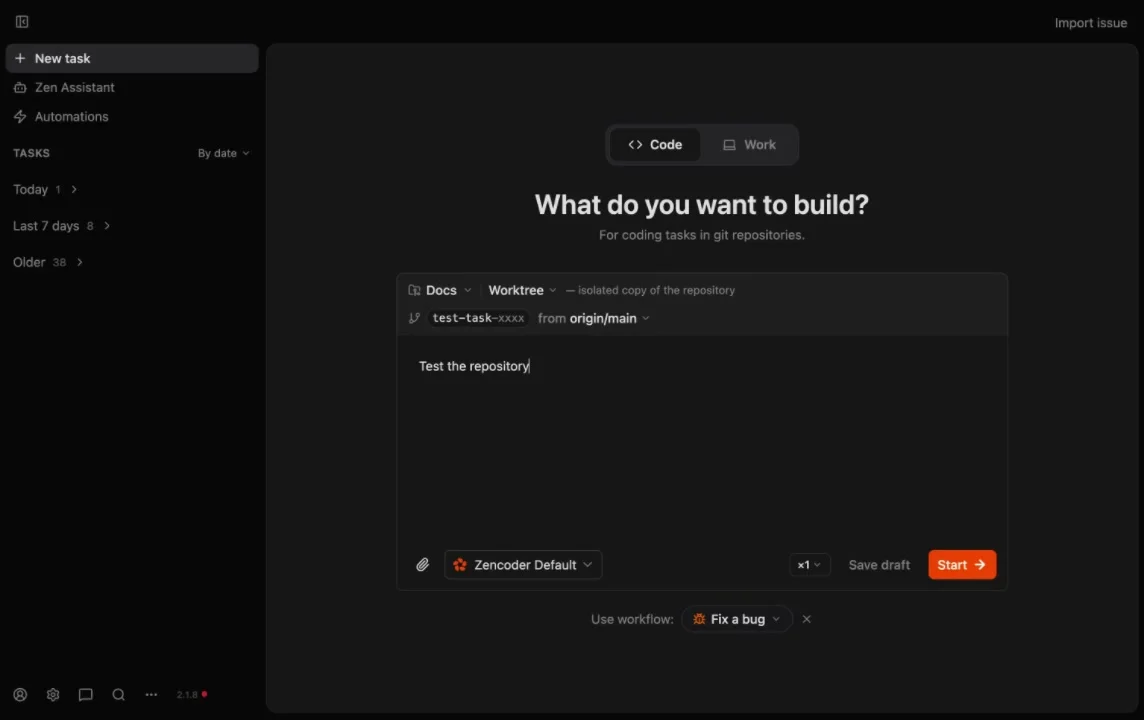
    Start with a concise, outcome-based task description. Examples:

    ```text theme={"system"}
    "Add OAuth for Google and GitHub."
    "Fix checkout bug."
    "Refactor the billing module to reduce duplication."
    ```

    Focus on **what needs to happen**, not how to code it.

    <div className="mt-3 w-full max-w-[840px]">
      <img src="https://mintcdn.com/forgoodaiinc/wAfswEtqaOe9ICOy/images/zenflow/zenflow-create-task-v3.png?fit=max&auto=format&n=wAfswEtqaOe9ICOy&q=85&s=a5800baf20770af2f2dc8f72032a7fd8" alt="Task creation screen showing Code/Work toggle, repository selector, description input, agent preset, workflow picker, and Start button" style={{ width:"100%",maxWidth:"720px",borderRadius:"12px" }} width="1144" height="720" data-path="images/zenflow/zenflow-create-task-v3.png" />
    </div>
  </Step>

  <Step title="Pick a Workflow (2 minutes)">
    Choose how Zenflow should execute the work:

    * **Auto** — agent decides the approach (best for most tasks)
    * **Fix a Bug** — structured investigation → solution → implementation
    * **Spec First** — technical spec before coding
    * **Requirements First** — full PRD → spec → staged implementation
    * **Multi-model** — different models for planning, implementation, review
    * **Custom** — your own workflow definitions

          <div className="mt-1">
            [Learn how to define custom workflows →](./task-types#custom-workflows)
          </div>

    Structured workflows keep results consistent and avoid prompt drift.
  </Step>

  <Step title="Verify & Ship (3–6 minutes)">
    If you configured a [verification script](/zenflow/project-configuration#verification_script), Zenflow runs it after each agent turn (linting, type checks, tests). Review the **Changes** tab, then merge.
  </Step>
</Steps>

That's it — you're using Zenflow.

## Next Steps

<CardGroup cols={2}>
  <Card title="Key Concepts" icon="book" href="/zenflow/key-concepts">
    Understand repositories, tasks, and workflows
  </Card>

  <Card title="Workflows" icon="list-check" href="/zenflow/task-types">
    Explore built-in and custom workflows
  </Card>

  <Card title="Multi-Agent Orchestration" icon="arrows-split-up-and-left" href="/zenflow/multi-agent-orchestration">
    Multi-model pipelines and parallel review
  </Card>

  <Card title="Repository Configuration" icon="gear" href="/zenflow/project-configuration">
    Set up verification scripts and presets
  </Card>

  <Card title="Plans & Pricing" icon="credit-card" href="/faq/pricing">
    Subscription tiers and billing
  </Card>

  <Card title="Supported Agents" icon="robot" href="/clis/overview">
    Zencoder, Claude Code, Codex, Gemini, and custom agents
  </Card>
</CardGroup>