> ## Documentation Index
> Fetch the complete documentation index at: https://docs.zencoder.ai/llms.txt
> Use this file to discover all available pages before exploring further.
# Repositories Overview
> Add and manage repositories in Zenflow to organize your AI-driven development work.
## What is a Repository?
A repository in Zenflow is the codebase your AI agents work in. Each repository contains tasks, workflows, and automation settings that define how agents interact with your code.
**Organization → Repositories → Tasks → Subtasks/Chats**
Each level inherits settings from above while allowing overrides for specific needs.
## Adding a Repository
Launch the Zenflow desktop app and sign in with your Zencoder account.
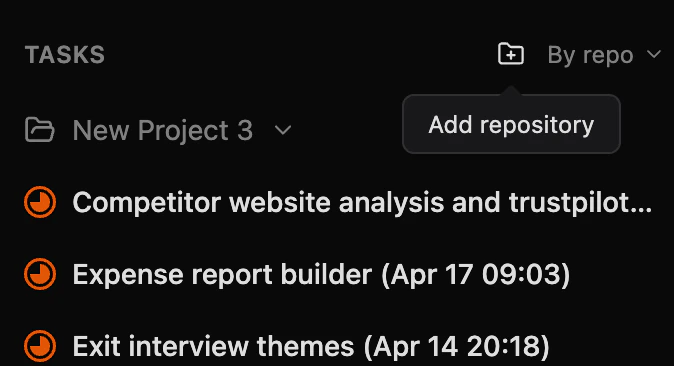
From the sidebar, click the **+** icon and select **Add repository**.
You have three options:
* **Create blank repository** — creates a new empty repository in your local ZenflowProjects folder
* **Clone from GitHub** — clone a repository directly from your GitHub account
* **Select from computer** — browse your local machine for an existing repository
Zenflow also shows **Suggested** repositories based on recently used local folders.
Set up your default agent, verification scripts, and workflow preferences. You can always adjust these later.
Your repository is ready! Create your first task to begin.
## Repository Settings
Access repository settings by selecting your repository in Zenflow. Settings are organized into sections:
### General
| Setting | Description |
| ----------------------- | ---------------------------------------------- |
| **Repository Name** | The display name for this repository |
| **Git Repository Path** | The absolute path to your local git repository |
### Scripts & Automation
Scripts run automatically during task execution to set up dependencies, start dev servers, and verify changes. Configuration is stored in `.zenflow/settings.json`.
Use **Set up with Agent** to have an AI agent analyze your repository and generate a suggested configuration automatically.
| Setting | Description |
| ----------------------- | ------------------------------------------------------------------------------------- |
| **Setup Script** | Runs when a new task worktree is created (install dependencies, run migrations, etc.) |
| **Verification Script** | Runs after each agent turn to validate changes (linting, type checks, tests) |
| **Dev Server Script** | Command to start your development server |
| **Copy Files** | Local files (e.g. `.env`) to copy into each task worktree |
### AI Rules
| Setting | Description |
| ------------------------- | ------------------------------------------------------------------------------------------------------------------ |
| **Always Included Rules** | Rule files (one per line) always added to the agent's context, e.g. `CLAUDE.md`, `.github/copilot-instructions.md` |
## Next Steps
Deep dive into .zenflow/settings.json
Learn how to create and manage tasks