> ## Documentation Index
> Fetch the complete documentation index at: https://docs.zencoder.ai/llms.txt
> Use this file to discover all available pages before exploring further.
# Slack
> Connect Zenflow to Slack to send messages, monitor channels, and automate workspace communications.
This extended integration requires a paid Zencoder account.
## Overview
Zencoder is an AI teammate for Slack. Mention @zencoder in a channel, thread, or DM to plan work, manage tasks, answer questions about your projects, create automations, or start an AI coding agent on your connected repo.
Zencoder combines chat-based project management with autonomous software engineering. It can update Zenflow tasks, summarize progress, schedule recurring workflows, and when code changes are needed, launch an isolated agent that works on the repo and opens a GitHub pull request for review.
Zencoder supports multi-model workflows, choose the best model for each task, or let Zencoder decide.
## Connecting Slack
Follow these steps to connect Slack to Zenflow:
Navigate to **Settings → Integrations** in the Zenflow sidebar.
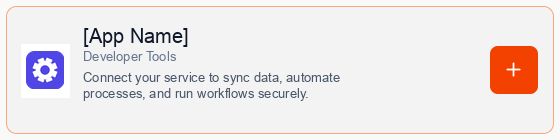
Locate **Slack** in the Integrations Catalog and click the **Connect** or **\[+]** button.
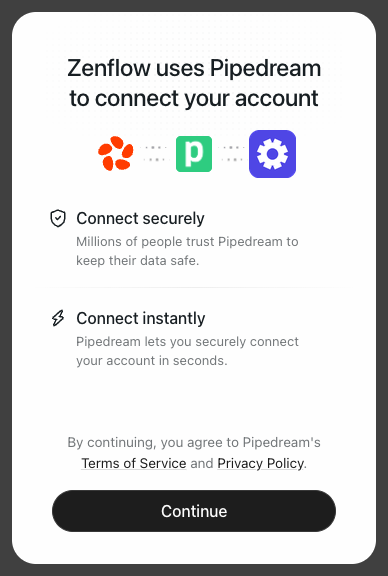
A secure popup window will open asking for permission to connect your account. Click **Continue** to proceed.
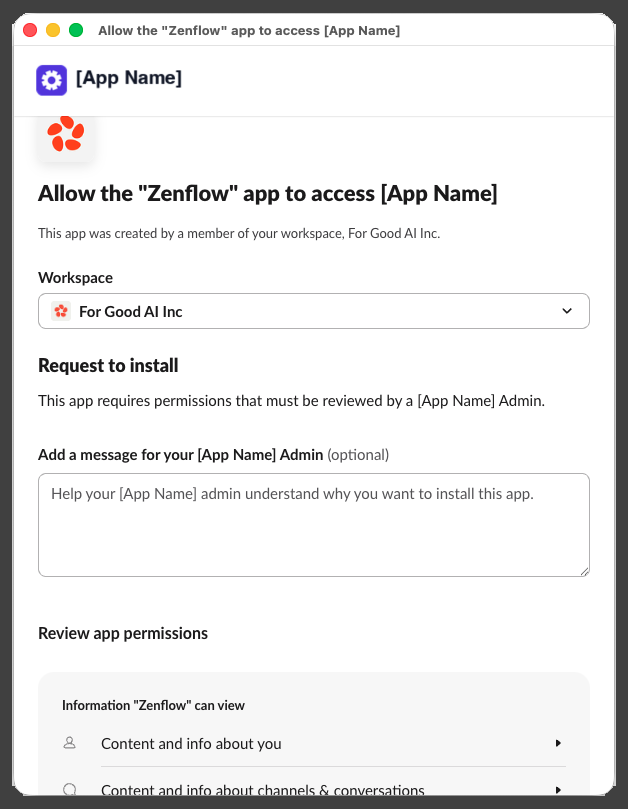
Authenticate and authorize Zencoder via the secure Slack OAuth popup window to add Zencoder to your workspace.
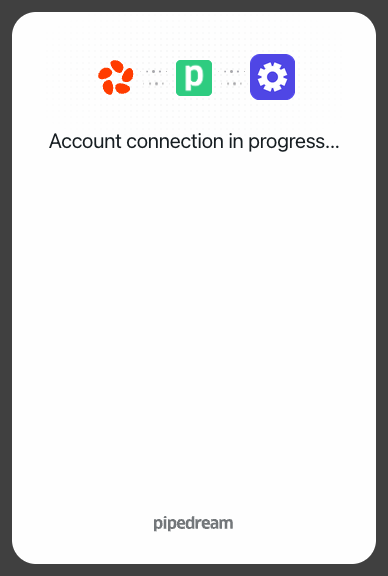
A progress window will briefly indicate that the account connection is in progress, followed by a confirmation.
Once authorized, close the popup. Zencoder will instantly show as connected and is ready to use.
DM `@zencoder` or invite it to any channel or thread to get started.
## Work with Zencoder in Slack
**Send a direct message**
Start a private conversation with @zencoder for task planning, project questions, or coding requests.
**Mention Zencoder in any thread**
Bring Zencoder into engineering discussions and ask it to summarize, plan, create tasks, or start implementation.
**Continue the conversation**
Reply in the same thread with follow-ups. Zencoder keeps the context and updates the work as it moves forward.
**Collaborate on code**
Ask @zencoder to fix bugs, add tests, refactor code, or implement features. Zencoder runs the work remotely and returns a GitHub pull request for review.
## Built for your daily workflows
Debug issues, implement changes, and open PRs directly from Slack.
*Example:* `@zencoder fix the login bug in backend-api and open a PR`
Convert product, support, marketing, content or engineering discussions into structured Zenflow tasks.
*Example:* `@zencoder create an implementation task from this thread`
Ask what is pending, blocked, in progress, or ready for review.
*Example:* `@zencoder summarize what is in progress this week`
Create recurring workflows without leaving Slack like daily standups, weekly reporting, and checklists.
*Example:* `@zencoder create a competitor research task for every Monday at 9am`
Pull info and take action across Gmail, HubSpot, Drive, Sheets, Amplitude, LinkedIn, Zoom, and more.
*Example:* `@zencoder pull this week's top deals from HubSpot and post a summary here`
Use faster models for quick answers and stronger ones for complex work or let Zencoder pick.
*Example:* `@zencoder use the best model for this and draft the plan`
## Secure, and always in your control
* Zencoder works within the Slack permissions your workspace authorizes.
* Coding tasks run in isolated environments.
* SOC 2 Type II, ISO 27001, and ISO 42001 certified. Full audit trails, zero model training on your data.
* Teams stay in control before changes are merged.
## FAQ
Zencoder can manage Zenflow tasks, answer project questions, create automations, and start AI coding agents that open pull requests.
Yes. Ask @zencoder to fix bugs, add tests, refactor code, or implement features. Zencoder returns a GitHub PR for review.
Yes. Zencoder supports multi-model workflows. Choose a model in your prompt or let Zencoder pick one.
Yes. Zencoder can create recurring tasks, reminders, summaries, and workflow automations directly from Slack.
Browse ready-to-use templates in the **[Zencoder Marketplace](https://zencoder.ai/marketplace)**.