> ## Documentation Index
> Fetch the complete documentation index at: https://docs.zencoder.ai/llms.txt
> Use this file to discover all available pages before exploring further.

# Google Sheets

> Connect Zenflow to Google Sheets to read, write, and format spreadsheet data.

<span className="set-page-badge-extended" />

<Note>
  This extended integration requires a paid Zencoder account.
</Note>

## Overview

The Google Sheets integration enables Zenflow agents to read, write, and format data inside Google Sheets. Create spreadsheets, update rows, analyze tabular data, and build real-time trackers — perfect for automated reporting and data management.

## Connecting Google Sheets

<Steps>
  <Step title="Open Settings & Integrations">
    Navigate to **Settings → Integrations** in the Zenflow sidebar.
  </Step>

  <Step title="Search for Google Sheets">
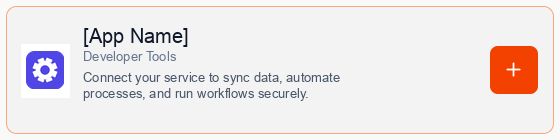
    Locate **Google Sheets** in the Integrations Catalog and click the **Connect** or **\[+]** button.

    <div className="mt-4 flex justify-center">
      <img src="https://mintcdn.com/forgoodaiinc/eDU9y85HvJm-NpEc/images/integrations/pipedream-card.png?fit=max&auto=format&n=eDU9y85HvJm-NpEc&q=85&s=e0d68679ba1e8ffa0e54e42782a36495" alt="Google Sheets Integration Card" style={{ width: "100%", maxWidth: "500px", borderRadius: "12px" }} width="560" height="140" data-path="images/integrations/pipedream-card.png" />
    </div>
  </Step>

  <Step title="Consent to Connection">
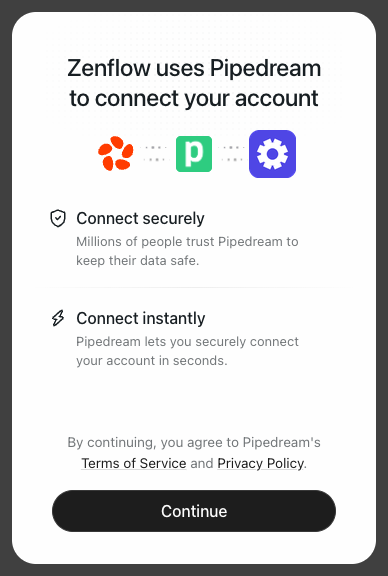
    A secure popup window will open asking for permission to connect your account. Click **Continue** to proceed.

    <div className="mt-4 flex justify-center">
      <img src="https://mintcdn.com/forgoodaiinc/eDU9y85HvJm-NpEc/images/integrations/pipedream-consent.png?fit=max&auto=format&n=eDU9y85HvJm-NpEc&q=85&s=8bef370f3584515ee91bdb286c558acc" alt="Pipedream Consent Screen" style={{ width: "100%", maxWidth: "400px", borderRadius: "12px" }} width="388" height="576" data-path="images/integrations/pipedream-consent.png" />
    </div>
  </Step>

  <Step title="Authorize Connection">
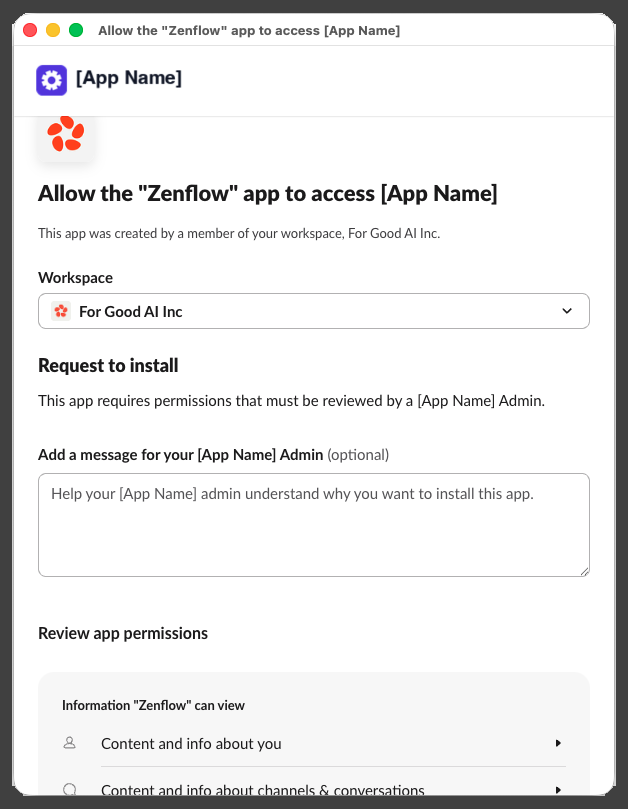
    Authenticate and authorize Zenflow via the secure Google OAuth popup window to grant the required file access scopes.

    <div className="mt-4 flex justify-center">
      <img src="https://mintcdn.com/forgoodaiinc/eDU9y85HvJm-NpEc/images/integrations/pipedream-oauth-provider.png?fit=max&auto=format&n=eDU9y85HvJm-NpEc&q=85&s=6f5647dba3c892f94e13cf0a85b6469c" alt="OAuth Authorization Screen Example" style={{ width: "100%", maxWidth: "500px", borderRadius: "12px" }} width="628" height="809" data-path="images/integrations/pipedream-oauth-provider.png" />
    </div>
  </Step>

  <Step title="Complete Setup">
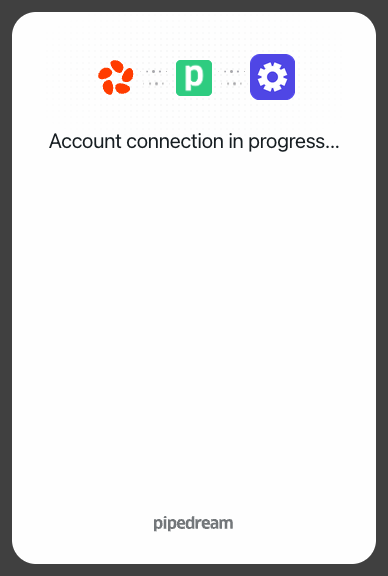
    A progress window will briefly indicate that the account connection is in progress, followed by a confirmation.

    <div className="mt-4 flex justify-center">
      <img src="https://mintcdn.com/forgoodaiinc/eDU9y85HvJm-NpEc/images/integrations/pipedream-connecting.png?fit=max&auto=format&n=eDU9y85HvJm-NpEc&q=85&s=551313855862e9f99e2b409748d16a21" alt="Connection in Progress" style={{ width: "100%", maxWidth: "400px", borderRadius: "12px" }} width="388" height="576" data-path="images/integrations/pipedream-connecting.png" />
    </div>

    Once authorized, close the popup. The integration will instantly display as **Connected** in your Zenflow dashboard and is active for your AI agents.
  </Step>
</Steps>

## What the Agent Can Do

* **Read Sheets** — Retrieve values, rows, and sheets metadata
* **Write Data** — Append rows, update cells, and insert new data
* **Format Cells** — Style sheets, add headers, and adjust column widths
* **Manage Files** — Create and share new spreadsheets

## Example Use Cases

* Export lead information from CRM or forms into a Google Sheet
* Maintain an active status report of git pull requests and build status
* Automatically compile weekly or monthly marketing analytics report
* Update financial and budgeting tables based on Stripe payment events

Browse ready-to-use templates in the **[Zencoder Marketplace](https://zencoder.ai/marketplace)**.