> ## Documentation Index
> Fetch the complete documentation index at: https://docs.zencoder.ai/llms.txt
> Use this file to discover all available pages before exploring further.
# Stripe
> Connect Zenflow to Stripe to manage billing, subscriptions, and financial data.
This native integration requires a Zencoder account.
## Overview
The Stripe integration gives Zenflow agents native access to your payment, subscription, billing, product, and pricing data. This allows agents to work seamlessly with customers, subscriptions, invoices, payments, products, and prices to automate financial workflows.
## Connecting to Stripe
Follow these steps to authorize and connect Stripe with Zenflow:
Navigate to **Settings → Integrations** in the Zenflow sidebar (the gear icon at the bottom left).
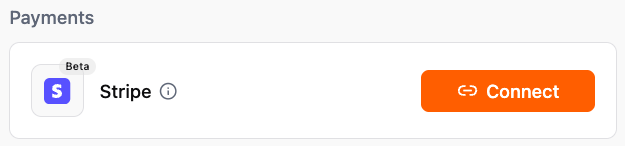
Locate the **Stripe** card in the Integrations Catalog and click **Connect**.
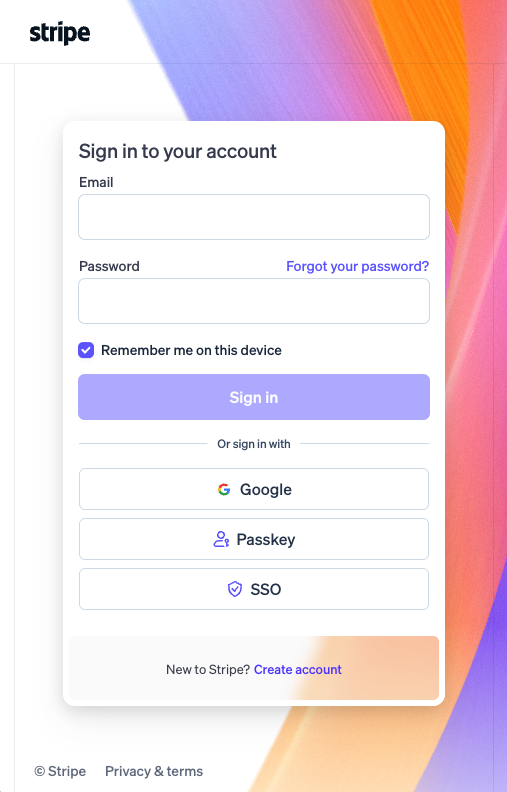
A secure popup window will open requesting you to sign in to your Stripe account. Enter your email and password to authenticate.
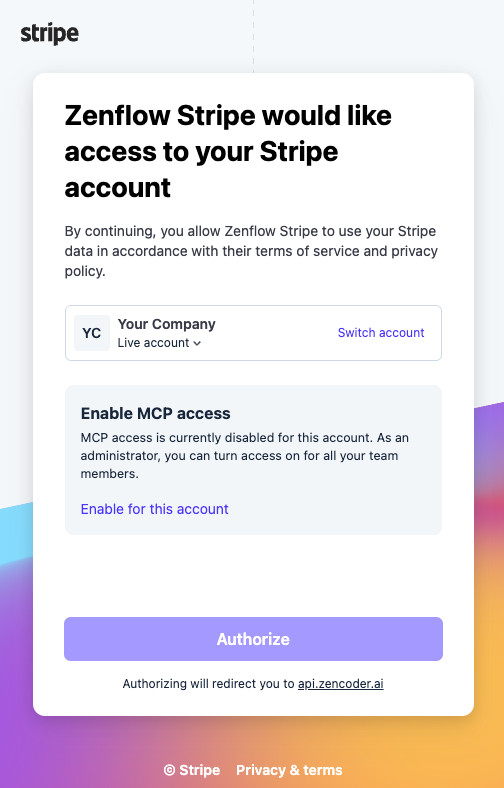
If Model Context Protocol (MCP) access is currently disabled for your Stripe account, click **Enable for this account** to allow Zenflow to use Stripe's secure API tools.
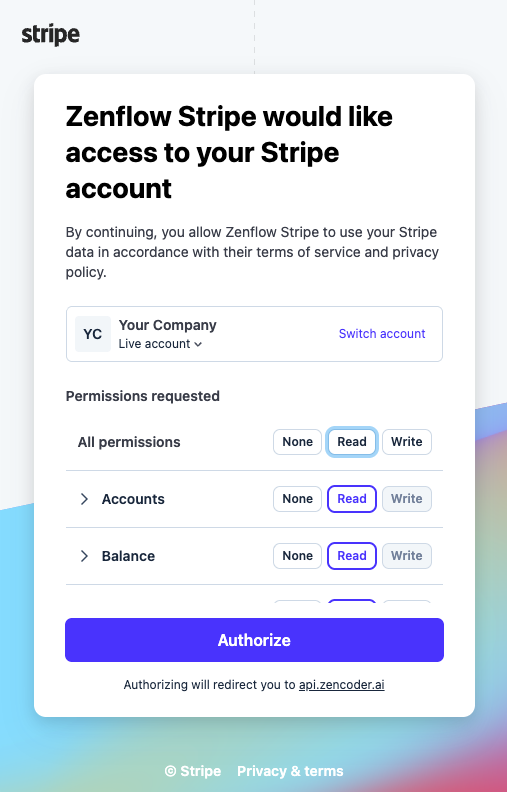
Configure the level of access you want to grant to Zenflow Stripe.
**Read vs. Write Permissions: Value and Security Risks**
* **Read-Only Access (Recommended for analysis)**: Granting "Read" access allows Zenflow agents to query customer records, fetch subscriptions, and analyze transaction data. This is ideal for generating reports, tracking metrics, and performing support tasks.
* **Write Access (Required for action)**: Granting "Write" access enables Zenflow agents to take action on your behalf, such as creating new invoices, creating products, updating subscription tiers, or issuing refunds. Only grant "Write" permissions if you intend to authorize autonomous agent actions, and ensure you monitor agent workflows carefully.
Once you have selected your desired permissions, click **Authorize**.
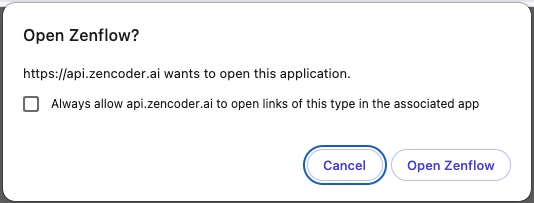
The browser will ask for confirmation to redirect back to the Zenflow application. Click **Open Zenflow**.
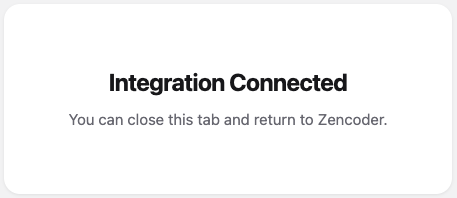
The Stripe secure OAuth flow will show an **Integration Connected** success page which you can close.
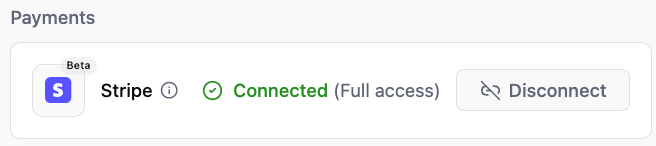
Back in your Zenflow Settings panel, Stripe will now display as **Connected (Full access)** (or the specific access level you authorized) and is ready for use by your AI agents.
## What the Agent Can Do
The Stripe integration enables Zenflow agents to work with the following resources:
* **Query & Manage Customers** — Look up billing history, update details, and search customer records.
* **Track Subscriptions** — Monitor active plans, trial periods, and subscription cancellations.
* **Manage Invoices** — Create invoices, retrieve unpaid bills, and track invoice statuses.
* **Process Payments** — Retrieve payment intents, transaction details, and payout reports.
* **Configure Products & Prices** — Access, create, and update product listings and price tiers.
## Example Use Cases
* Generate daily/weekly billing reports showing new and lost revenue.
* Notify teams about subscription upgrades or failed payments.
* Look up billing, product, and subscription details during customer support tasks.
* Automatically draft custom invoices and update price plans.
## Example Automations
### Payment to Customer Lifecycle Sync
Connect Stripe and HubSpot to keep customer statuses in sync automatically:
1. **Check all new customers in Stripe**: The agent monitors Stripe for newly created customer records (requires **Read** permissions in Stripe).
2. **Sync status in HubSpot**: For any customers with an active subscription, the agent automatically searches for the corresponding contact or lead in HubSpot and updates their lifecycle stage to "Paid Customer" (requires **Write** permissions in HubSpot).
Browse ready-to-use templates in the **[Zencoder Marketplace](https://zencoder.ai/marketplace)**.