> ## Documentation Index
> Fetch the complete documentation index at: https://docs.zencoder.ai/llms.txt
> Use this file to discover all available pages before exploring further.

# PostgreSQL

> Connect Zenflow to PostgreSQL to query, inspect, and update databases.

<span className="set-page-badge-extended" />

<Note>
  This extended integration requires a paid Zencoder account.
</Note>

## Overview

The PostgreSQL integration enables Zenflow agents to query, inspect, and update PostgreSQL databases. Build reports, debug database issues, manage migrations, and synchronize data from within your workflows.

## Connecting PostgreSQL

<Steps>
  <Step title="Open Settings & Integrations">
    Navigate to **Settings → Integrations** in the Zenflow sidebar.
  </Step>

  <Step title="Search for PostgreSQL">
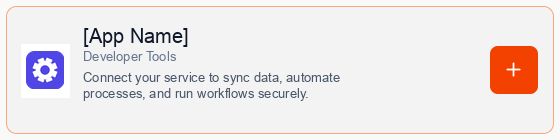
    Locate **PostgreSQL** in the Integrations Catalog and click the **Connect** or **\[+]** button.

    <div className="mt-4 flex justify-center">
      <img src="https://mintcdn.com/forgoodaiinc/eDU9y85HvJm-NpEc/images/integrations/pipedream-card.png?fit=max&auto=format&n=eDU9y85HvJm-NpEc&q=85&s=e0d68679ba1e8ffa0e54e42782a36495" alt="PostgreSQL Integration Card" style={{ width: "100%", maxWidth: "500px", borderRadius: "12px" }} width="560" height="140" data-path="images/integrations/pipedream-card.png" />
    </div>
  </Step>

  <Step title="Consent to Connection">
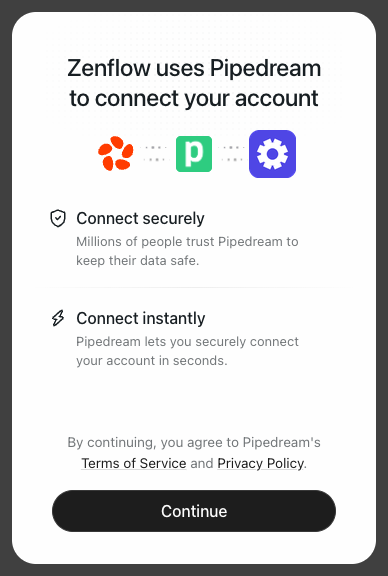
    A secure popup window will open asking for permission to connect your account. Click **Continue** to proceed.

    <div className="mt-4 flex justify-center">
      <img src="https://mintcdn.com/forgoodaiinc/eDU9y85HvJm-NpEc/images/integrations/pipedream-consent.png?fit=max&auto=format&n=eDU9y85HvJm-NpEc&q=85&s=8bef370f3584515ee91bdb286c558acc" alt="Pipedream Consent Screen" style={{ width: "100%", maxWidth: "400px", borderRadius: "12px" }} width="388" height="576" data-path="images/integrations/pipedream-consent.png" />
    </div>
  </Step>

  <Step title="Authorize Connection">
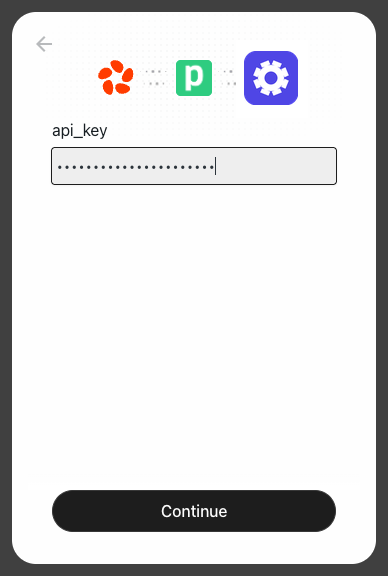
    Provide your database connection string or connection parameters (Host, Port, DB Name, User, Password) in the connection popup.

    <div className="mt-4 flex justify-center">
      <img src="https://mintcdn.com/forgoodaiinc/eDU9y85HvJm-NpEc/images/integrations/pipedream-apikey-connect.png?fit=max&auto=format&n=eDU9y85HvJm-NpEc&q=85&s=a7d3ff6be2aa952fb56f9284d1cad83f" alt="API Key Connection Screen Example" style={{ width: "100%", maxWidth: "400px", borderRadius: "12px" }} width="388" height="576" data-path="images/integrations/pipedream-apikey-connect.png" />
    </div>
  </Step>

  <Step title="Complete Setup">
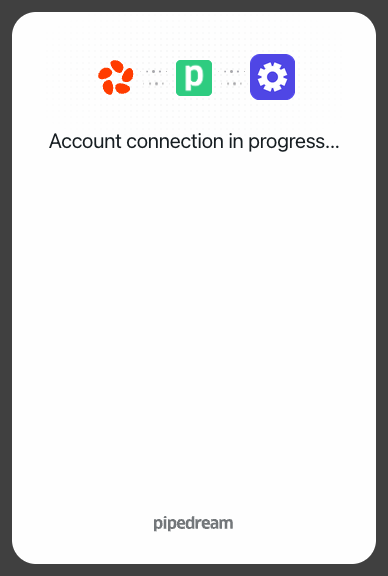
    A progress window will briefly indicate that the account connection is in progress, followed by a confirmation.

    <div className="mt-4 flex justify-center">
      <img src="https://mintcdn.com/forgoodaiinc/eDU9y85HvJm-NpEc/images/integrations/pipedream-connecting.png?fit=max&auto=format&n=eDU9y85HvJm-NpEc&q=85&s=551313855862e9f99e2b409748d16a21" alt="Connection in Progress" style={{ width: "100%", maxWidth: "400px", borderRadius: "12px" }} width="388" height="576" data-path="images/integrations/pipedream-connecting.png" />
    </div>

    Once authorized, close the popup. The integration will instantly display as **Connected** in your Zenflow dashboard and is active for your AI agents.
  </Step>

  <Step title="Verify Firewall Settings">
    Ensure that Zenflow's IP addresses are whitelisted in your database's security group.
  </Step>
</Steps>

## What the Agent Can Do

* **Query Database** — Run SQL SELECT, INSERT, UPDATE, and DELETE statements
* **Inspect Schema** — List tables, columns, constraints, and indexes
* **Optimize Queries** — Analyze query plans (EXPLAIN) and index usage
* **Data Export** — Export query results in JSON or CSV format

## Example Use Cases

* Inspect and repair corrupted data during debugging sessions
* Generate daily operational metrics directly from production tables
* Mirror table schemas and setup test databases automatically
* Fetch user records to answer specific support inquiries

Browse ready-to-use templates in the **[Zencoder Marketplace](https://zencoder.ai/marketplace)**.