> ## Documentation Index
> Fetch the complete documentation index at: https://docs.zencoder.ai/llms.txt
> Use this file to discover all available pages before exploring further.
# Amplitude
> Connect Zenflow Work to Amplitude to access product analytics, usage data, and user behavior insights.
This native integration requires a Zencoder account.
## Overview
The Amplitude integration gives the AI agent access to your product analytics. Query usage data, track user behavior, analyze funnels, and surface insights — all from within a Zenflow task.
Amplitude integration is based on [Amplitude MCP](https://amplitude.com/docs/amplitude-ai/amplitude-mcp)
## Connecting Amplitude
Navigate to **Settings → Integrations** in the Zenflow sidebar.
Locate **Amplitude** in the Integrations Catalog.
Click the **Connect** or **\[+]** button on the Amplitude card.
In the connection popup, select the region in which your Amplitude is located:
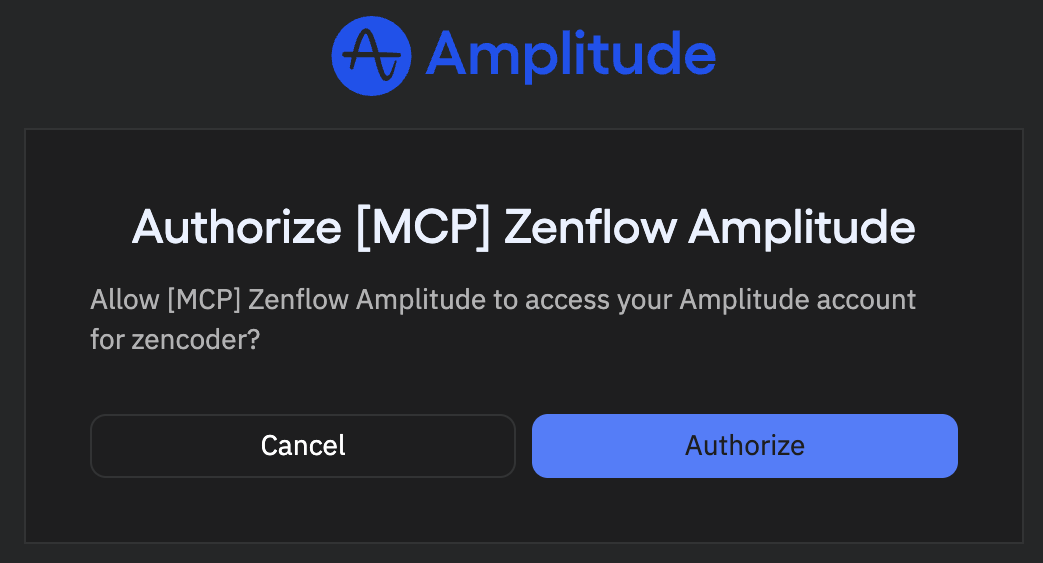
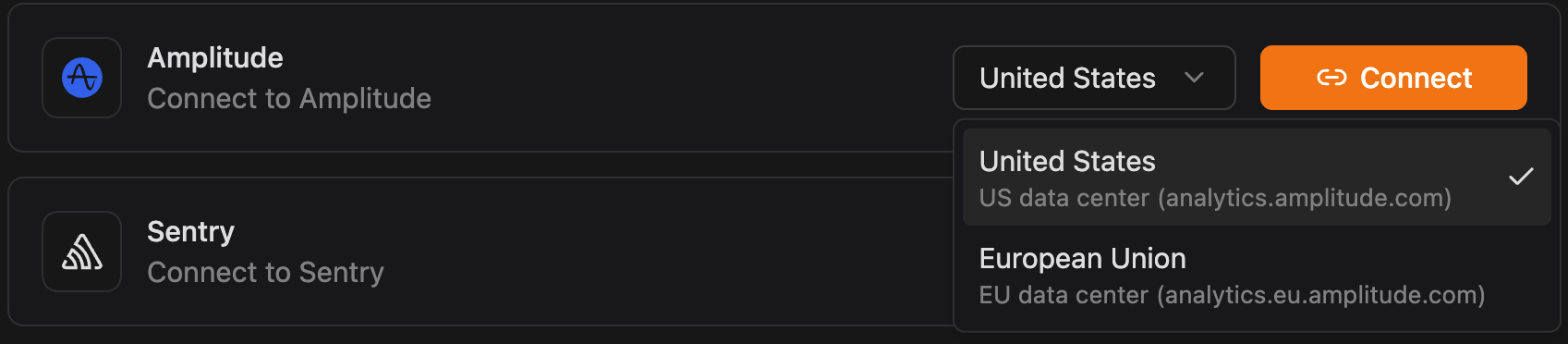 Authenticate and authorize Zenflow to access your Amplitude workspace via the secure OAuth popup window:
Click **Authorize**
Authenticate and authorize Zenflow to access your Amplitude workspace via the secure OAuth popup window:
Click **Authorize**
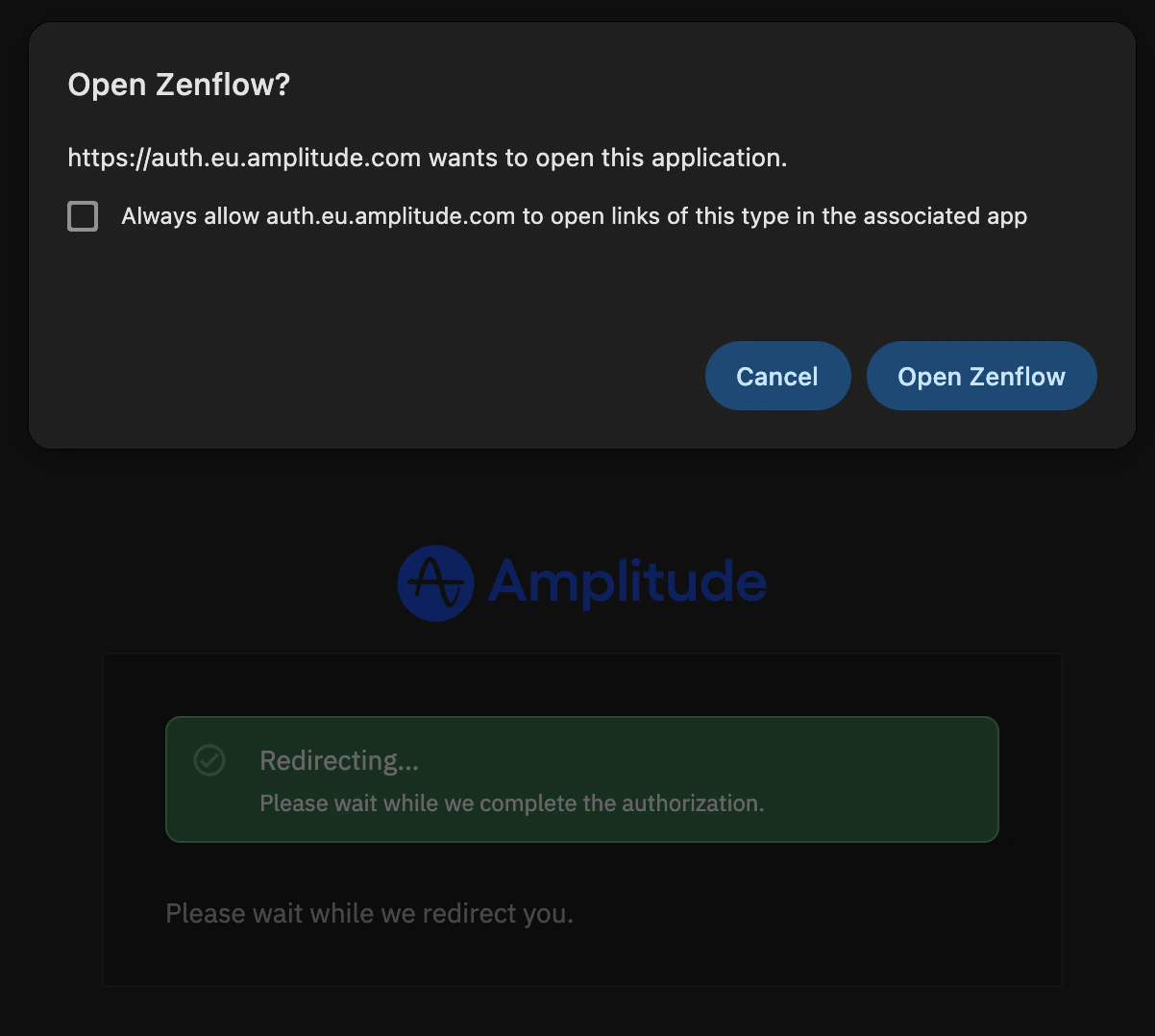
 You should get a modal asking if you want to open Zenflow, click **Open Zenflow**
 ## What the Agent Can Do
* **Query analytics** — Pull usage metrics, DAU/MAU, retention, and engagement data
* **Analyze funnels** — Review conversion funnels and identify drop-off points
* **Track user behavior** — Access event data and user journey insights
* **Surface trends** — Identify usage patterns and feature adoption rates
## Example Use Cases
* Generate weekly product usage reports for stakeholders
* Identify features with declining engagement for prioritization
* Pull retention data for QBR prep documents
* Monitor adoption metrics after a new feature launch
Browse ready-to-use templates in the **[Zencoder Marketplace](https://zencoder.ai/marketplace)**.
## What the Agent Can Do
* **Query analytics** — Pull usage metrics, DAU/MAU, retention, and engagement data
* **Analyze funnels** — Review conversion funnels and identify drop-off points
* **Track user behavior** — Access event data and user journey insights
* **Surface trends** — Identify usage patterns and feature adoption rates
## Example Use Cases
* Generate weekly product usage reports for stakeholders
* Identify features with declining engagement for prioritization
* Pull retention data for QBR prep documents
* Monitor adoption metrics after a new feature launch
Browse ready-to-use templates in the **[Zencoder Marketplace](https://zencoder.ai/marketplace)**.