> ## Documentation Index
> Fetch the complete documentation index at: https://docs.zencoder.ai/llms.txt
> Use this file to discover all available pages before exploring further.
# Miro
> Connect Zenflow Work to Miro to create and update boards and visual collaboration spaces.
This native integration requires a Zencoder account.
## Overview
The Miro integration lets the AI agent work with your visual collaboration boards. Create new boards, add content like sticky notes and shapes, and update existing workspaces — enabling automated brainstorming, planning, and visual documentation.
Miro integration is based on [Miro MCP](https://developers.miro.com/docs/miro-mcp)
## Connecting Miro
Navigate to **Settings → Integrations** in the Zenflow sidebar.
Locate **Miro** in the Integrations Catalog.
Click the **Connect** or **\[+]** button on the Miro card.
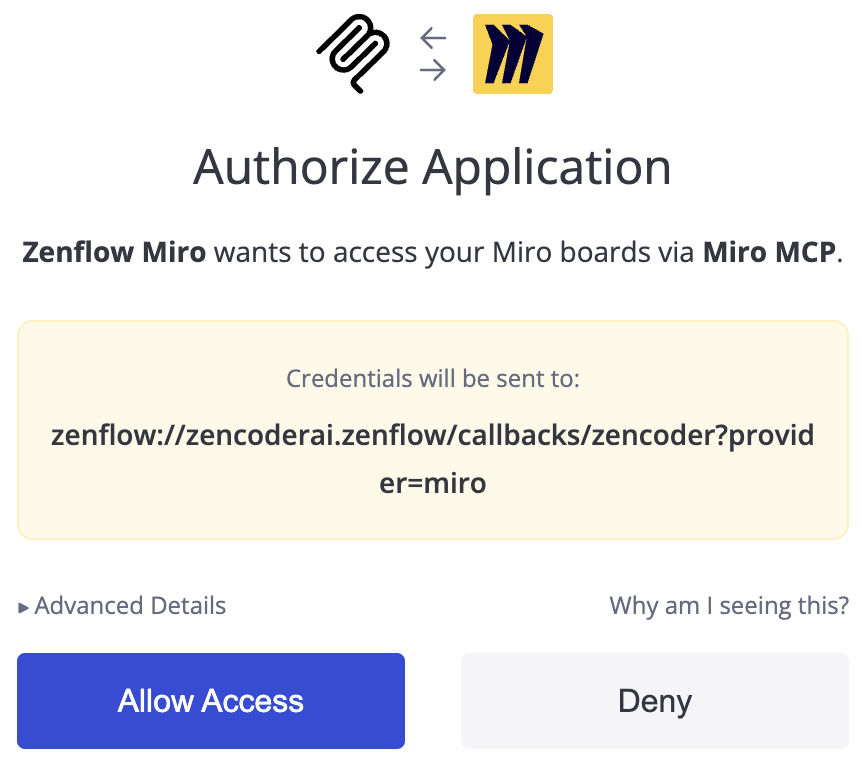
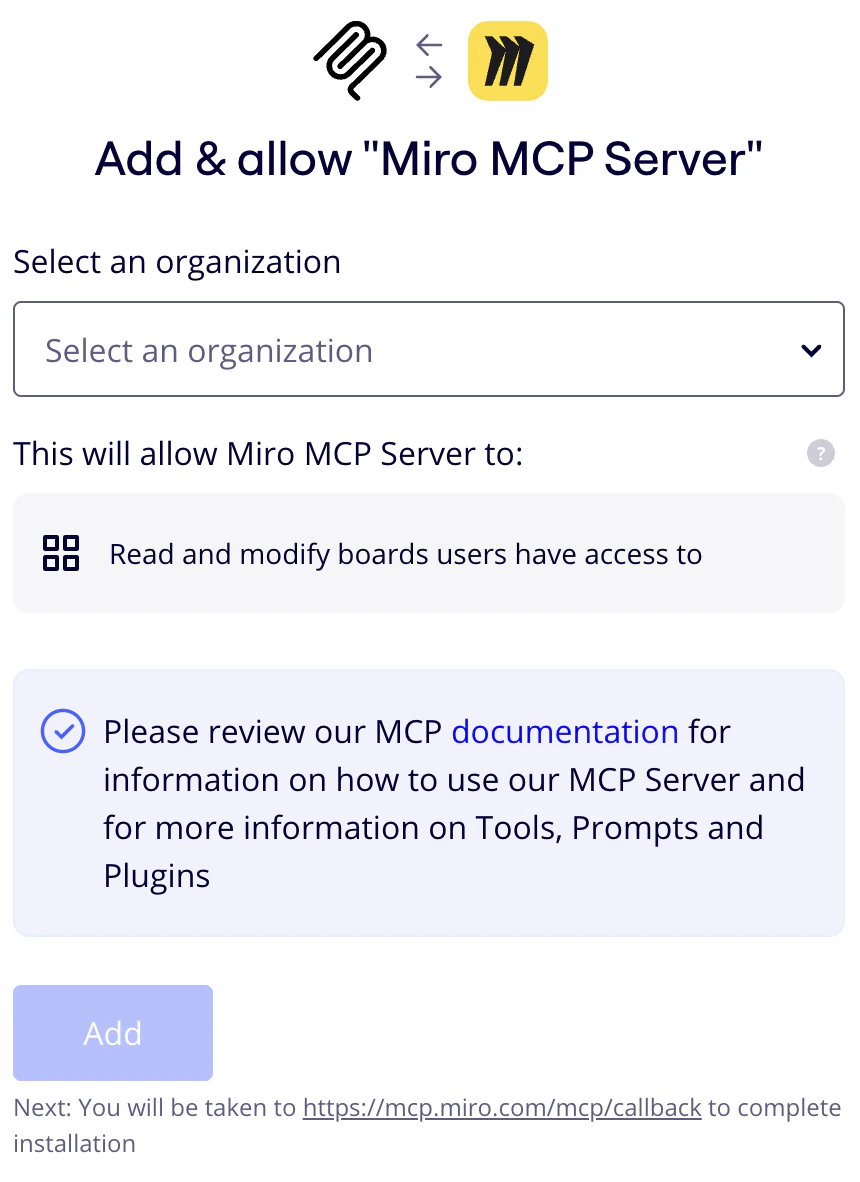
Authenticate and authorize Zenflow to access your Miro workspace via the secure OAuth popup window:
Click **Allow Access**
 Select organization
 Select team
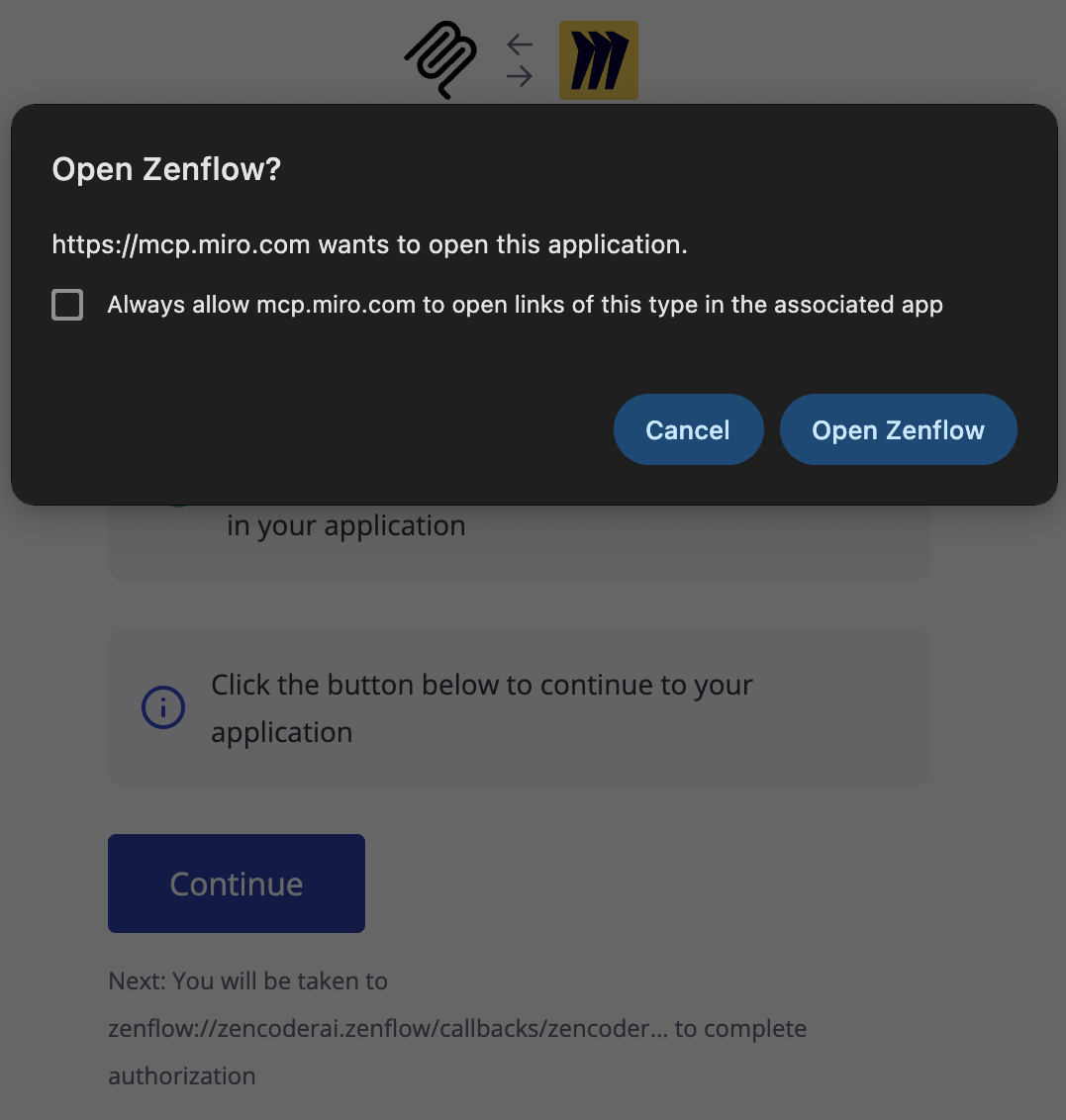
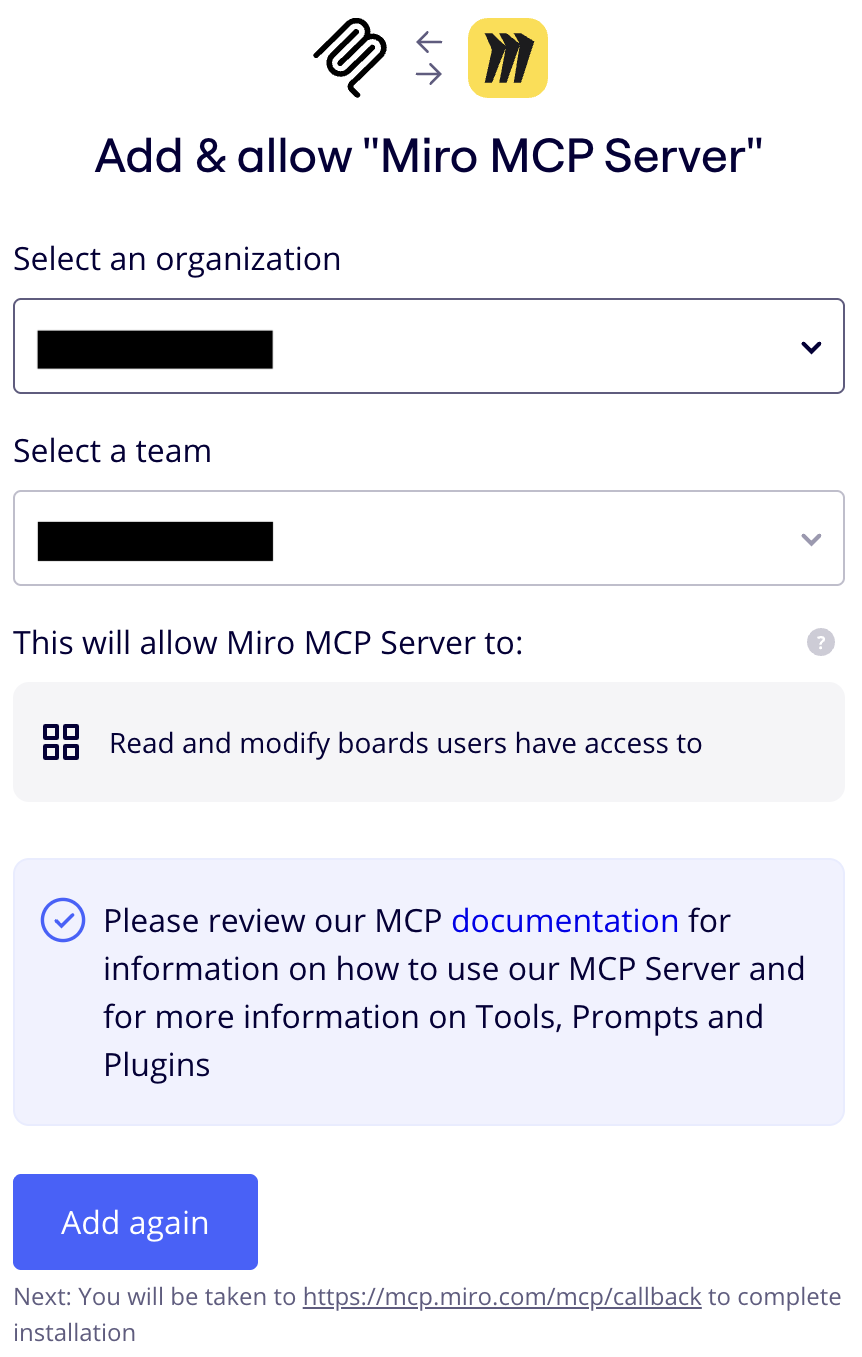 Click **Connect** (or **Add again** if you connected Miro previously), you should get a modal asking if you want to open Zenflow, click **Open Zenflow**
 ## What the Agent Can Do
* **Create boards** — Set up new Miro boards for projects, sprints, or brainstorming sessions
* **Add content** — Place sticky notes, shapes, text, and other elements on boards
* **Update boards** — Modify existing board content and layout
* **Organize** — Structure visual collaboration spaces for team workflows
## Example Use Cases
* Auto-generate sprint retrospective boards with data from Jira or Linear
* Create brainstorming boards from meeting notes
* Build visual project roadmaps from task tracker data
* Organize research findings into structured visual layouts
Browse ready-to-use templates in the **[Zencoder Marketplace](https://zencoder.ai/marketplace)**.
## What the Agent Can Do
* **Create boards** — Set up new Miro boards for projects, sprints, or brainstorming sessions
* **Add content** — Place sticky notes, shapes, text, and other elements on boards
* **Update boards** — Modify existing board content and layout
* **Organize** — Structure visual collaboration spaces for team workflows
## Example Use Cases
* Auto-generate sprint retrospective boards with data from Jira or Linear
* Create brainstorming boards from meeting notes
* Build visual project roadmaps from task tracker data
* Organize research findings into structured visual layouts
Browse ready-to-use templates in the **[Zencoder Marketplace](https://zencoder.ai/marketplace)**.