> ## Documentation Index
> Fetch the complete documentation index at: https://docs.zencoder.ai/llms.txt
> Use this file to discover all available pages before exploring further.
# HubSpot
> Connect Zenflow Work to HubSpot for full CRM access — contacts, deals, tickets, campaigns, and workflows.
This native integration requires a Zencoder account.
## Overview
The HubSpot integration gives the AI agent full CRM access. Read and update contacts, manage deals and tickets, track email campaigns, query analytics, and trigger workflows — all from within a Zenflow task.
HubSpot integration is based on [HubSpot MCP](https://developers.hubspot.com/mcp)
## Connecting to HubSpot
Navigate to **Settings → Integrations** in the Zenflow sidebar (the gear icon at the bottom left).
Locate **HubSpot** in the Integrations Catalog.
Click the **Connect** or **\[+]** button on the HubSpot card.
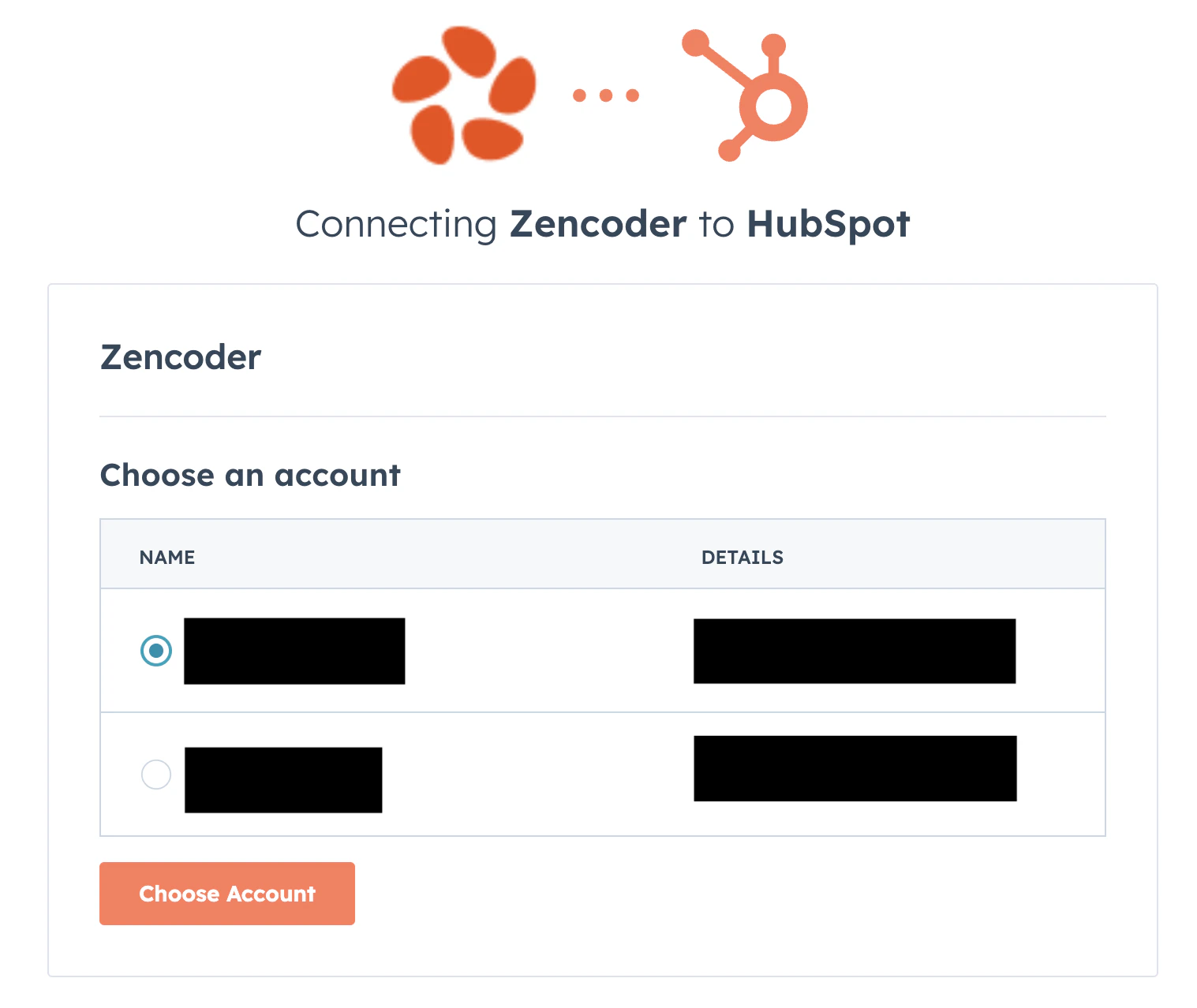
You'll be redirected first to account selection page (if you have only one account, you might not see this screen)
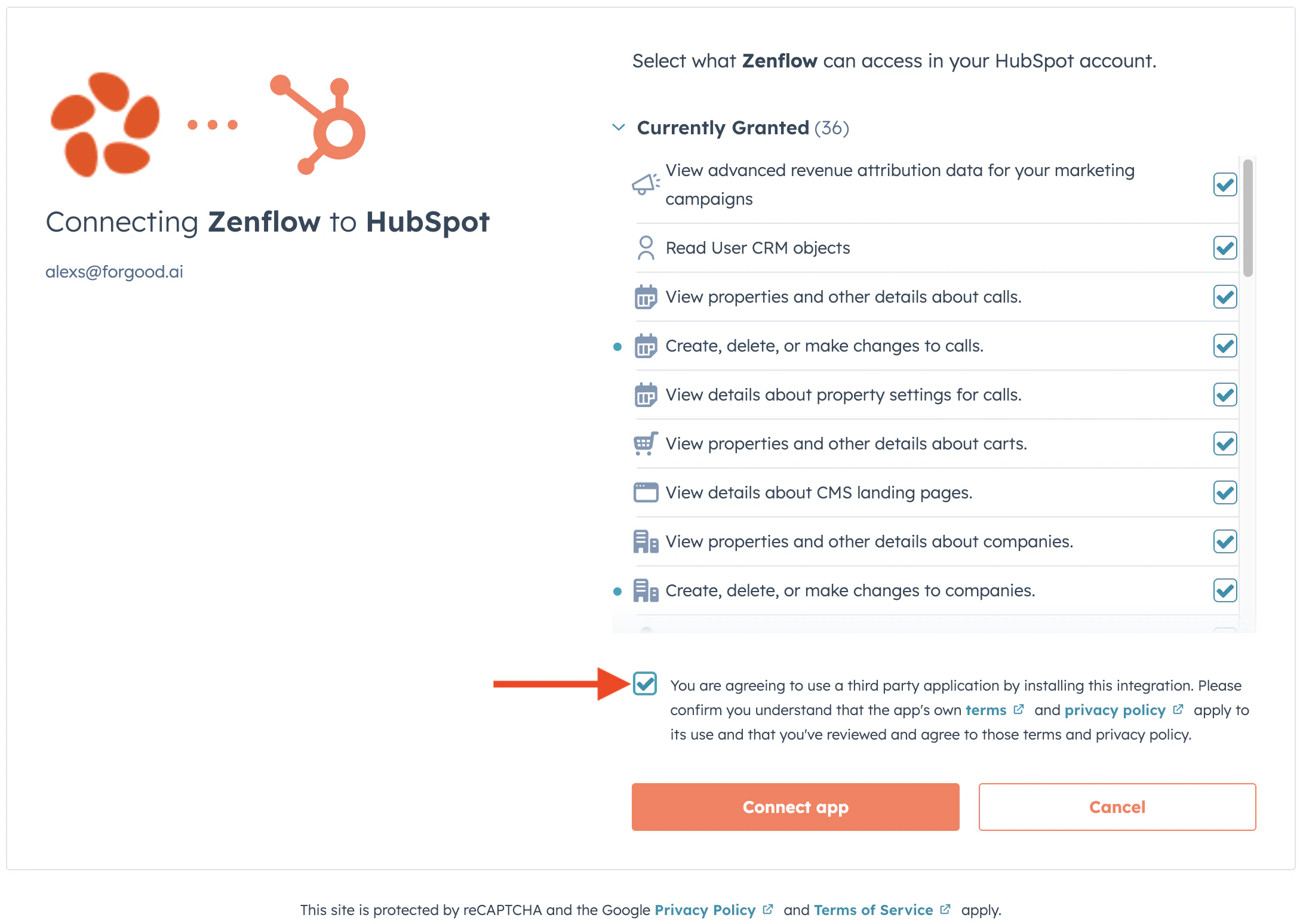
 After selecting the account, you'll be redirected to scope selection screen.
Select scopes according to what you want the agent to have access to. Tick the checkbox agreeing to third party app installation. Click **Connect app**
After selecting the account, you'll be redirected to scope selection screen.
Select scopes according to what you want the agent to have access to. Tick the checkbox agreeing to third party app installation. Click **Connect app**
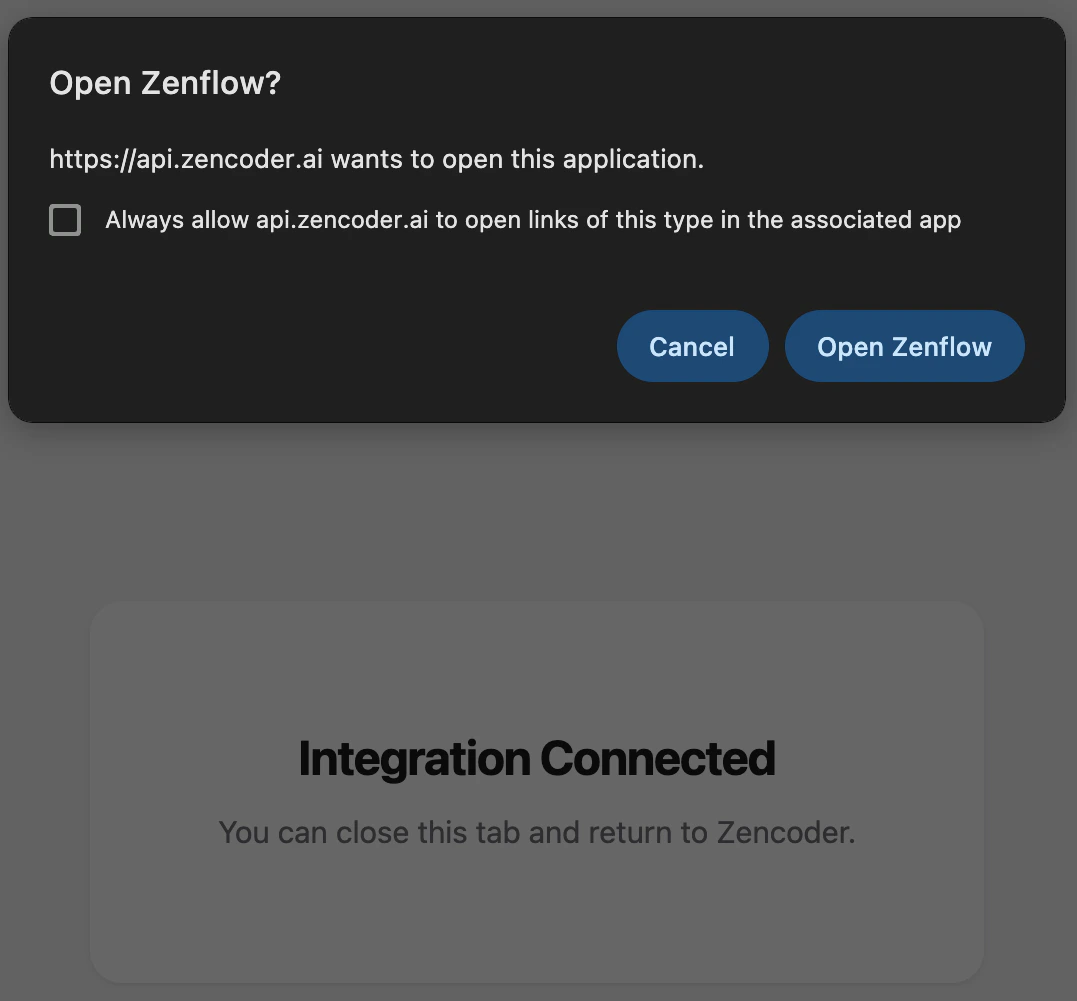
 You should get a modal asking if you want to open Zenflow, click **Open Zenflow**
 ## What the Agent Can Do
* **Contacts** — Read, create, and update contact records and properties
* **Deals** — Manage deal pipelines, stages, and associated data
* **Tickets** — Create and update support tickets
* **Lists** — Manage contact lists and lifecycle stages
* **Campaigns** — Access email campaign performance data and analytics
* **Properties** — Query and update custom properties
* **Workflows** — Trigger and manage HubSpot workflows
## Example Use Cases
* Generate weekly pipeline health reports from deal data
* Enrich contact records with research from web and email
* Track campaign performance and surface trends automatically
* Sync deal updates to Notion dashboards or Google Docs
## Example Automations
### Payment to Customer Lifecycle Sync
Connect HubSpot and Stripe to keep customer statuses in sync automatically:
1. **Check all new customers in Stripe**: The agent monitors Stripe for newly created customer records (requires **Read** permissions in Stripe).
2. **Sync status in HubSpot**: For any customers with an active subscription, the agent automatically searches for the corresponding contact or lead in HubSpot and updates their lifecycle stage to "Paid Customer" (requires **Write** permissions in HubSpot).
Browse ready-to-use templates in the **[Zencoder Marketplace](https://zencoder.ai/marketplace)**.
## What the Agent Can Do
* **Contacts** — Read, create, and update contact records and properties
* **Deals** — Manage deal pipelines, stages, and associated data
* **Tickets** — Create and update support tickets
* **Lists** — Manage contact lists and lifecycle stages
* **Campaigns** — Access email campaign performance data and analytics
* **Properties** — Query and update custom properties
* **Workflows** — Trigger and manage HubSpot workflows
## Example Use Cases
* Generate weekly pipeline health reports from deal data
* Enrich contact records with research from web and email
* Track campaign performance and surface trends automatically
* Sync deal updates to Notion dashboards or Google Docs
## Example Automations
### Payment to Customer Lifecycle Sync
Connect HubSpot and Stripe to keep customer statuses in sync automatically:
1. **Check all new customers in Stripe**: The agent monitors Stripe for newly created customer records (requires **Read** permissions in Stripe).
2. **Sync status in HubSpot**: For any customers with an active subscription, the agent automatically searches for the corresponding contact or lead in HubSpot and updates their lifecycle stage to "Paid Customer" (requires **Write** permissions in HubSpot).
Browse ready-to-use templates in the **[Zencoder Marketplace](https://zencoder.ai/marketplace)**.