> ## Documentation Index
> Fetch the complete documentation index at: https://docs.zencoder.ai/llms.txt
> Use this file to discover all available pages before exploring further.
# Universal AI Platform
> Unifying the world's most popular AI coding CLIs with Zencoder directly in your IDE
# Universal AI Platform
Use your existing AI subscriptions (Claude, ChatGPT, Gemini) inside Zencoder's IDE interface. Switch between CLI runtimes without leaving your editor.
Available on all plans. See [pricing](https://zencoder.ai/pricing) for details.
## What It Does
Zencoder acts as a host for external AI coding CLIs, giving them IDE integration, multi-repo context, custom agents, and skills. You pick the runtime; Zencoder provides the surrounding infrastructure.
## Supported CLI Tools
Currently, Zencoder supports:
* **Zen CLI** - Zencoder's native runtime
* **Claude Code** from Anthropic - Terminal-based agentic coding tool powered by Claude's latest models
* **OpenAI Codex** - Command-line interface using OpenAI's Codex models
## Setup Instructions
**Feature Availability**: The Universal AI Platform is now available across all Zencoder supported IDEs. Available in VS Code with Zencoder extension version 2.38+ and JetBrains IDEs with version 2.16+. Please ensure you're running the latest version of Zencoder to access these features.
Install Zencoder, install your preferred CLI tool, and select the runtime in Zencoder settings.
### Connect Your CLI Tool
Claude Code is Anthropic's terminal-based coding CLI. It uses Claude's latest models to edit files, run tests, and manage Git operations via natural language.
**Pricing:** Claude Code is included with several Anthropic plans. See [anthropic.com/claude-code](https://www.anthropic.com/claude-code) for details.
**Prerequisites:**
* Node.js 18 or newer
* Claude subscription with Code access
Visit [Claude Code by Anthropic](https://www.anthropic.com/claude-code) to learn more and choose a plan that includes Claude Code access.
Install the Claude Code command-line interface using npm:
```bash theme={"system"}
npm install -g @anthropic-ai/claude-code
```
Authenticate Claude Code by running the following command. You'll be prompted to log in with your Claude account:
```bash theme={"system"}
claude
```
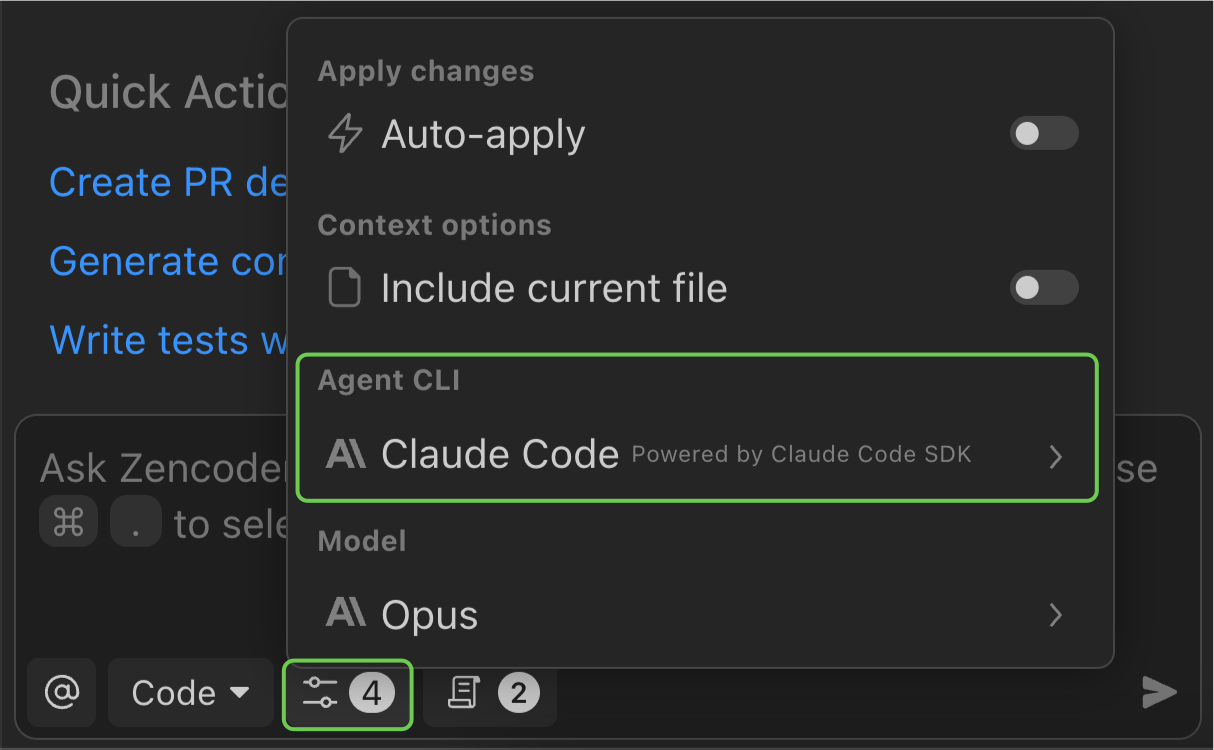
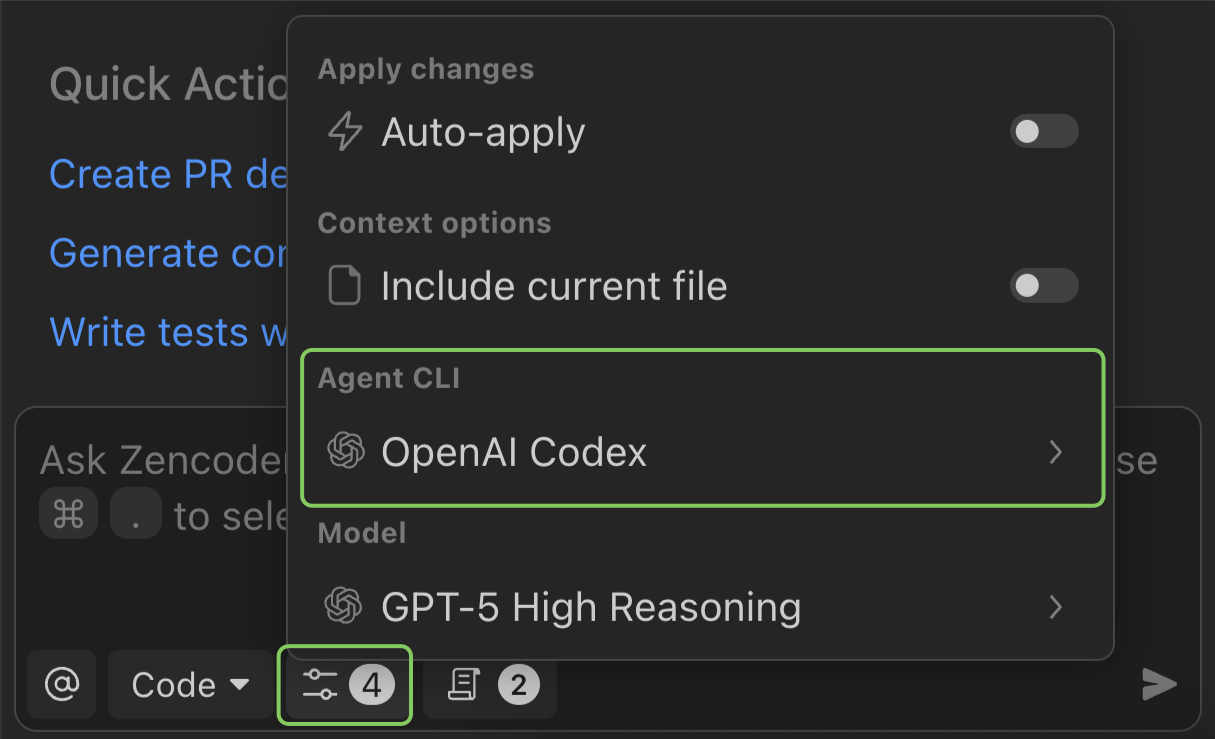
Once authenticated locally, return to Zencoder and select Claude Code as your runtime. In the chat box, click on the settings icon. Under the `Agent CLI` category, click on it and select `Claude Code` from the list of available CLIs (Zen CLI, Claude Code, or OpenAI Codex).
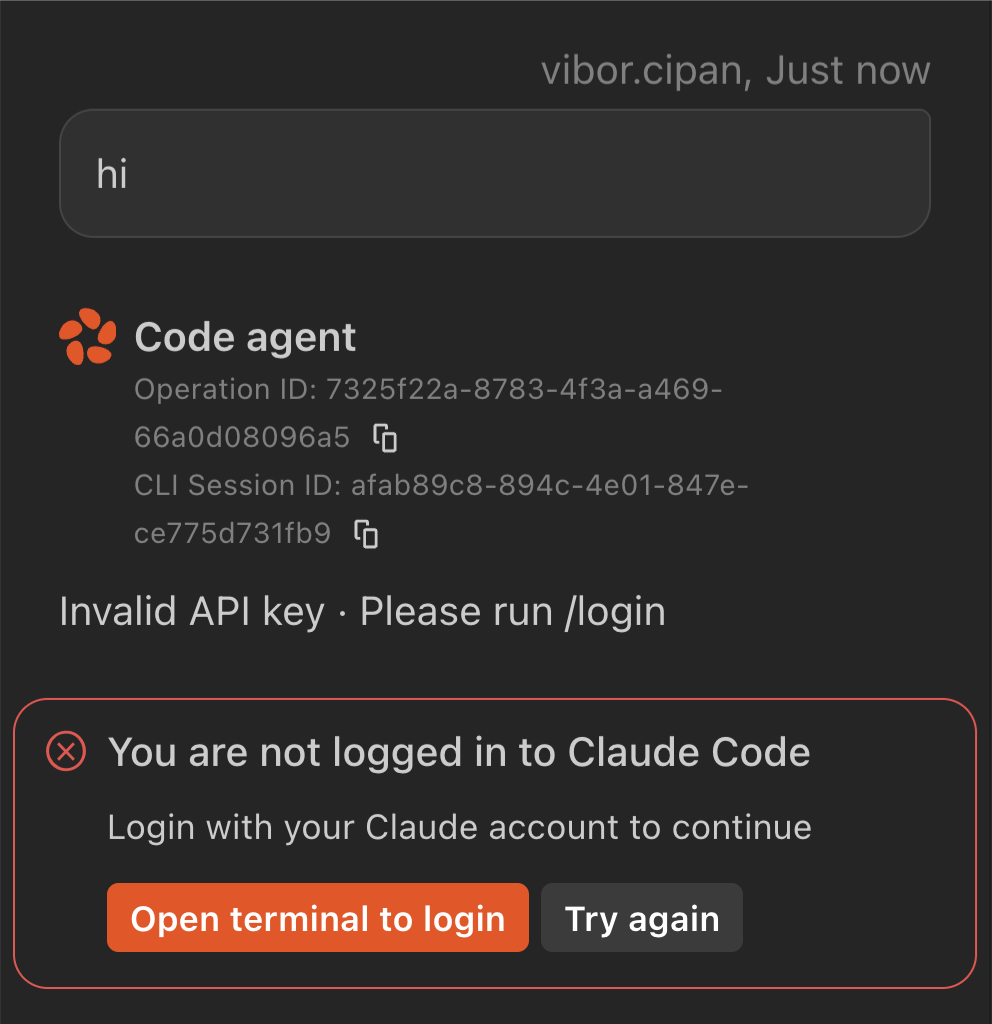
 If you haven't authenticated before, you'll see the following screens:
You'll be prompted to open terminal to login
If you haven't authenticated before, you'll see the following screens:
You'll be prompted to open terminal to login
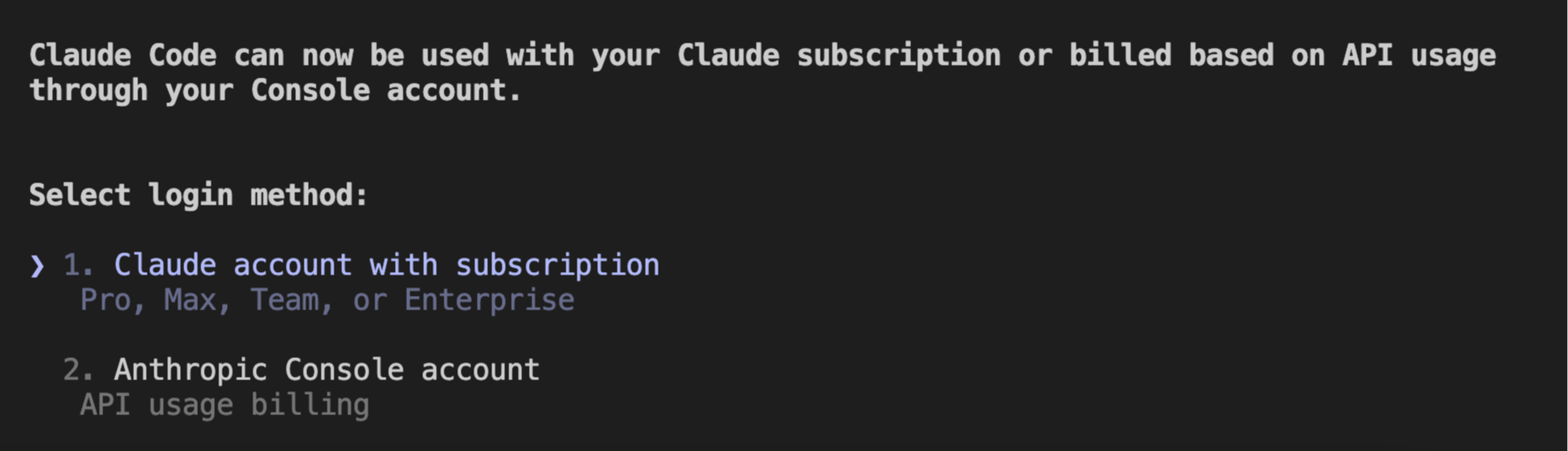
 Select and authenticate with your Claude account that has an active subscription
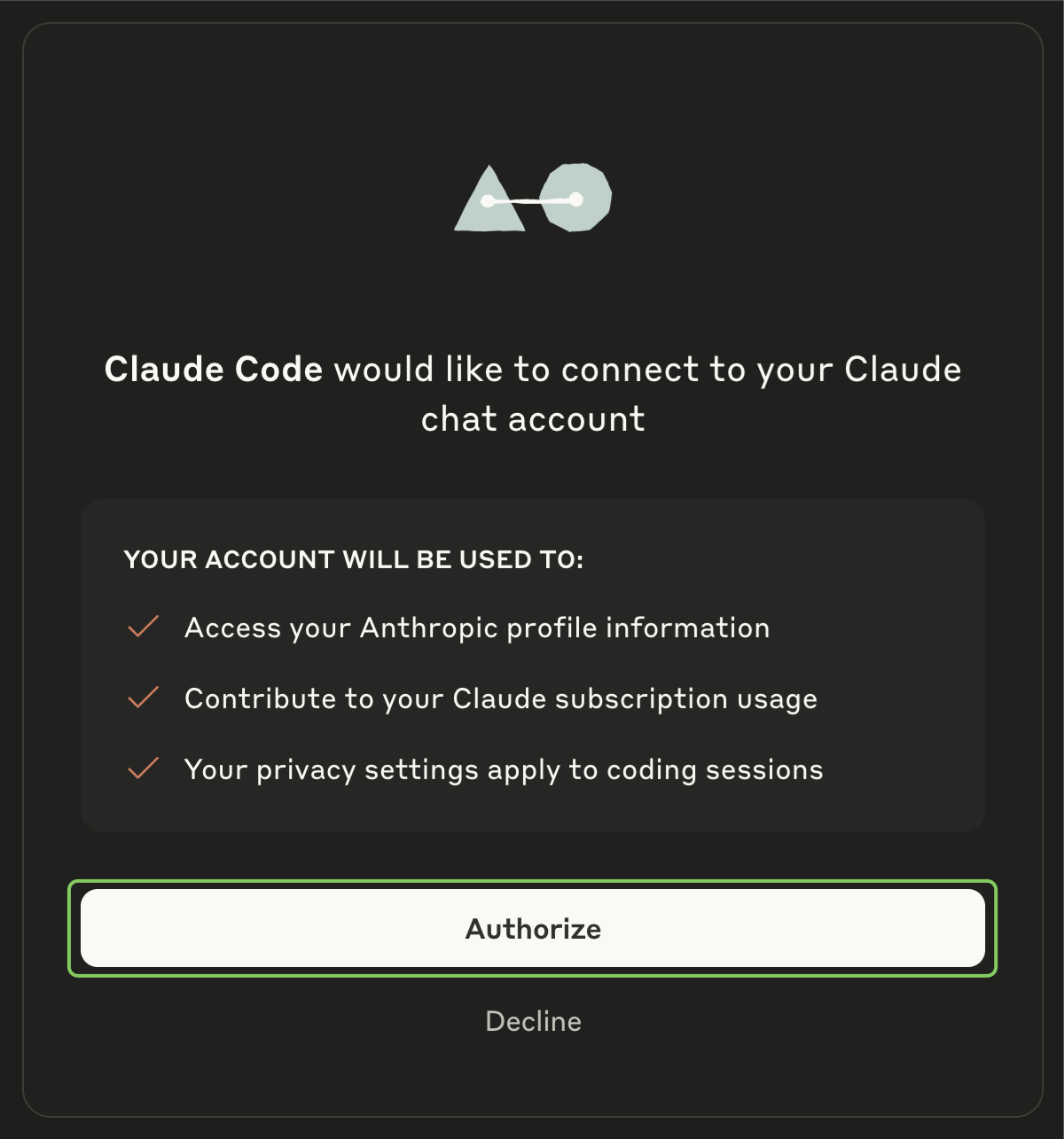
 Follow the authorization instructions shown in the screens
 Once everything is done, you'll see "Login successful, press Enter to continue"
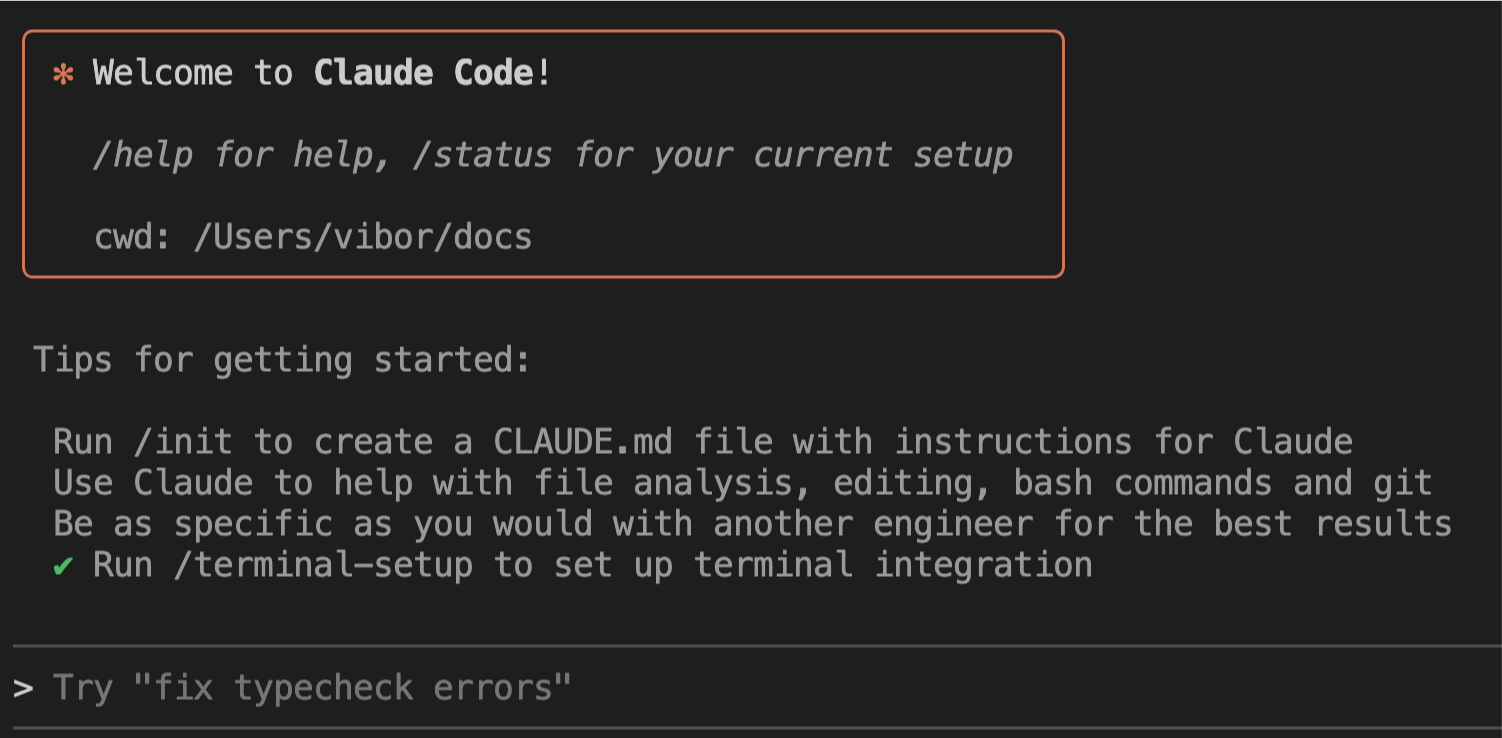
 Finally, you'll see the welcome screen confirming Claude Code is ready
 **Using Claude Code with Zencoder**
Once setup is complete, you can use Claude Code just like any other Zencoder runtime. You can select the [coding agent](/features/coding-agent), or use [custom agents](/features/ai-agents) from the [model selector](/features/models).
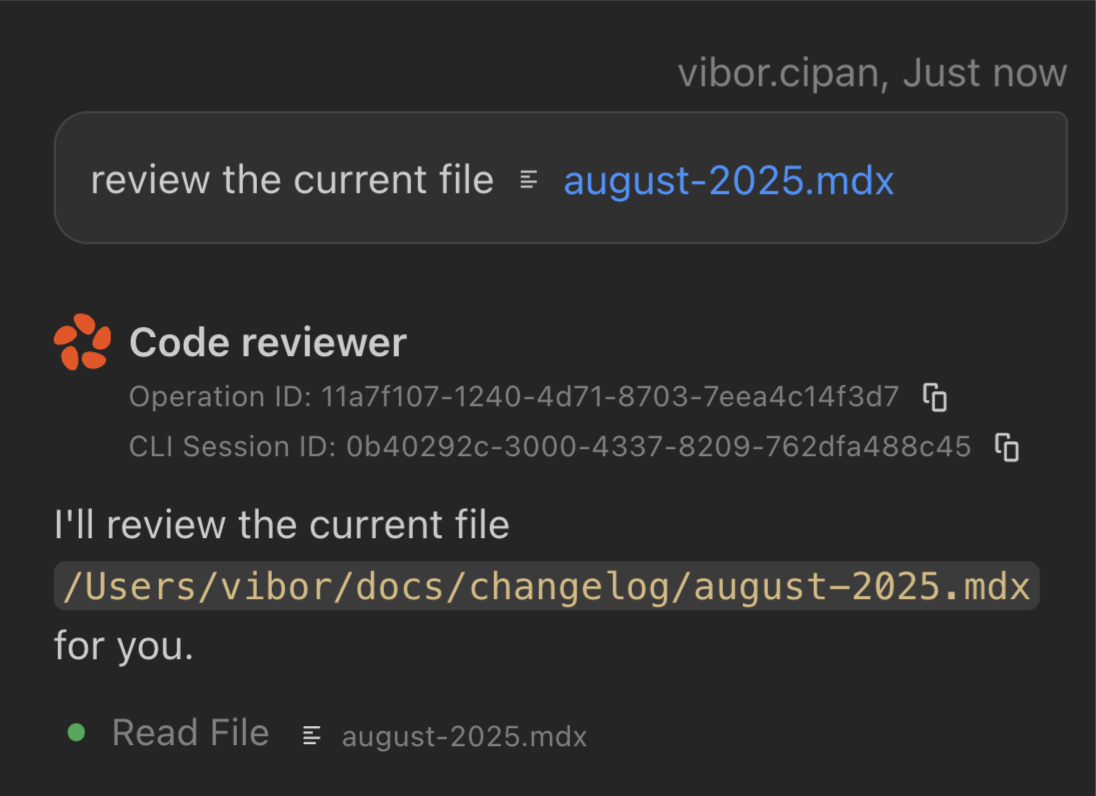
**Example:** Using the Review Agent with Claude Code to review the current file (august-2025.mdx). The agent executes commands and provides feedback just as it would with any other runtime.
**Using Claude Code with Zencoder**
Once setup is complete, you can use Claude Code just like any other Zencoder runtime. You can select the [coding agent](/features/coding-agent), or use [custom agents](/features/ai-agents) from the [model selector](/features/models).
**Example:** Using the Review Agent with Claude Code to review the current file (august-2025.mdx). The agent executes commands and provides feedback just as it would with any other runtime.
 All Zencoder features (custom agents, multi-repo context, skills) work with the Claude Code runtime.
OpenAI Codex is OpenAI's coding CLI using Codex models for code generation, explanation, and refactoring.
**Pricing:** Codex access is included with ChatGPT Plus and Team subscriptions. See [OpenAI's Codex docs](https://developers.openai.com/codex/cli) for details.
**Prerequisites:**
* Node.js 18 or newer
* ChatGPT Plus, Team, or Enterprise subscription
Visit [OpenAI Codex documentation](https://developers.openai.com/codex/cli) to learn more and ensure your ChatGPT subscription includes Codex access.
Install the Codex command-line interface using npm:
```bash theme={"system"}
npm i -g @openai/codex
```
Authenticate OpenAI Codex by running the following command. You'll be prompted to sign in with your ChatGPT account or provide your own API key:
```bash theme={"system"}
codex
```
Once authenticated locally, return to Zencoder and select OpenAI Codex as your runtime. In the chat box, click on the settings icon. Under the `Agent CLI` category, click on it and select `OpenAI Codex` from the list of available CLIs (Zen CLI, Claude Code, or OpenAI Codex).
All Zencoder features (custom agents, multi-repo context, skills) work with the Claude Code runtime.
OpenAI Codex is OpenAI's coding CLI using Codex models for code generation, explanation, and refactoring.
**Pricing:** Codex access is included with ChatGPT Plus and Team subscriptions. See [OpenAI's Codex docs](https://developers.openai.com/codex/cli) for details.
**Prerequisites:**
* Node.js 18 or newer
* ChatGPT Plus, Team, or Enterprise subscription
Visit [OpenAI Codex documentation](https://developers.openai.com/codex/cli) to learn more and ensure your ChatGPT subscription includes Codex access.
Install the Codex command-line interface using npm:
```bash theme={"system"}
npm i -g @openai/codex
```
Authenticate OpenAI Codex by running the following command. You'll be prompted to sign in with your ChatGPT account or provide your own API key:
```bash theme={"system"}
codex
```
Once authenticated locally, return to Zencoder and select OpenAI Codex as your runtime. In the chat box, click on the settings icon. Under the `Agent CLI` category, click on it and select `OpenAI Codex` from the list of available CLIs (Zen CLI, Claude Code, or OpenAI Codex).
 After you install Codex and run the `codex` command, you will be prompted to log in with the following screens:
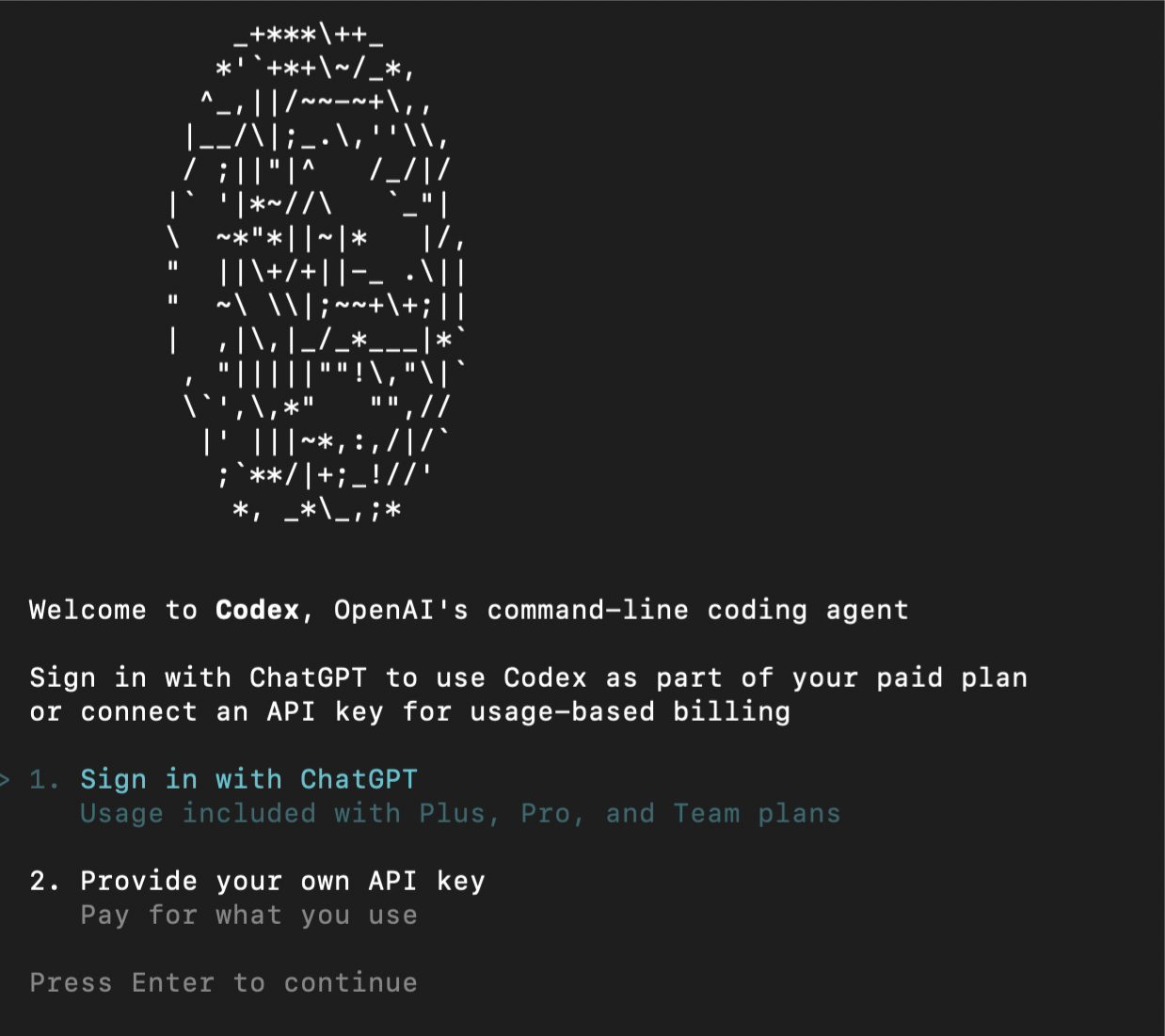 Sign in with your ChatGPT account or provide your own API key, then press Enter to continue
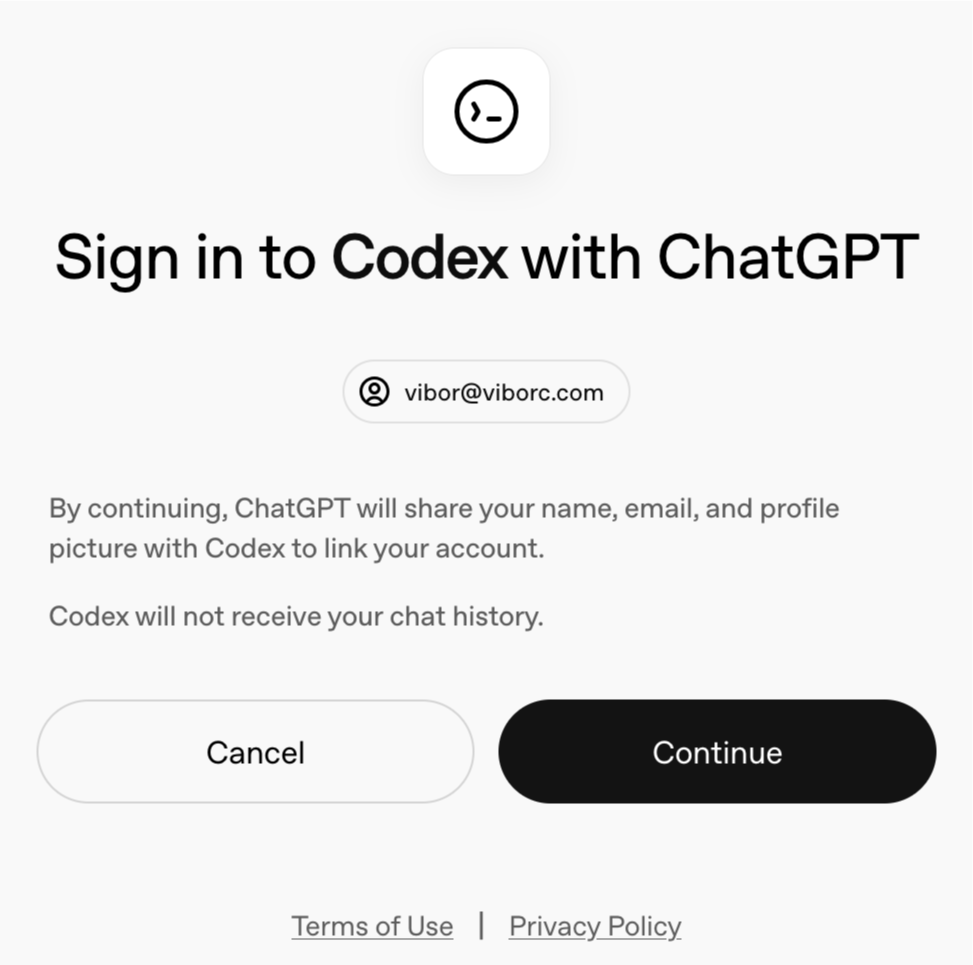
After logging in, you will be presented with an option to sign into Codex with ChatGPT. Press Continue on this dialog:
Sign in with your ChatGPT account or provide your own API key, then press Enter to continue
After logging in, you will be presented with an option to sign into Codex with ChatGPT. Press Continue on this dialog:
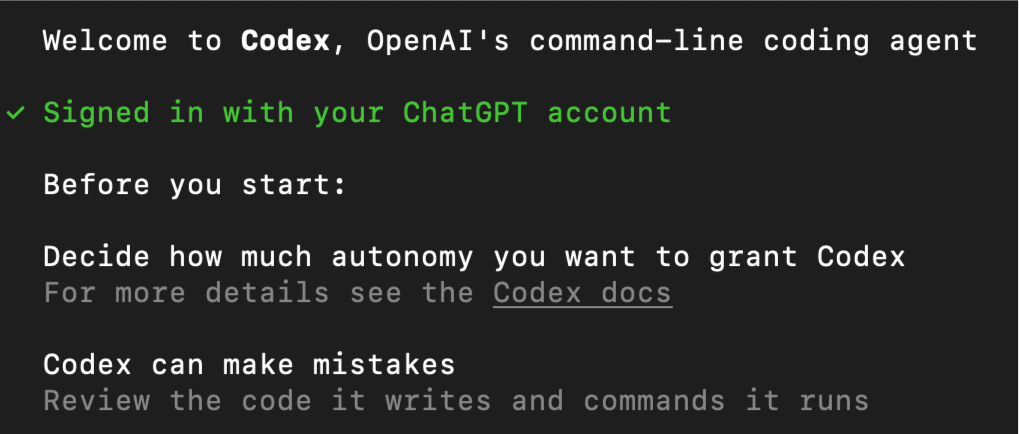
 After completing the web authentication, you will be able to return to the terminal and see this green notification confirming you have been signed in with your ChatGPT account. Press Enter to continue and you should be all set up:
 **Using OpenAI Codex with Zencoder**
Once setup is complete, you can use OpenAI Codex just like any other Zencoder runtime. You can select the [coding agent](/features/coding-agent), or use [custom agents](/features/ai-agents) from the [model selector](/features/models).
All Zencoder features (custom agents, multi-repo context, skills) work with the Codex runtime.
Gemini CLI is available as an agent runtime in [Zenflow](/clis/gemini). IDE Agent support is being rolled out — check the [changelog](/changelog/home) for updates.
## What You Get
* **Use existing subscriptions** — no additional runtime cost; use your ChatGPT, Claude, or Gemini plan
* **IDE integration** — CLI tools run inside VS Code / JetBrains instead of a separate terminal
* **Switch runtimes** — change the underlying model provider per chat
* **Multi-repo context** — agents see indexed repositories beyond the current project
* **Custom agents and skills** — team-wide agent configurations and coding standards apply regardless of runtime
* **Analytics** — usage tracking across all runtimes
## FAQ
No! You can use Zencoder's Universal CLI Platform for free with your existing subscription. You can check more about the plans and available features on our [pricing page](https://zencoder.ai/pricing).
Yes! You can switch between Claude Code, OpenAI Codex, and other supported runtimes at any time through the Agent CLI settings in the chat box. Simply click the settings icon and select a different CLI from the Agent CLI category.
No! You get all of Zencoder's features (custom agents, multi-repo intelligence, etc.) regardless of which runtime you choose.
When using external CLIs, your code is processed by your chosen provider (Anthropic, Google, or OpenAI). Zencoder only manages the IDE integration and enterprise features layer.
Yes! Enterprise customers can deploy the entire stack on-premise or in a hybrid configuration. Contact [enterprise@zencoder.ai](mailto:enterprise@zencoder.ai) for details.
## Troubleshooting
If you encounter PowerShell execution policy errors while installing Claude Code or OpenAI Codex on Windows, check our troubleshooting guide for a quick fix.
***
Zencoder is not affiliated with or endorsed by Anthropic, OpenAI, Google, or Microsoft. All product and company names herein may be trademarks of their respective owners.
**Using OpenAI Codex with Zencoder**
Once setup is complete, you can use OpenAI Codex just like any other Zencoder runtime. You can select the [coding agent](/features/coding-agent), or use [custom agents](/features/ai-agents) from the [model selector](/features/models).
All Zencoder features (custom agents, multi-repo context, skills) work with the Codex runtime.
Gemini CLI is available as an agent runtime in [Zenflow](/clis/gemini). IDE Agent support is being rolled out — check the [changelog](/changelog/home) for updates.
## What You Get
* **Use existing subscriptions** — no additional runtime cost; use your ChatGPT, Claude, or Gemini plan
* **IDE integration** — CLI tools run inside VS Code / JetBrains instead of a separate terminal
* **Switch runtimes** — change the underlying model provider per chat
* **Multi-repo context** — agents see indexed repositories beyond the current project
* **Custom agents and skills** — team-wide agent configurations and coding standards apply regardless of runtime
* **Analytics** — usage tracking across all runtimes
## FAQ
No! You can use Zencoder's Universal CLI Platform for free with your existing subscription. You can check more about the plans and available features on our [pricing page](https://zencoder.ai/pricing).
Yes! You can switch between Claude Code, OpenAI Codex, and other supported runtimes at any time through the Agent CLI settings in the chat box. Simply click the settings icon and select a different CLI from the Agent CLI category.
No! You get all of Zencoder's features (custom agents, multi-repo intelligence, etc.) regardless of which runtime you choose.
When using external CLIs, your code is processed by your chosen provider (Anthropic, Google, or OpenAI). Zencoder only manages the IDE integration and enterprise features layer.
Yes! Enterprise customers can deploy the entire stack on-premise or in a hybrid configuration. Contact [enterprise@zencoder.ai](mailto:enterprise@zencoder.ai) for details.
## Troubleshooting
If you encounter PowerShell execution policy errors while installing Claude Code or OpenAI Codex on Windows, check our troubleshooting guide for a quick fix.
***
Zencoder is not affiliated with or endorsed by Anthropic, OpenAI, Google, or Microsoft. All product and company names herein may be trademarks of their respective owners.