> ## Documentation Index
> Fetch the complete documentation index at: https://docs.zencoder.ai/llms.txt
> Use this file to discover all available pages before exploring further.
# Integrations and MCP
> Connect Zencoder with your tools and workflows through multiple integration paths
## Overview
Zencoder connects to external tools through three integration paths:
Jira integration built into the IDE Agent
Send context from 20+ browser-based tools to your IDE
Open standard for connecting agents to databases, APIs, and custom tools
## Built-in Native Integrations
### Add Jira Integration
The Jira integration lets you reference Jira tickets directly in agent chat using `@Jira`. Agents can read issue details (summary, description, acceptance criteria) to understand what to build or fix.
1. Click the **three dots menu** (⋮) at the top right corner
2. Select **Integrations** from the dropdown menu
1. In the **Integrations** screen, find the **Jira** card
2. Click **Connect** to begin the integration process
1. Follow the prompts to authorize Zencoder to access your Jira instance
2. You'll be redirected to Jira to approve the connection
3. Once approved, you'll be returned to Zencoder
Once connected, you can reference Jira tickets directly in your Zencoder chat by using the **@Jira** mention.
## Chrome Extension
The [Chrome extension](https://chromewebstore.google.com/detail/zencoder/obkkfjgjhdkjnkleopbljciifoefhnbp) adds a Zencoder button to supported browser-based tools. Clicking it captures the current page context (error stack traces, PR descriptions, issue details) and sends it to your IDE.
Visit the [**Chrome Web Store**](https://chromewebstore.google.com/detail/zencoder/obkkfjgjhdkjnkleopbljciifoefhnbp) and add the **Zencoder extension** to your browser.
When browsing supported tools, click the **Zencoder button** to send context to your IDE. No authentication needed!
### Supported Tools
* Jira
* Linear
* Trello
* Monday
* Wrike
* Asana
* ClickUp
* Shortcut
* Azure DevOps
* GitHub
* GitLab (including self-hosted instances)
* Sentry
* Datadog
* BugSnag
* Rollbar
* SonarQube
* Snyk
* Grafana/Loki
* LogRocket
* CircleCI
* BuildKite
* Chrome DevTools (with a dedicated tab)
## Model Context Protocol (MCP)
MCP is an open standard for connecting LLMs to external data sources and tools. Zencoder acts as an **MCP client** that connects to **MCP servers**—lightweight connectors that expose specific capabilities (database queries, API calls, browser automation, etc.).
If you need to connect to a system without a native integration, you can use an existing MCP server or build your own.
### MCP Protocol Support
Supported connection protocols:
* **Standard stdio communication**: For local MCP servers running as subprocesses
* **Streamable HTTP connections**: For remote MCP servers using HTTP-based communication
* **OAuth2 authentication**: For secure authentication with third-party services requiring OAuth2 flows
**Platform Availability:**
* **JetBrains IDEs**: Full support for all MCP protocols (stdio, streamable HTTP, OAuth2)
* **VS Code**: Supports stdio connections. Streamable HTTP and OAuth2 support is being rolled out — check the [changelog](/changelog/home) for the latest status.
### Managing Agent Tools and MCP Servers
MCP servers can be managed through the **Agent Tools** menu in the IDE, or by editing configuration files directly.
1. Click the **three dots menu** (⋮) at the top right corner
2. Select **Agent Tools** to access the tools management interface
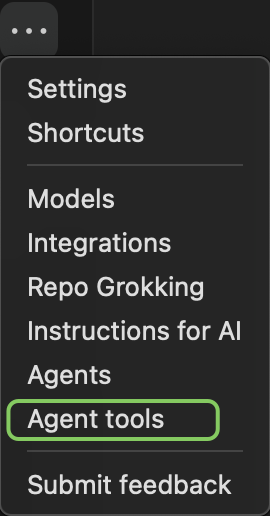 At the top of the **Agent Tools** screen, you'll find tabs that help you filter and navigate between different types of tools:
* **All**: Shows all available tools (both Zencoder-provided and custom)
* **Zencoder**: Displays prebuilt tools created by Zencoder
* **Custom**: Shows your custom tools and MCPs that you've installed
* **MCP Library**: Provides a selection of ready-made MCP servers that you can install with a single click and minimal setup
At the top of the **Agent Tools** screen, you'll find tabs that help you filter and navigate between different types of tools:
* **All**: Shows all available tools (both Zencoder-provided and custom)
* **Zencoder**: Displays prebuilt tools created by Zencoder
* **Custom**: Shows your custom tools and MCPs that you've installed
* **MCP Library**: Provides a selection of ready-made MCP servers that you can install with a single click and minimal setup
 The **Agent Tools** interface displays all available tools based on the category you've selected, including pre-built MCP servers from the **MCP Library** and any custom tools you've added.
To install a pre-built MCP server:
1. Click on the **MCP Library** tab
2. Browse or search through the available MCP servers
The **Agent Tools** interface displays all available tools based on the category you've selected, including pre-built MCP servers from the **MCP Library** and any custom tools you've added.
To install a pre-built MCP server:
1. Click on the **MCP Library** tab
2. Browse or search through the available MCP servers
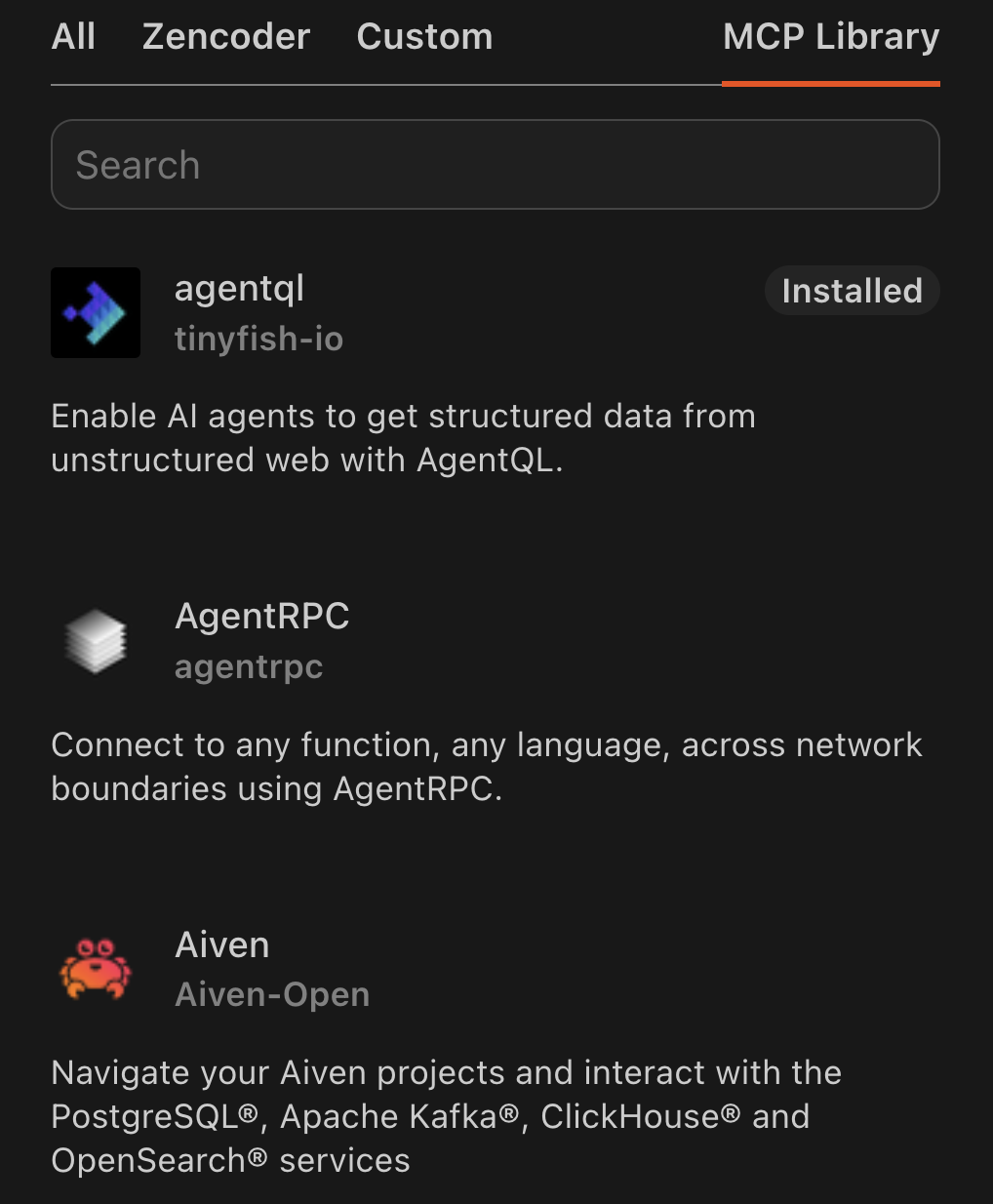 Installed servers will have an **"Installed"** label next to their name, making it easy to see which MCPs you've already added.
3. Click on the MCP server you want to install
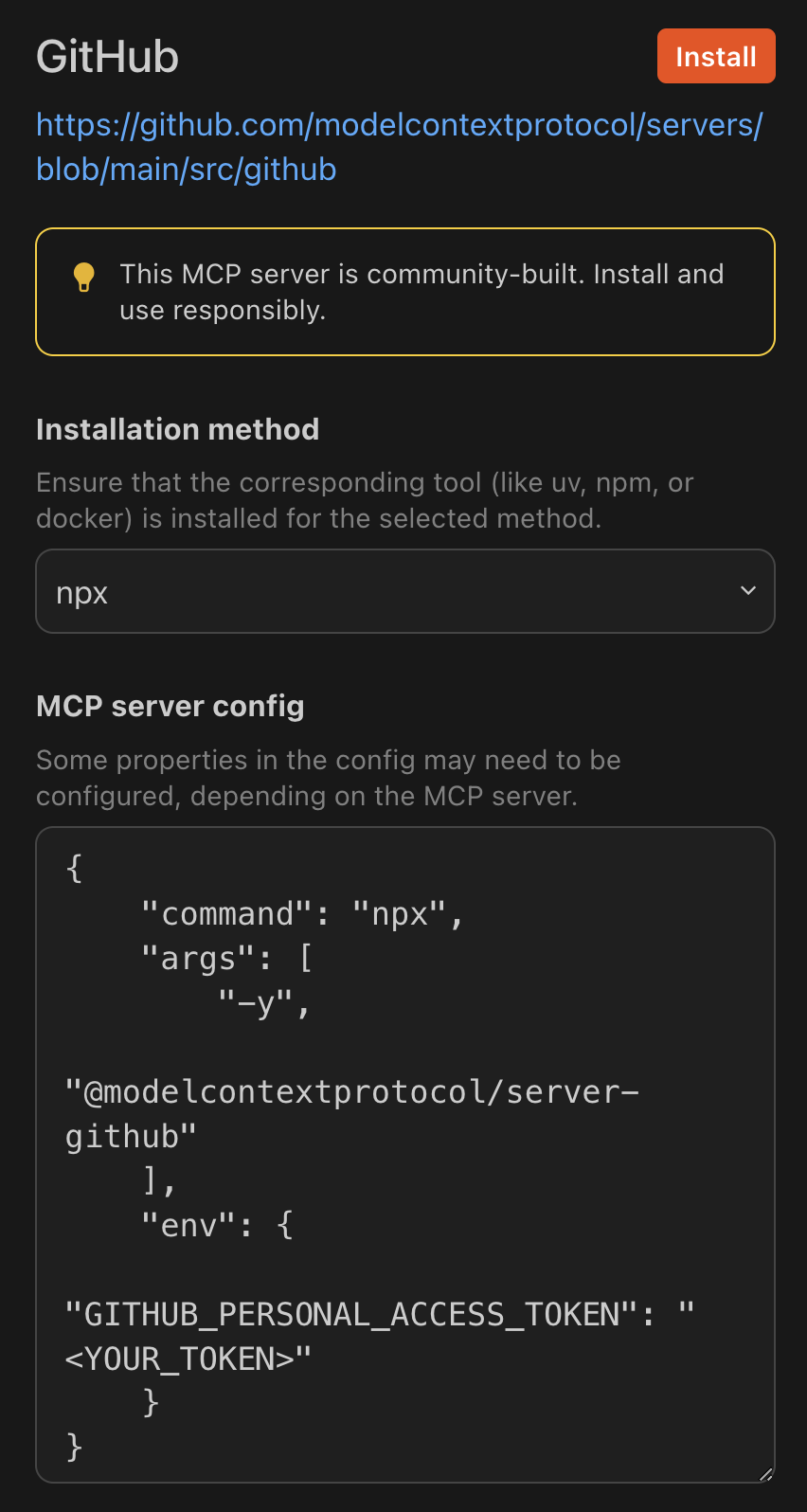
4. Fill in the required configuration details in the form
5. In some cases, you may need to select an **installation method** (such as **Docker** or **local installation**)
6. Click the **Install** button at the top of the form to complete the installation
Installed servers will have an **"Installed"** label next to their name, making it easy to see which MCPs you've already added.
3. Click on the MCP server you want to install
4. Fill in the required configuration details in the form
5. In some cases, you may need to select an **installation method** (such as **Docker** or **local installation**)
6. Click the **Install** button at the top of the form to complete the installation
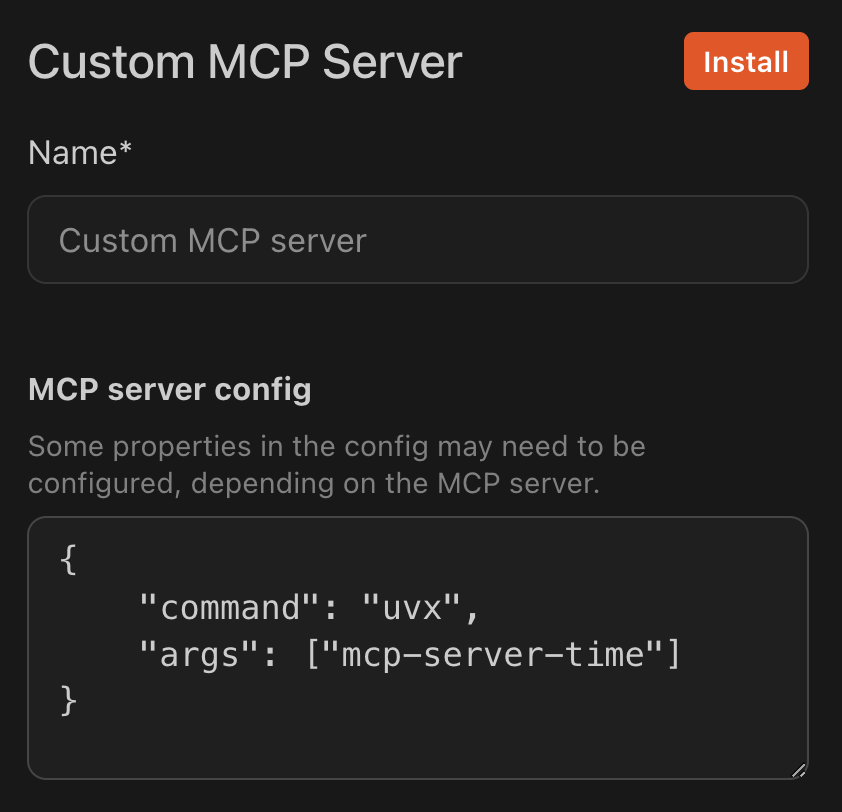
 To add your own custom MCP server:
1. Click the **Add Custom MCP** button
To add your own custom MCP server:
1. Click the **Add Custom MCP** button
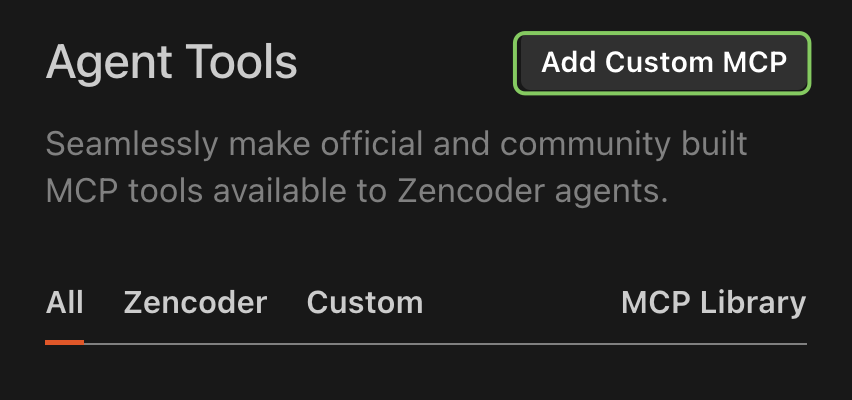 2. Enter a **name** for your MCP and fill in the configuration details
3. Click the **Install** button at the top to add your custom MCP
2. Enter a **name** for your MCP and fill in the configuration details
3. Click the **Install** button at the top to add your custom MCP
 To manage an existing MCP server:
1. Click on the MCP server in your list of installed servers
2. You will see its **configuration details** and **name**
3. You can modify these settings as needed
4. To completely remove the MCP server, click the **Uninstall** button
After adding an MCP server:
1. Make sure [Coding Agent](/features/coding-agent) is enabled
2. Test it with a relevant prompt. For example, if you added the time MCP server, try: "What's the time in Zagreb right now?"
**Important:** Different MCP servers require different command-line tools to be installed on your system:
* **uvx/uv**: Many MCP servers use the `uvx` or `uv` package manager for Python
* **Docker**: Some MCPs require Docker to be installed and running
* **Node.js/npm**: Certain MCPs depend on Node.js and npm
* **Language-specific tools**: Depending on the MCP, you might need specific language runtimes (Python, Ruby, etc.)
Ensure these prerequisites are installed on your system before using the corresponding MCP servers. Check the MCP's documentation for specific requirements.
Open **...** menu in Zencoder chat and select **Settings** from the dropdown menu.
Scroll down to the bottom of the settings page until you find the **MCP Servers** part and click on **"Edit in settings.json"**.
In the **settings.json** file, find the MCP servers configuration section that looks like this:
```jsonc theme={"system"}
"zencoder.mcpServers": {
},
```
Let's add a simple MCP server for getting time information. Add the following configuration:
```jsonc theme={"system"}
"zencoder.mcpServers": {
"time": {
"command": "uvx",
"args": ["mcp-server-time"]
}
},
```
Save the **settings.json** file. Now go back to your chat, make sure [**Coding Agent**](/features/coding-agent) is enabled and try a prompt like: "What's the time in Zagreb right now?"
**Important:** Ensure you have the required command-line tools installed on your system. In this example, you need the `uvx` command available in your PATH.
Open JetBrains settings by going to **File > Settings** (or **JetBrains IDE > Settings** on macOS).
In the settings window, scroll down to **Tools** and expand it if needed. Find **Zencoder** and expand it until you see **MCP Servers**, then click on it.
You'll see instructions showing the format:
```jsonc theme={"system"}
{
"mcp_server_name": {
"command": "...",
"args": [...],
...
}
}
```
Paste the following configuration into the editor:
```jsonc theme={"system"}
{
"time": {
"command": "uvx",
"args": ["mcp-server-time"]
}
}
```
Click **Apply** to save the changes, then reopen your project. Go back to your chat, make sure [**Coding Agent**](/features/coding-agent) is enabled and try a prompt like: "What's the time in Zagreb right now?"
**Important:** Ensure you have the required command-line tools installed on your system. In this example, you need the `uvx` command available in your PATH.
To manage an existing MCP server:
1. Click on the MCP server in your list of installed servers
2. You will see its **configuration details** and **name**
3. You can modify these settings as needed
4. To completely remove the MCP server, click the **Uninstall** button
After adding an MCP server:
1. Make sure [Coding Agent](/features/coding-agent) is enabled
2. Test it with a relevant prompt. For example, if you added the time MCP server, try: "What's the time in Zagreb right now?"
**Important:** Different MCP servers require different command-line tools to be installed on your system:
* **uvx/uv**: Many MCP servers use the `uvx` or `uv` package manager for Python
* **Docker**: Some MCPs require Docker to be installed and running
* **Node.js/npm**: Certain MCPs depend on Node.js and npm
* **Language-specific tools**: Depending on the MCP, you might need specific language runtimes (Python, Ruby, etc.)
Ensure these prerequisites are installed on your system before using the corresponding MCP servers. Check the MCP's documentation for specific requirements.
Open **...** menu in Zencoder chat and select **Settings** from the dropdown menu.
Scroll down to the bottom of the settings page until you find the **MCP Servers** part and click on **"Edit in settings.json"**.
In the **settings.json** file, find the MCP servers configuration section that looks like this:
```jsonc theme={"system"}
"zencoder.mcpServers": {
},
```
Let's add a simple MCP server for getting time information. Add the following configuration:
```jsonc theme={"system"}
"zencoder.mcpServers": {
"time": {
"command": "uvx",
"args": ["mcp-server-time"]
}
},
```
Save the **settings.json** file. Now go back to your chat, make sure [**Coding Agent**](/features/coding-agent) is enabled and try a prompt like: "What's the time in Zagreb right now?"
**Important:** Ensure you have the required command-line tools installed on your system. In this example, you need the `uvx` command available in your PATH.
Open JetBrains settings by going to **File > Settings** (or **JetBrains IDE > Settings** on macOS).
In the settings window, scroll down to **Tools** and expand it if needed. Find **Zencoder** and expand it until you see **MCP Servers**, then click on it.
You'll see instructions showing the format:
```jsonc theme={"system"}
{
"mcp_server_name": {
"command": "...",
"args": [...],
...
}
}
```
Paste the following configuration into the editor:
```jsonc theme={"system"}
{
"time": {
"command": "uvx",
"args": ["mcp-server-time"]
}
}
```
Click **Apply** to save the changes, then reopen your project. Go back to your chat, make sure [**Coding Agent**](/features/coding-agent) is enabled and try a prompt like: "What's the time in Zagreb right now?"
**Important:** Ensure you have the required command-line tools installed on your system. In this example, you need the `uvx` command available in your PATH.