> ## Documentation Index
> Fetch the complete documentation index at: https://docs.zencoder.ai/llms.txt
> Use this file to discover all available pages before exploring further.
# Coding Agent
> Multi-file, multi-language code generation and modification with deep codebase understanding
## What is the Coding Agent?
The Coding Agent is Zencoder's primary development tool that generates, modifies, and refactors code across multiple files and languages. It has built-in validation and error correction, enabling complex development tasks from a single prompt.
## Accessing the Coding Agent
To access the Coding Agent:
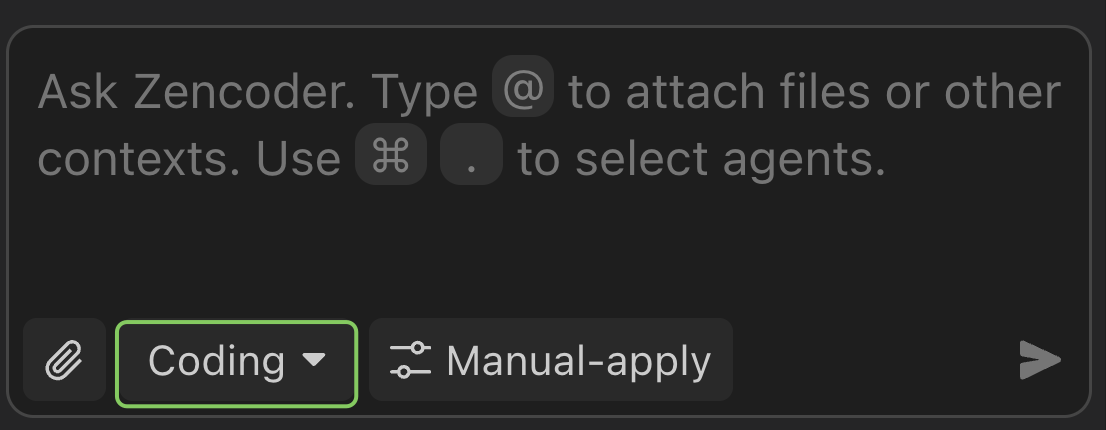
1. Open the agent selector with `Cmd+.` (Mac) or `Ctrl+.` (Windows/Linux)
2. Select `Coding` from the dropdown menu
3. The Coding Agent can perform complex tasks like:
* Creating and modifying multiple files
* Implementing entire features
* Searching the web for documentation
* Running validation and tests
Each chat maintains its selected agent type throughout the conversation. You can start new chats with different agents as needed using the agent selector.
## How It Works
When you send a message to the Coding Agent, it follows a multi-step process:
The agent analyzes your project's structure, patterns, and coding standards from the current workspace and any active [Skills](/features/skills).
Based on your prompt, the agent creates a plan — which files to read, edit, or create, and which tools to invoke (shell commands, web search, MCP calls).
The agent makes edits across multiple files, runs commands, and validates its output. If errors occur (lint failures, type errors, test failures), it self-corrects automatically.
You see a diff of all changes with inline explanations. Accept, reject, or refine with follow-up prompts in the same chat.
There is no limit on the number of tool calls the agent can make in a single turn. Complex tasks may use dozens of tool calls across planning, editing, and validation.
## Agent Tools
The Coding Agent has access to a full set of tools that it invokes autonomously:
| Tool | What it does |
| ----------------------- | --------------------------------------------------------------------------------------------------------- |
| **File Editor** | Read, create, edit, and delete files across your workspace |
| **Shell Commands** | Run terminal commands (build, test, lint, git, package managers) |
| **Codebase Search** | Semantic and full-text search across your project files |
| **Web Search** | Search the web for documentation, APIs, and solutions |
| **Fetch Webpage** | Retrieve content from URLs (docs, API references, stack traces) |
| **Git Operations** | Stage, commit, diff, and manage branches |
| **MCP Tools** | Access any connected [MCP servers](/features/integrations-and-mcp) (databases, Jira, GitHub, Slack, etc.) |
| **File Search** | Find files by name or pattern across the workspace |
| **Gather Requirements** | Ask clarifying questions before proceeding with ambiguous tasks |
Connect MCP servers to give the agent access to your team's tools — pull Jira tickets, query databases, post to Slack, and more. See [Integrations & MCP](/features/integrations-and-mcp).
## Technical Capabilities
Generates and modifies code across multiple files simultaneously while maintaining consistency and proper references
Supports multiple programming languages and frameworks with language-specific optimizations and best practices
Analyzes existing code structure, patterns, and conventions to generate contextually appropriate solutions
Validates generated code against syntax rules, project conventions, and integration requirements
## Tips for Better Results
Instead of "refactor the API," try "refactor the user authentication endpoints in `src/api/auth.ts` to use the new session middleware." The agent works better with clear boundaries.
If you always want a certain code style, test pattern, or error handling approach, define it as a [Skill](/features/skills) so every agent response follows it automatically.
Include "run the tests after making changes" in your prompt. The agent will execute your test suite and self-correct if anything fails.
Start a new chat for each distinct task. Long, multi-topic chats can cause the agent to lose context on earlier instructions.
Use `@file`, `@folder`, or paste URLs to give the agent targeted context.
## Related
Create custom agents with specific instructions and tools for recurring tasks
Reusable instruction packages that agents load automatically based on task context
Connect external tools via Model Context Protocol
Choose from 10+ models or bring your own API key