> ## Documentation Index
> Fetch the complete documentation index at: https://docs.zencoder.ai/llms.txt
> Use this file to discover all available pages before exploring further.
# AI Agents
> Use prebuilt or create custom AI agents (we also call them Zen Agents) that can be called for selected code or entire files directly in your IDE
## Understanding AI Agents
AI Agents are customizable, sharable agents that can be invoked on selected code or entire files in your IDE. Use prebuilt agents or create your own with specific instructions, tools, and commands.
**Agents vs Skills**: AI Agents are interactive — you select them explicitly and chat with them. [Skills](/features/skills) are passive instruction packages that the agent loads automatically based on task context. Use agents for recurring interactive tasks; use skills for domain knowledge and procedural workflows.
## Navigating Agent Categories
At the top of the AI Agents screen, you'll find tabs that help you filter and navigate between different types of agents:
Shows all available agents
Displays prebuilt agents created by Zencoder (with the number indicating how many are available)
Shows your custom agents (with the number indicating how many you've created)
 This categorization makes it easy to distinguish between default agents and your own custom creations.
## Creating an Agent
1. Click the three dots menu (⋮) at the top right corner.
2. Select **Agents**
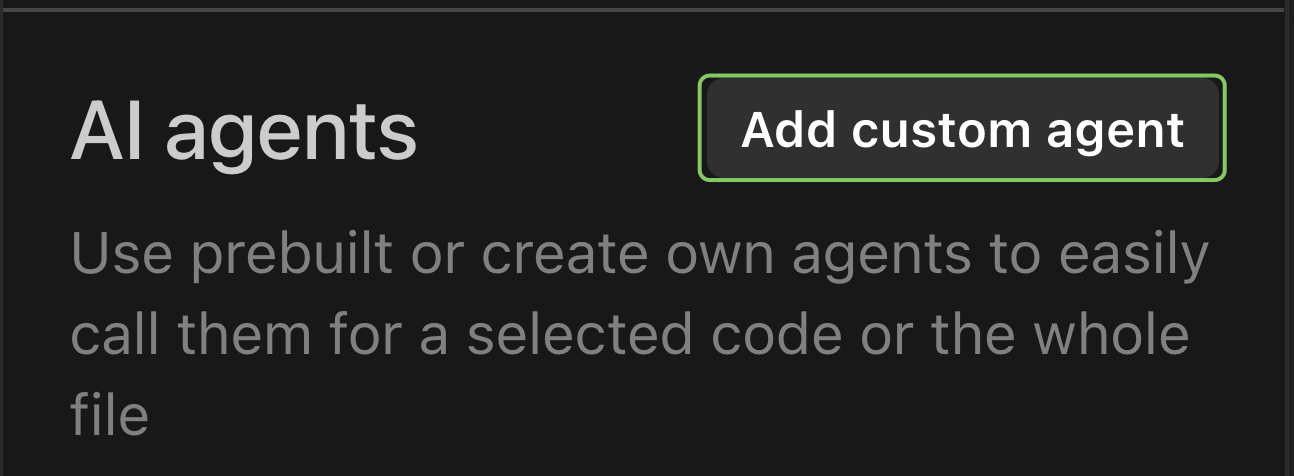
3. Click the **Add custom agent** button in the top right
This categorization makes it easy to distinguish between default agents and your own custom creations.
## Creating an Agent
1. Click the three dots menu (⋮) at the top right corner.
2. Select **Agents**
3. Click the **Add custom agent** button in the top right
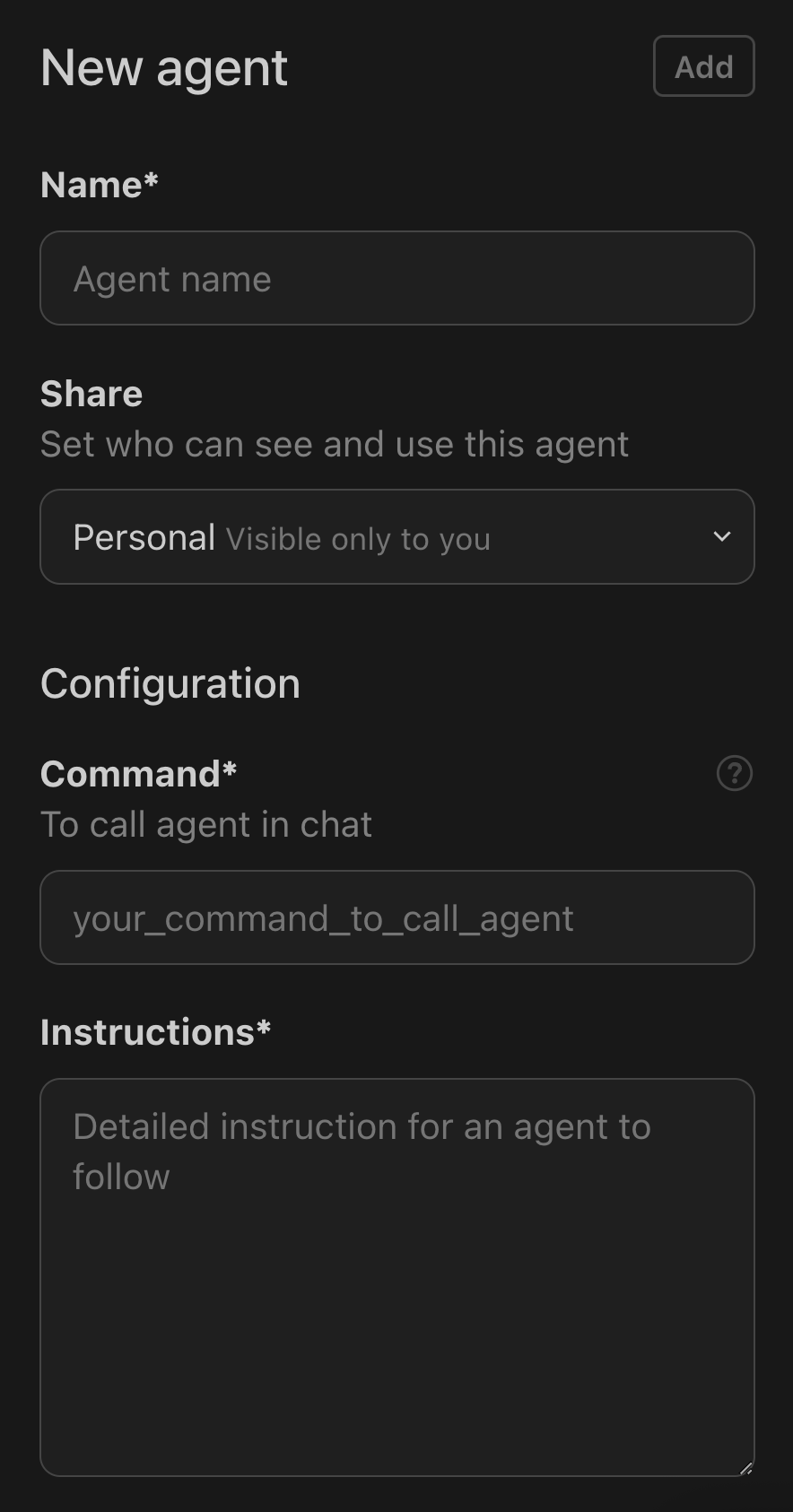
 When adding or editing an agent, you'll need to set these properties:
**Basic Settings:**
* **Name**: A descriptive name for your agent (required)
* **Share**: Control who can see and use this agent
* Personal: Visible only to you
* Shared: Visible to your entire organization (all users within your organization can share agents with others)
**Configuration:**
* **Command/Alias**: The chat command to invoke your agent (required)
* **Instructions**: Detailed prompt instructions that define your agent's behavior (required)
* **Tools**: Enable specific tools your agent can access
When adding or editing an agent, you'll need to set these properties:
**Basic Settings:**
* **Name**: A descriptive name for your agent (required)
* **Share**: Control who can see and use this agent
* Personal: Visible only to you
* Shared: Visible to your entire organization (all users within your organization can share agents with others)
**Configuration:**
* **Command/Alias**: The chat command to invoke your agent (required)
* **Instructions**: Detailed prompt instructions that define your agent's behavior (required)
* **Tools**: Enable specific tools your agent can access
 Define clear instructions for your agent that explain its purpose and how it should operate. Here's an example of instructions for a Repository Analyzer agent:
```
Consider the currently open project and repository.
Understand its structure, mutual relations between files, folders, dependencies, and more.
Please provide me with an in-depth structured understanding of this repo
```
Your instructions should be specific enough to guide the agent's behavior, but also flexible enough to work across different contexts.
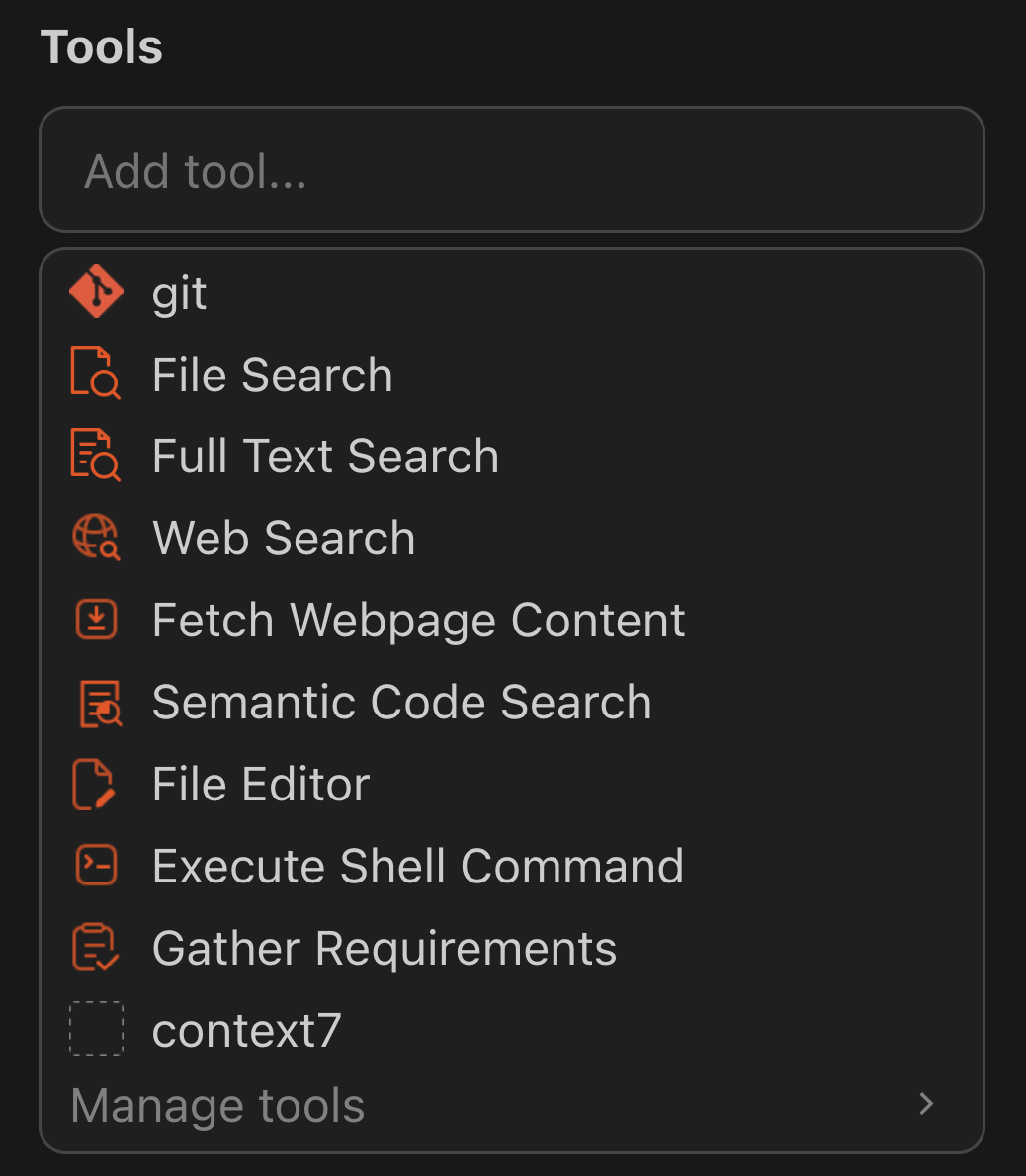
Agents can access various tools to enhance their capabilities:
* git
* File Search
* Full Text Search
* Web Search
* Fetch Webpage Content
* Semantic Code Search
* File Editor
* Execute Shell Command
* Gather Requirements
* ...
Simply click on the tools your agent should have access to in the **Tools** section.
Define clear instructions for your agent that explain its purpose and how it should operate. Here's an example of instructions for a Repository Analyzer agent:
```
Consider the currently open project and repository.
Understand its structure, mutual relations between files, folders, dependencies, and more.
Please provide me with an in-depth structured understanding of this repo
```
Your instructions should be specific enough to guide the agent's behavior, but also flexible enough to work across different contexts.
Agents can access various tools to enhance their capabilities:
* git
* File Search
* Full Text Search
* Web Search
* Fetch Webpage Content
* Semantic Code Search
* File Editor
* Execute Shell Command
* Gather Requirements
* ...
Simply click on the tools your agent should have access to in the **Tools** section.
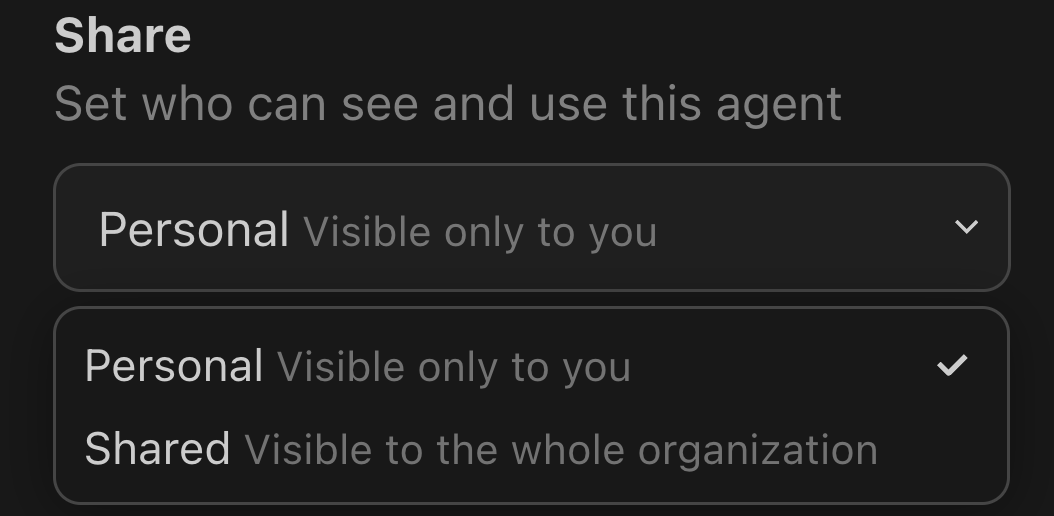
 If you're an admin, you can share agents with your organization:
1. When editing an agent, find the **Share** dropdown
2. Choose between:
* **Personal**: Visible only to you
* **Shared**: Visible to the whole organization
If you're an admin, you can share agents with your organization:
1. When editing an agent, find the **Share** dropdown
2. Choose between:
* **Personal**: Visible only to you
* **Shared**: Visible to the whole organization
 The [Agents Marketplace](https://zencoder.ai/marketplace) contains prebuilt agents for various development tasks (bug prevention, documentation generation, code review, etc.).
Visit our Agents Marketplace to explore available agents. Browse through the list and select the one that best suits your development needs.
Click on the agent to view its details, including:
* Name
* Description
* Instructions
* Tools required
1. Open the Zencoder extension in your IDE.
2. Click the three dots menu (⋮) at the top right corner.
3. Select **Agents** to open the custom agent creation page.
4. Click **Add Custom Agent**.
* **Name**: Give your agent a unique name.
* **Instructions**: Copy the instructions from the agent's detail page on the Marketplace and paste them into the "Instructions" field.
* **Tools**:
* Open the **Tools** section in the extension.
* Navigate to **Manage Tools**.
* Search for the tools listed in the agent's details and install them if needed.
Tool configuration is case-by-case. Follow the guidance provided in the agent's description. There are no standardized patterns yet.
* After configuring the agent with the name, command, instructions, and tools, save it.
* You can now use this custom agent directly in your IDE for coding assistance.
### Contributing Your Own Agents
You can submit custom agents to the marketplace via the [zenagents-library GitHub repo](https://github.com/zencoderai/zenagents-library).
## Using Agents in Your Workflow
Once configured, you can use agents by:
1. Selecting code in your editor or focusing on an entire file
2. Invoking the agent using its command (e.g., `/unittests`, `/review`)
3. The agent will perform its specialized task on the selected code
## Example Use Cases
Create an agent with instructions to scan for OWASP Top 10 vulnerabilities, check for hardcoded secrets, and verify authentication/authorization patterns. Give it access to **File Editor**, **Codebase Search**, and **Shell Commands** (to run static analysis tools).
Build an agent that reads recent git commits and generates changelog entries. Give it **Git Operations** and **Web Search** (to link to related issues). Set the command to `/release-notes`.
Create an agent with instructions to generate OpenAPI specs from your route files. Scope it with **Codebase Search** and **File Editor** to read route definitions and write `.yaml` docs.
Share an agent across your org that new team members can invoke to get explanations of project architecture, key modules, and development workflows. Give it read-only tools (**Codebase Search**, **File Search**) and reference your repo's README and architecture docs in its instructions.
## Tips for Custom Agents
An agent should do one thing well. A "Security Scanner" is better than a "Security Scanner + Performance Optimizer + Docs Generator."
Only enable the tools your agent actually needs. A read-only analysis agent shouldn't have **File Editor** or **Shell Commands**.
Pick short, memorable commands like `/review`, `/docs`, or `/migrate`. These become muscle memory.
Set agents to **Shared** visibility so your entire org benefits. This is especially powerful for standardized workflows like PR reviews or release processes.
## Related
The primary development agent that your custom agents can complement
Reusable instruction packages that agents load automatically based on task context
Connect external tools via Model Context Protocol
Choose from 10+ models or bring your own API key
The [Agents Marketplace](https://zencoder.ai/marketplace) contains prebuilt agents for various development tasks (bug prevention, documentation generation, code review, etc.).
Visit our Agents Marketplace to explore available agents. Browse through the list and select the one that best suits your development needs.
Click on the agent to view its details, including:
* Name
* Description
* Instructions
* Tools required
1. Open the Zencoder extension in your IDE.
2. Click the three dots menu (⋮) at the top right corner.
3. Select **Agents** to open the custom agent creation page.
4. Click **Add Custom Agent**.
* **Name**: Give your agent a unique name.
* **Instructions**: Copy the instructions from the agent's detail page on the Marketplace and paste them into the "Instructions" field.
* **Tools**:
* Open the **Tools** section in the extension.
* Navigate to **Manage Tools**.
* Search for the tools listed in the agent's details and install them if needed.
Tool configuration is case-by-case. Follow the guidance provided in the agent's description. There are no standardized patterns yet.
* After configuring the agent with the name, command, instructions, and tools, save it.
* You can now use this custom agent directly in your IDE for coding assistance.
### Contributing Your Own Agents
You can submit custom agents to the marketplace via the [zenagents-library GitHub repo](https://github.com/zencoderai/zenagents-library).
## Using Agents in Your Workflow
Once configured, you can use agents by:
1. Selecting code in your editor or focusing on an entire file
2. Invoking the agent using its command (e.g., `/unittests`, `/review`)
3. The agent will perform its specialized task on the selected code
## Example Use Cases
Create an agent with instructions to scan for OWASP Top 10 vulnerabilities, check for hardcoded secrets, and verify authentication/authorization patterns. Give it access to **File Editor**, **Codebase Search**, and **Shell Commands** (to run static analysis tools).
Build an agent that reads recent git commits and generates changelog entries. Give it **Git Operations** and **Web Search** (to link to related issues). Set the command to `/release-notes`.
Create an agent with instructions to generate OpenAPI specs from your route files. Scope it with **Codebase Search** and **File Editor** to read route definitions and write `.yaml` docs.
Share an agent across your org that new team members can invoke to get explanations of project architecture, key modules, and development workflows. Give it read-only tools (**Codebase Search**, **File Search**) and reference your repo's README and architecture docs in its instructions.
## Tips for Custom Agents
An agent should do one thing well. A "Security Scanner" is better than a "Security Scanner + Performance Optimizer + Docs Generator."
Only enable the tools your agent actually needs. A read-only analysis agent shouldn't have **File Editor** or **Shell Commands**.
Pick short, memorable commands like `/review`, `/docs`, or `/migrate`. These become muscle memory.
Set agents to **Shared** visibility so your entire org benefits. This is especially powerful for standardized workflows like PR reviews or release processes.
## Related
The primary development agent that your custom agents can complement
Reusable instruction packages that agents load automatically based on task context
Connect external tools via Model Context Protocol
Choose from 10+ models or bring your own API key